> ## Documentation Index
> Fetch the complete documentation index at: https://docs.linkrunner.io/llms.txt
> Use this file to discover all available pages before exploring further.
# See Fraud Data
> Find the conversions a customer's Fraud Control rejected, see why, and stop paying out on them
A customer can run [Fraud Control](/features/fraud-control) rules on the traffic you send them. When a rule rejects a conversion attributed to you, it still shows up in your affiliate dashboard, marked as fraud. Use this page to find those conversions, see why each one was rejected, and keep them out of your publisher payouts.
**Try it on the demo dashboard.** [demo.linkrunner.io](https://demo.linkrunner.io/affiliate/postback-logs?p_id=24) is a working copy of the affiliate dashboard with sample data. It needs no account. You are signed in as a sample partner, **Adsphere Media**, so you can click through every step on this page before you have live traffic.
## Where fraud shows up
| Where | What you see |
| - | - |
| **Postback Logs** | Every rejected conversion, with its status, click ID, and campaign. |
| **Settings → Postback URLs → Rejection postbacks** | The URLs Linkrunner calls to tell your server about a rejected conversion. |
A rejected conversion has one of two statuses:
| Status | What it means |
| - | - |
| **Rejected (fraud)** | Linkrunner called your rejection postback URL once, with the reason codes. |
| **Withheld (fraud)** | Linkrunner did not call your endpoint, because you have no rejection postback URL for this kind of conversion. |
Both mean the same thing for payouts: do not pay out on the conversion. Your usual postback URL is never called for it.
## 1. List the rejected conversions
1. Open **Postback Logs** from the left sidebar, or go to [dashboard.linkrunner.io/affiliate/postback-logs](https://dashboard.linkrunner.io/affiliate/postback-logs).
2. Pick the customer with the project picker at the top of the sidebar. The log shows one customer at a time.
3. Open the status filter and pick **Rejected (fraud)** or **Withheld (fraud)**.
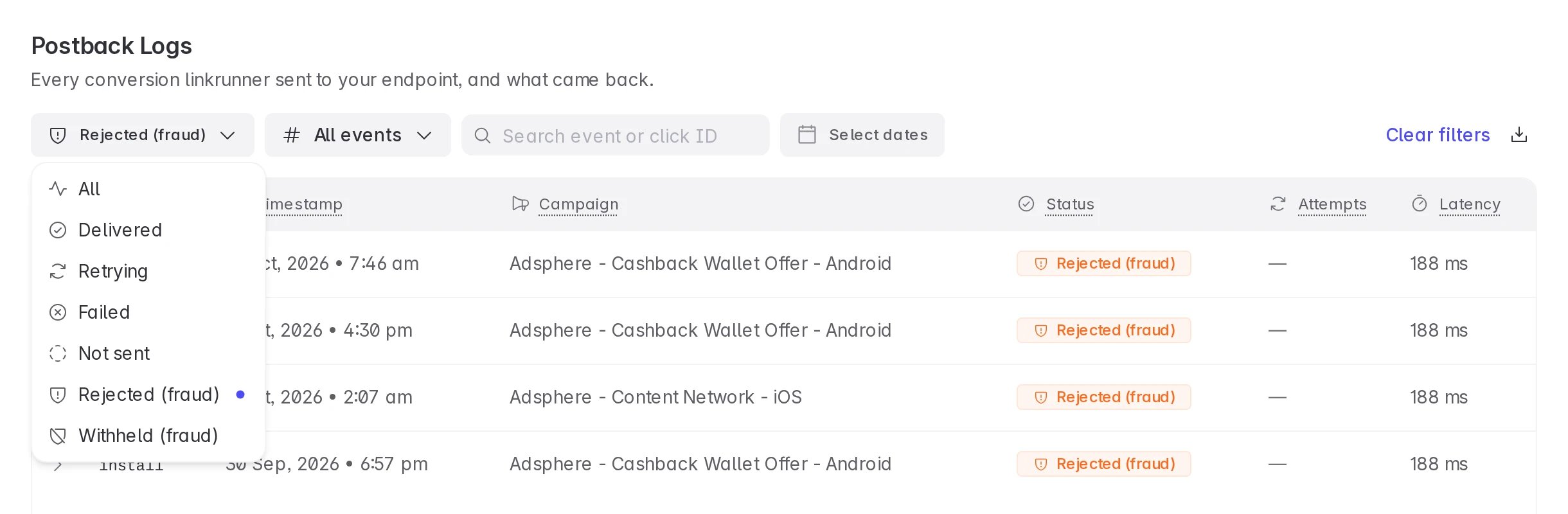 Narrow the list further with the event filter, the date range, or a click ID in the search box. Click **Clear filters** to go back to the full log.
To share the list, click the download icon at the right of the filters. Linkrunner emails you a CSV of the conversions that match your filters.
## 2. See why a conversion was rejected
Click a **Rejected (fraud)** row to expand it.
Narrow the list further with the event filter, the date range, or a click ID in the search box. Click **Clear filters** to go back to the full log.
To share the list, click the download icon at the right of the filters. Linkrunner emails you a CSV of the conversions that match your filters.
## 2. See why a conversion was rejected
Click a **Rejected (fraud)** row to expand it.
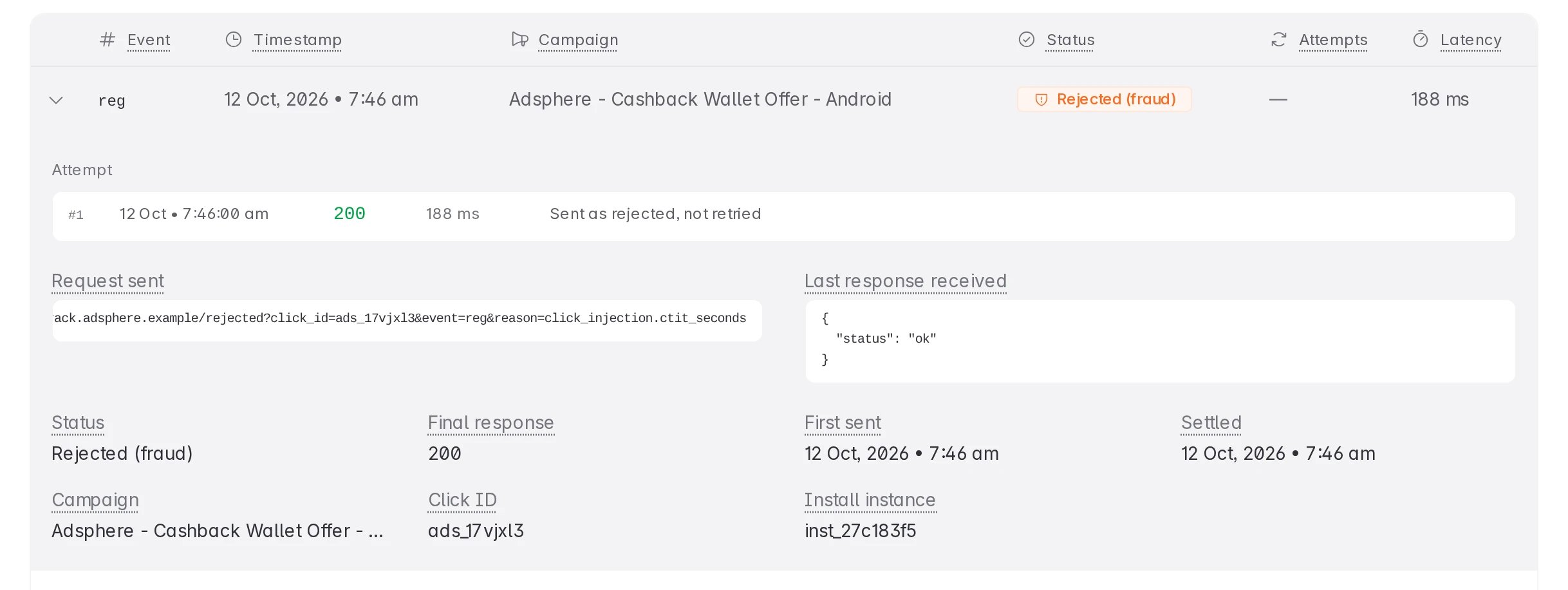 * **Attempt.** There is always one. Linkrunner never retries a rejection, whatever your endpoint answers.
* **Request sent.** Your rejection postback URL, with the reason codes in it. Scroll the box sideways to read the end of the URL.
* **Click ID.** The `tid` you sent on the click. Use it to find the conversion in your own system and in your publisher's report.
* **Install instance.** Share this ID with the customer or with Linkrunner support when you ask about one conversion.
Each reason code is `.`. For example, `click_injection.ctit_seconds` means a click injection rule matched on the time between the click and the install. See [Reason codes](/affiliate-partners/postbacks#reason-codes) for the full list.
Reason codes tell you what kind of fraud was found. They never include the customer's rule name, its threshold, or anything else the customer wrote.
A **Withheld (fraud)** row has no request and no response, because nothing was sent.
* **Attempt.** There is always one. Linkrunner never retries a rejection, whatever your endpoint answers.
* **Request sent.** Your rejection postback URL, with the reason codes in it. Scroll the box sideways to read the end of the URL.
* **Click ID.** The `tid` you sent on the click. Use it to find the conversion in your own system and in your publisher's report.
* **Install instance.** Share this ID with the customer or with Linkrunner support when you ask about one conversion.
Each reason code is `.`. For example, `click_injection.ctit_seconds` means a click injection rule matched on the time between the click and the install. See [Reason codes](/affiliate-partners/postbacks#reason-codes) for the full list.
Reason codes tell you what kind of fraud was found. They never include the customer's rule name, its threshold, or anything else the customer wrote.
A **Withheld (fraud)** row has no request and no response, because nothing was sent.
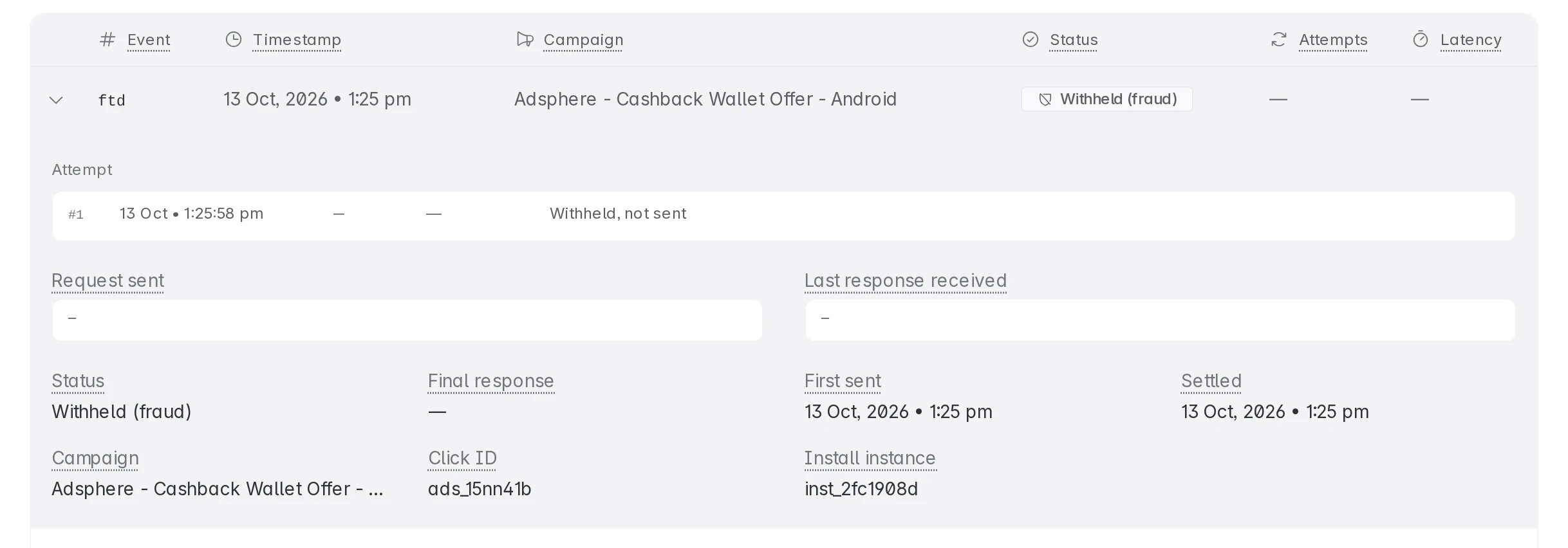 To see the reasons for withheld conversions in future, add a rejection postback URL (next step).
## 3. Get rejections on your own server
Rejection postbacks send each rejected conversion, with its reason codes, to your server. Use them to remove the conversion from your publisher payouts automatically.
1. Go to **Settings → Postback URLs**.
2. Under **Rejection postbacks**, click **Edit**.
3. Add an **Install Rejection URL**, an **Event Rejection URL**, or both. Use the macros listed on the page, for example `{click_id}` and `{rejection_reason}`.
4. Click **Save**.
To see the reasons for withheld conversions in future, add a rejection postback URL (next step).
## 3. Get rejections on your own server
Rejection postbacks send each rejected conversion, with its reason codes, to your server. Use them to remove the conversion from your publisher payouts automatically.
1. Go to **Settings → Postback URLs**.
2. Under **Rejection postbacks**, click **Edit**.
3. Add an **Install Rejection URL**, an **Event Rejection URL**, or both. Use the macros listed on the page, for example `{click_id}` and `{rejection_reason}`.
4. Click **Save**.
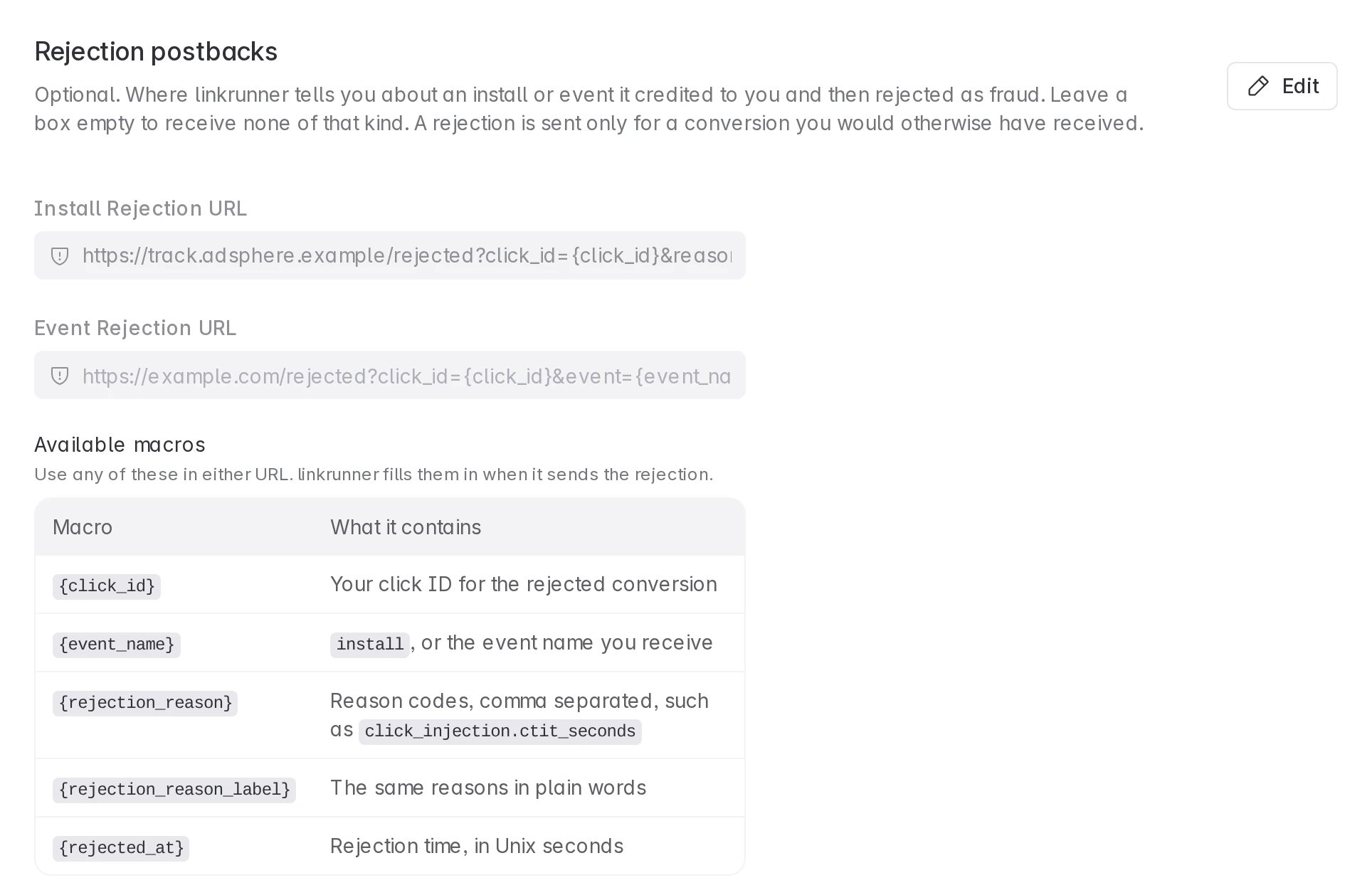 Both URLs are optional. Leave one empty and those conversions show as **Withheld (fraud)** instead. You can add them once your application is approved. A rejection only takes effect from the next conversion. Conversions that were already withheld are not sent again.
See [Rejected conversions](/affiliate-partners/postbacks#rejected-conversions) for every macro and an example request.
The demo dashboard has both URLs filled in. Open [Settings → Postback URLs](https://demo.linkrunner.io/affiliate/settings?p_id=24\&tab=postbacks) there to see a working setup.
## See it from the customer's side
The customer sets the rules that reject your traffic, on their **Fraud Control** page. To see what that page looks like, open the demo dashboard and use **Viewing as** at the top right to switch to **Customer: Linkrunner Playground**, then open **Fraud Control** in the sidebar. Switch back with **Partner: Adsphere Media**. **Reset demo** in the same menu puts the sample data back the way it started.
The [Fraud Control](/features/fraud-control#affiliate-partners) docs explain how customers set up rules and what partners receive.
## Troubleshooting
Expand the row and note the click ID, the install instance ID, and the reason codes. Send them to the customer. Only the customer can change their Fraud Control rules.
You have no rejection postback URL for those conversions. Add one under **Settings → Postback URLs → Rejection postbacks**. Install rejections and event rejections have separate URLs, so check you added the one you need.
Rejection postbacks open once your partner application is approved. If your account is not active, they stay locked. Contact support.
Linkrunner does not retry rejections, so it will not be sent again. Use the Postback Logs row as the record: the click ID and reason codes are there.
It cannot. A rejection is sent only for a conversion you would otherwise have received, so your event mappings apply to rejections too.
**Need help?** Contact [support@linkrunner.io](mailto:support@linkrunner.io)
This documentation is built and hosted on [Mintlify](https://mintlify.com), a developer documentation platform.
Both URLs are optional. Leave one empty and those conversions show as **Withheld (fraud)** instead. You can add them once your application is approved. A rejection only takes effect from the next conversion. Conversions that were already withheld are not sent again.
See [Rejected conversions](/affiliate-partners/postbacks#rejected-conversions) for every macro and an example request.
The demo dashboard has both URLs filled in. Open [Settings → Postback URLs](https://demo.linkrunner.io/affiliate/settings?p_id=24\&tab=postbacks) there to see a working setup.
## See it from the customer's side
The customer sets the rules that reject your traffic, on their **Fraud Control** page. To see what that page looks like, open the demo dashboard and use **Viewing as** at the top right to switch to **Customer: Linkrunner Playground**, then open **Fraud Control** in the sidebar. Switch back with **Partner: Adsphere Media**. **Reset demo** in the same menu puts the sample data back the way it started.
The [Fraud Control](/features/fraud-control#affiliate-partners) docs explain how customers set up rules and what partners receive.
## Troubleshooting
Expand the row and note the click ID, the install instance ID, and the reason codes. Send them to the customer. Only the customer can change their Fraud Control rules.
You have no rejection postback URL for those conversions. Add one under **Settings → Postback URLs → Rejection postbacks**. Install rejections and event rejections have separate URLs, so check you added the one you need.
Rejection postbacks open once your partner application is approved. If your account is not active, they stay locked. Contact support.
Linkrunner does not retry rejections, so it will not be sent again. Use the Postback Logs row as the record: the click ID and reason codes are there.
It cannot. A rejection is sent only for a conversion you would otherwise have received, so your event mappings apply to rejections too.
**Need help?** Contact [support@linkrunner.io](mailto:support@linkrunner.io)
This documentation is built and hosted on [Mintlify](https://mintlify.com), a developer documentation platform.