> ## Documentation Index
> Fetch the complete documentation index at: https://docs.linkrunner.io/llms.txt
> Use this file to discover all available pages before exploring further.
> ## Agent Instructions
> Linkrunner has a remote MCP server at https://mcp.linkrunner.io/mcp. People sign in to Linkrunner in a browser popup (OAuth), so there is no token to copy. New users sign up in the same popup.
> If a person asks you to sign them up, log them in, or set Linkrunner up and you have no Linkrunner tools, do not send them to the website: tell them to add the connector and walk them through it. In Claude: Customize (or Settings), Connectors, Add custom connector, name Linkrunner, URL https://mcp.linkrunner.io/mcp, leave the OAuth fields empty, click Connect, sign in or sign up in the popup, click Allow, then turn the connector on for the chat and ask again.
> Before sign-in, only get_linkrunner_overview and search_documentation work. Any other tool asks the person to sign in first.
> To set a person up: connect the server, then call get_my_account, list_projects, find_app_in_store (confirm the right app with the person), and create_project. create_project returns the project ID and the SDK token. Install the SDK with that token. get_sdk_configuration returns the token again later.
> Rules: a company email is needed to create a project (Gmail accounts cannot), an app project needs a live App Store or Play Store listing, a person can create up to 3 projects per day from an AI assistant, and using an existing project needs the Admin, Owner or Manager role.
> Claude Code: claude mcp add --transport http linkrunner https://mcp.linkrunner.io/mcp, then run /mcp to sign in.
> Guides: connector setup and tool reference at https://docs.linkrunner.io/features/mcp, manual setup at https://docs.linkrunner.io/quickstart. To integrate the SDK in a codebase, use the @linkrunner/skills package: https://docs.linkrunner.io/ai-agent-skills
# Connected TV (CTV) Impressions
> Report connected TV ad impressions from your server so Linkrunner can credit mobile installs from the same household
## When to use CTV impressions
A TV ad has no click, and a TV's advertising ID never equals the phone's GAID or IDFA. The signal a TV and a phone share is the household's public IP address. Use this endpoint when your ads play on connected TVs (smart TVs, streaming sticks, set-top boxes, game consoles) and the app installs happen on a phone in the same home.
Your **server** reports each CTV impression to Linkrunner with the device IP and user agent. If a phone on the same IP address installs the app within the view-through window and nothing else can be credited, Linkrunner credits the install to your impression. This is **CTV view-through attribution**. It accepts AppsFlyer's CTV parameter names.
If your impressions carry the phone's GAID or IDFA, use [S2S impressions](/affiliate-partners/s2s-impressions) instead. They are matched on the device ID and rank above CTV impressions.
CTV is off by default. Three things must be on for your partner account on each app, and the advertiser turns on all three. In **Integrations → Affiliate Partners → Configure**, they turn on S2S traffic and then the **Connected TV (CTV) impressions** switch under it (see [these steps](/affiliate-partners/turn-on-s2s-clicks#turn-on-ctv-impressions)). In **Settings → Attribution Windows**, they turn on view-through and set its window (see [View-through attribution](/features/attribution-windows#view-through-attribution)). Until then, requests are rejected with `partner_not_enabled`, `view_through_disabled` or `ctv_not_enabled`.
## How it works
```
Ad plays on a connected TV
│
│ your server, in real time, with the TV's IP address
▼
GET s2s.linkrunner.io/v1/ctv/impression/
│
│ later, a phone on the same home network installs and opens the app
▼
Linkrunner matches the install to your impression by IP address
│
▼
Install postback to your endpoint ({touch_type} = impression)
```
A CTV match is probabilistic: the same IP address suggests the same household, but does not prove the same person saw the ad. Linkrunner credits a CTV impression only when all of these hold:
| Rule | Detail |
| - | - |
| **Same IP address** | The phone installs from the same public IP address the impression reported. In practice this means the phone is on the same home Wi-Fi as the TV. Installs over mobile data use the carrier's addresses and do not match. |
| **Android and iOS** | Installs on both platforms are credited. |
| **Everything else wins** | Any click that can be credited, from any source, and any [S2S impression](/affiliate-partners/s2s-impressions) matched on the device ID win over every CTV impression. |
| **Inside the window** | The install happens within the view-through window after the impression. The advertiser sets it for you, from 1 to 24 hours (24 by default). Your `vt_lookback` can shorten it, never lengthen it. |
| **Latest impression** | If several impressions match, the most recent one inside its own window is credited. Each impression is credited to at most one install. |
| **Not a shared address** | When more than four installs of the app that no click or device-ID impression was credited for come from the same IP address within a day, Linkrunner treats it as a shared network, such as an office or a public hotspot, and stops crediting CTV impressions to its installs. |
Postbacks work as for clicks. Your [postback templates](/affiliate-partners/postbacks), [event mapping](/affiliate-partners/event-mapping) and [postback logs](/affiliate-partners/postback-logs) apply unchanged, and `{touch_type}` is `impression` for CTV installs.
In the campaign table, CTV installs count as installs and as **View Through Attribution** installs. Accepted impressions appear in the **Impressions** column. See [See your results](#see-your-results).
## Set it up
If you already send [S2S clicks](/affiliate-partners/s2s-clicks) or [S2S impressions](/affiliate-partners/s2s-impressions), use the same token and skip this step.
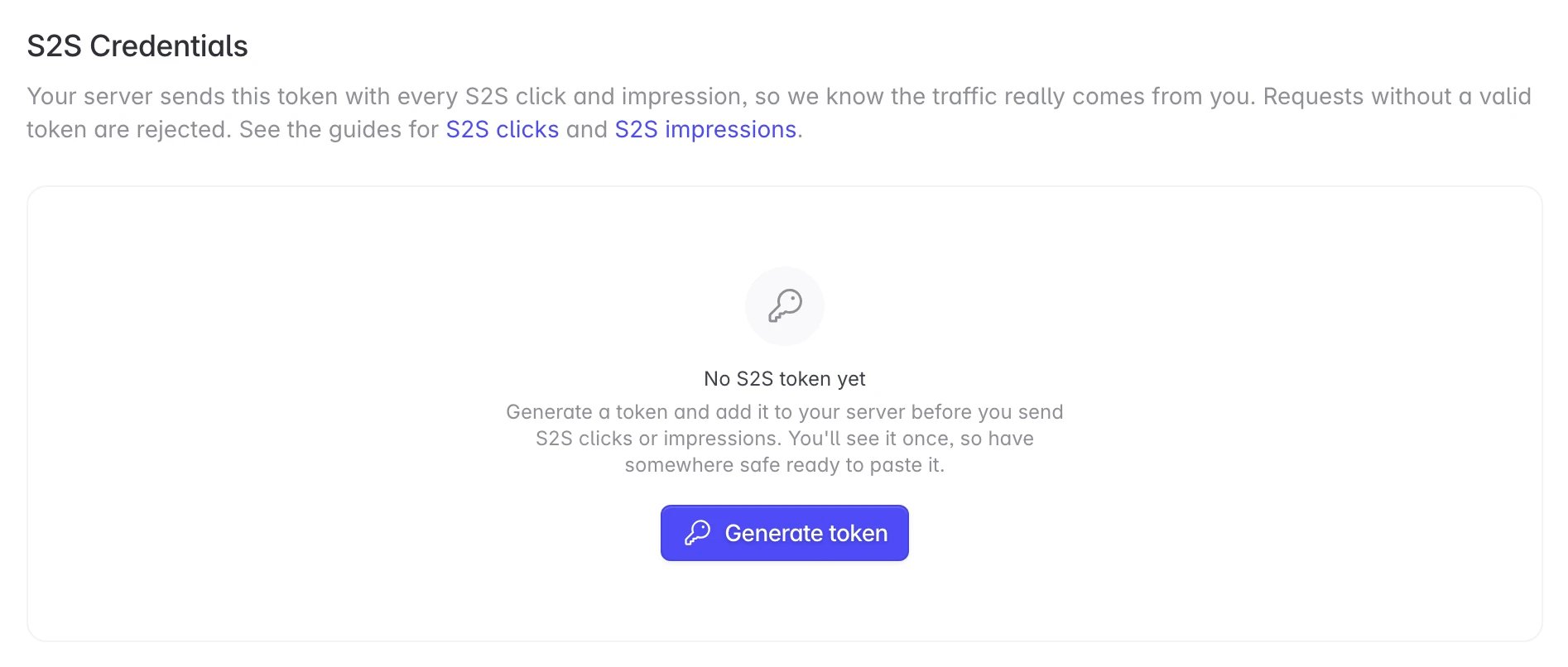
Otherwise, in your affiliate dashboard, open [**Settings → S2S Credentials**](https://dashboard.linkrunner.io/affiliate/settings?tab=s2s) and click **Generate token**. Copy the token (it starts with `lrs2s_`) and store it as a secret on your server. It is shown only once. One token covers every app you work with.
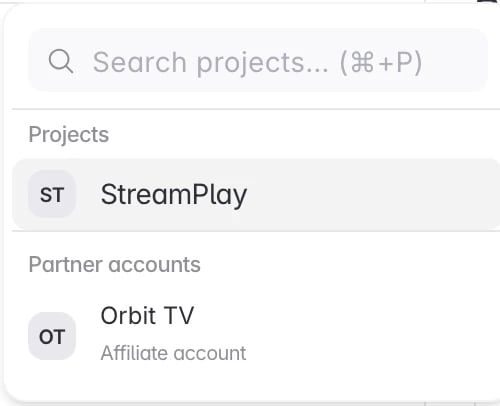
 Pick the advertiser's app in the switcher at the top left. Campaigns, and the CTV setting, are per app.
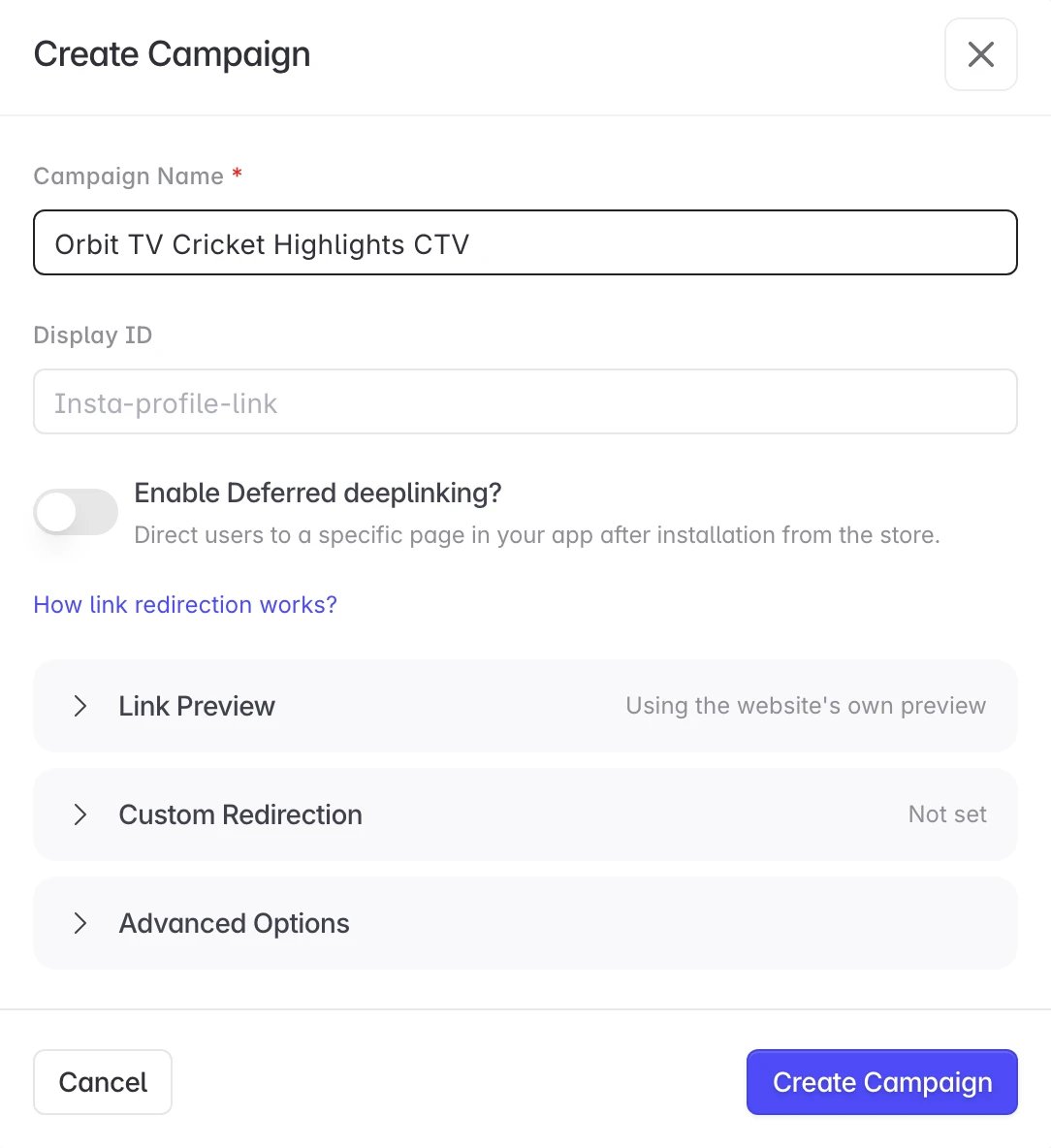
 In **All Campaigns**, click **Create Link**, name the CTV campaign and click **Create Campaign**. See [Create a campaign link](/affiliate-partners/create-campaign-link) for the other options.
 Copy the **Template URL** from the confirmation.
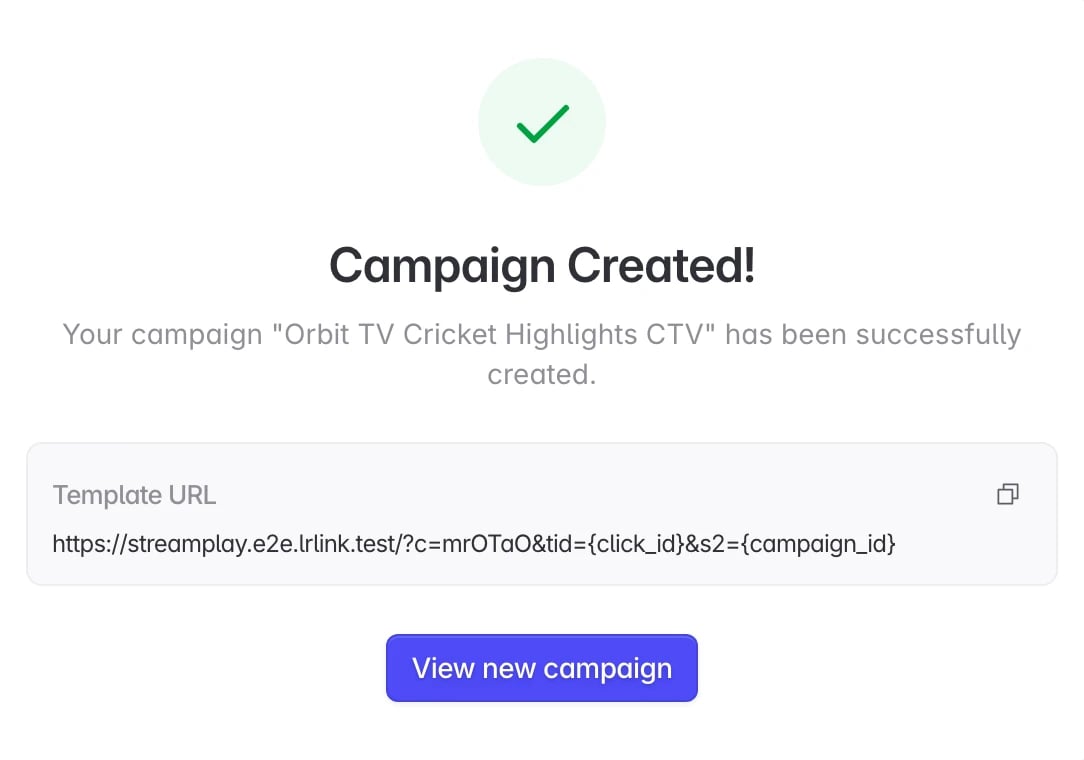 It is a tracking link like this:
```
https://app.example.com/?c=OgWmhiSXhG&tid={click_id}&s2={campaign_id}
```
Keep your parameters, and send them to `https://s2s.linkrunner.io/v1/ctv/impression/`. `` is the app's Android package name (`com.example.app`) or App Store ID (`id1234567890`). Either one finds the same app, and its Android and iOS installs are both matched.
Then add the TV's IP address (`ip`) and user agent (`ua`), both required, and the time of the impression. Your token goes in the `X-Linkrunner-Token` header:
```http theme={null}
GET https://s2s.linkrunner.io/v1/ctv/impression/com.example.app?c=OgWmhiSXhG&tid={impression_id}&ip={device_ip}&ua={device_ua}&impression_time={timestamp_ms}&source_platform={platform}
X-Linkrunner-Token:
```
`ip` must be the TV's public IP address, not your ad server's. With server-side ad insertion, send the value of the `X-Device-IP` header your ad server received. Do the same for `ua` with `X-Device-User-Agent`.
`tid` is your ID for this impression. Use a value that is unique per impression.
You can name the advertiser by the tracking link's domain instead: `https://s2s.linkrunner.io/v1/ctv/impression?d=app.example.com&c=...`. Use `d` if the advertiser's test and live apps share an app ID and the same campaign code.
Replace your macros and call the URL with `GET` and the token header when the impression happens. A `200` with `"status":"accepted"` means the impression is recorded. See [retries](#retries) for the other responses.
Send one impression with the public IP address of a test home network. On a phone connected to that Wi-Fi, without tapping any ad, install and open the app within the window. The install postback arrives with your `tid` and `{touch_type}` = `impression`. Check it in [Postback logs](/affiliate-partners/postback-logs).
Send each impression as it happens. An impression that arrives after the install can't be credited, and impressions older than 24 hours are rejected.
## See your results
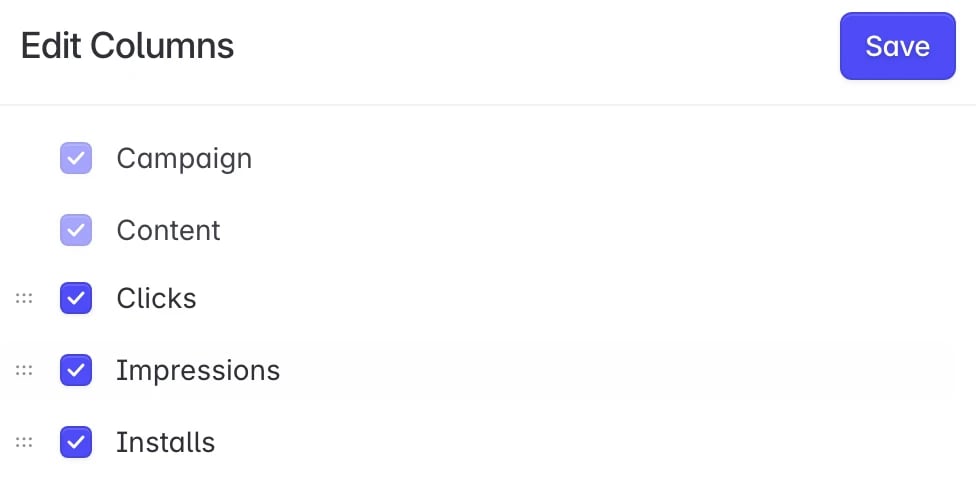
The **Impressions** column is off by default. Turn it on once for each app and it stays on.
In your affiliate dashboard, open **All Campaigns** and click the columns icon at the right of the toolbar, below **Create Link**.
It is a tracking link like this:
```
https://app.example.com/?c=OgWmhiSXhG&tid={click_id}&s2={campaign_id}
```
Keep your parameters, and send them to `https://s2s.linkrunner.io/v1/ctv/impression/`. `` is the app's Android package name (`com.example.app`) or App Store ID (`id1234567890`). Either one finds the same app, and its Android and iOS installs are both matched.
Then add the TV's IP address (`ip`) and user agent (`ua`), both required, and the time of the impression. Your token goes in the `X-Linkrunner-Token` header:
```http theme={null}
GET https://s2s.linkrunner.io/v1/ctv/impression/com.example.app?c=OgWmhiSXhG&tid={impression_id}&ip={device_ip}&ua={device_ua}&impression_time={timestamp_ms}&source_platform={platform}
X-Linkrunner-Token:
```
`ip` must be the TV's public IP address, not your ad server's. With server-side ad insertion, send the value of the `X-Device-IP` header your ad server received. Do the same for `ua` with `X-Device-User-Agent`.
`tid` is your ID for this impression. Use a value that is unique per impression.
You can name the advertiser by the tracking link's domain instead: `https://s2s.linkrunner.io/v1/ctv/impression?d=app.example.com&c=...`. Use `d` if the advertiser's test and live apps share an app ID and the same campaign code.
Replace your macros and call the URL with `GET` and the token header when the impression happens. A `200` with `"status":"accepted"` means the impression is recorded. See [retries](#retries) for the other responses.
Send one impression with the public IP address of a test home network. On a phone connected to that Wi-Fi, without tapping any ad, install and open the app within the window. The install postback arrives with your `tid` and `{touch_type}` = `impression`. Check it in [Postback logs](/affiliate-partners/postback-logs).
Send each impression as it happens. An impression that arrives after the install can't be credited, and impressions older than 24 hours are rejected.
## See your results
The **Impressions** column is off by default. Turn it on once for each app and it stays on.
In your affiliate dashboard, open **All Campaigns** and click the columns icon at the right of the toolbar, below **Create Link**.
 Tick **Impressions** and click **Save**. Keep **View Through Attribution** ticked as well.
 Each CTV campaign shows its accepted impressions, and the installs credited to them under **Installs** and **View Through Attribution**. A TV-only campaign has no clicks.
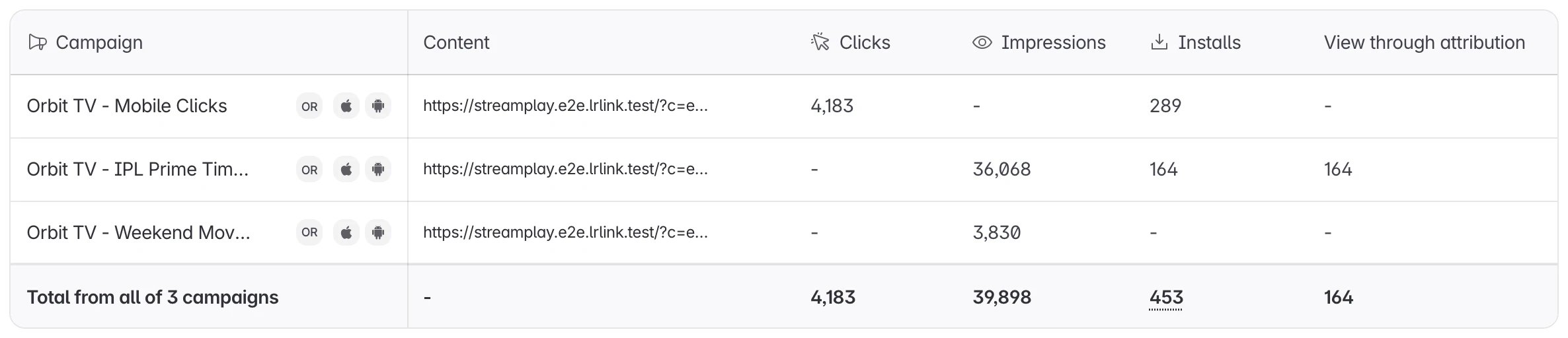 A new campaign can show impressions before its first install. Installs count on the day they happen, so a household that saw the ad late at night can install the next day.
A TV impression belongs to neither Android nor iOS, so a view filtered to one platform leaves CTV impressions out and still shows that platform's credited installs. Clear the platform filter to see a campaign's impressions.
## Authenticate your requests
CTV impressions use the same partner token as [S2S impressions](/affiliate-partners/s2s-impressions#authenticate-your-requests). Send it in the `X-Linkrunner-Token` header, or as the `lr_token` query parameter if your ad server can only fire a URL. A request without a valid token is rejected with `401` and `missing_token` or `invalid_token`.
```bash theme={null}
curl -G "https://s2s.linkrunner.io/v1/ctv/impression/com.example.app" \
-H "X-Linkrunner-Token: $LINKRUNNER_S2S_TOKEN" \
--data-urlencode "c=OgWmhiSXhG" \
--data-urlencode "tid=ctv-imp-7f3a91" \
--data-urlencode "ip=203.0.113.24" \
--data-urlencode "ua=Mozilla/5.0 (SMART-TV; Linux; Tizen 7.0) AppleWebKit/537.36 (KHTML, like Gecko) Version/7.0 TV Safari/537.36"
```
## Coming from AppsFlyer
If you already send cross-platform CTV impressions to AppsFlyer, you can reuse that template. You change the host and `c`, add a unique `tid`, and add your [token](#authenticate-your-requests).
| AppsFlyer | Linkrunner | Notes |
| - | - | - |
| `impressions.onelink.me/` | `s2s.linkrunner.io/v1/ctv/impression/` | Linkrunner uses the Android package name or App Store ID, not a OneLink template |
| `c` (campaign name) | `c` (campaign code) | Use the `c` value from your Linkrunner tracking link, not a campaign name |
| | `tid` (or `clickid`) | Required. Send a unique ID per impression |
| `af_ip` | `ip` | Either name works. Required |
| `af_ua` | `ua` | Either name works. Required |
| `af_xplatform_vt_lookback` | `vt_lookback` | Works as is. `1h` to `24h`, or `1d`. Longer values are capped at 24 hours. `af_viewthrough_lookback` also works |
| `af_c_id` | `partner_campaign_id` | Either name works. Stored with the impression |
| `af_adset_id` | `adset_id` | Either name works. Stored with the impression |
| `af_ad_id` | `ad_id` | Either name works. Stored with the impression |
| `af_siteid` | `site_id` | Either name works. Stored with the impression |
| `af_source_platform` | `source_platform` | Either name works. Stored with the impression |
| `af_source_device_category` | `device_category` | Either name works. Stored with the impression |
| `af_sub1`, `af_sub2`, `af_sub3` | `s2`, `s3`, `s4` | Either name works. Returned in `{s2}` to `{s4}` |
| `pid`, `af_xplatform`, `redirect` | Not needed | Ignored if present |
An AppsFlyer template like this:
```
https://impressions.onelink.me/AbCd?pid=xyz_int&c=summer&af_xplatform=true&af_xplatform_vt_lookback=24h&af_ip={ip}&af_ua={ua}&af_siteid={site}&redirect=false
```
becomes:
```http theme={null}
GET https://s2s.linkrunner.io/v1/ctv/impression/com.example.app?c=OgWmhiSXhG&tid={impression_id}&af_xplatform=true&af_xplatform_vt_lookback=24h&af_ip={ip}&af_ua={ua}&af_siteid={site}
X-Linkrunner-Token:
```
## Retries
Retrying is safe. The same `tid` for the same campaign always returns the same `impression_id` and is stored once.
* Retry `429` and `503`, after the `Retry-After` delay.
* Don't retry other `4xx` responses. Fix the request instead. The `reason` tells you what's wrong.
See the [CTV Impression API reference](/api-reference/ctv-impressions) for every parameter, response and rejection reason.
## Troubleshooting
**Requests return `missing_ip` or `invalid_ip`.**
Every CTV impression needs the TV's public IP address in `ip`. Private addresses (`192.168.x.x`, `10.x.x.x`), carrier-grade NAT addresses (`100.64.0.0/10`) and loopback addresses are rejected.
**Requests return `datacenter_ip`.**
The `ip` belongs to a cloud or hosting provider, which usually means your ad server sent its own address. Send the device IP your ad server received, for example from `X-Device-IP`.
**Requests return `missing_ua`.**
Send the TV's user agent in `ua`.
**Requests return `partner_not_enabled`, `view_through_disabled` or `ctv_not_enabled`.**
S2S traffic, view-through or CTV is not on for your partner account on this app. Ask the advertiser to turn it on. They turn on S2S traffic and CTV in **Integrations → Affiliate Partners → Configure** ([these steps](/affiliate-partners/turn-on-s2s-clicks#turn-on-ctv-impressions)), and view-through in **Settings → Attribution Windows** ([how](/features/attribution-windows#view-through-attribution)). Changes take up to 5 minutes to apply.
**Impressions are accepted but installs aren't credited to them.**
Check that the impression carries the TV's real public IP address and arrives before the install, and that the phone installed over the same home Wi-Fi. A click from any source, a device-ID impression, or a more recent impression takes priority. The install must also fall inside the view-through window the advertiser set for you.
**Need help?** Contact [support@linkrunner.io](mailto:support@linkrunner.io)
This documentation is built and hosted on [Mintlify](https://mintlify.com), a developer documentation platform.
A new campaign can show impressions before its first install. Installs count on the day they happen, so a household that saw the ad late at night can install the next day.
A TV impression belongs to neither Android nor iOS, so a view filtered to one platform leaves CTV impressions out and still shows that platform's credited installs. Clear the platform filter to see a campaign's impressions.
## Authenticate your requests
CTV impressions use the same partner token as [S2S impressions](/affiliate-partners/s2s-impressions#authenticate-your-requests). Send it in the `X-Linkrunner-Token` header, or as the `lr_token` query parameter if your ad server can only fire a URL. A request without a valid token is rejected with `401` and `missing_token` or `invalid_token`.
```bash theme={null}
curl -G "https://s2s.linkrunner.io/v1/ctv/impression/com.example.app" \
-H "X-Linkrunner-Token: $LINKRUNNER_S2S_TOKEN" \
--data-urlencode "c=OgWmhiSXhG" \
--data-urlencode "tid=ctv-imp-7f3a91" \
--data-urlencode "ip=203.0.113.24" \
--data-urlencode "ua=Mozilla/5.0 (SMART-TV; Linux; Tizen 7.0) AppleWebKit/537.36 (KHTML, like Gecko) Version/7.0 TV Safari/537.36"
```
## Coming from AppsFlyer
If you already send cross-platform CTV impressions to AppsFlyer, you can reuse that template. You change the host and `c`, add a unique `tid`, and add your [token](#authenticate-your-requests).
| AppsFlyer | Linkrunner | Notes |
| - | - | - |
| `impressions.onelink.me/` | `s2s.linkrunner.io/v1/ctv/impression/` | Linkrunner uses the Android package name or App Store ID, not a OneLink template |
| `c` (campaign name) | `c` (campaign code) | Use the `c` value from your Linkrunner tracking link, not a campaign name |
| | `tid` (or `clickid`) | Required. Send a unique ID per impression |
| `af_ip` | `ip` | Either name works. Required |
| `af_ua` | `ua` | Either name works. Required |
| `af_xplatform_vt_lookback` | `vt_lookback` | Works as is. `1h` to `24h`, or `1d`. Longer values are capped at 24 hours. `af_viewthrough_lookback` also works |
| `af_c_id` | `partner_campaign_id` | Either name works. Stored with the impression |
| `af_adset_id` | `adset_id` | Either name works. Stored with the impression |
| `af_ad_id` | `ad_id` | Either name works. Stored with the impression |
| `af_siteid` | `site_id` | Either name works. Stored with the impression |
| `af_source_platform` | `source_platform` | Either name works. Stored with the impression |
| `af_source_device_category` | `device_category` | Either name works. Stored with the impression |
| `af_sub1`, `af_sub2`, `af_sub3` | `s2`, `s3`, `s4` | Either name works. Returned in `{s2}` to `{s4}` |
| `pid`, `af_xplatform`, `redirect` | Not needed | Ignored if present |
An AppsFlyer template like this:
```
https://impressions.onelink.me/AbCd?pid=xyz_int&c=summer&af_xplatform=true&af_xplatform_vt_lookback=24h&af_ip={ip}&af_ua={ua}&af_siteid={site}&redirect=false
```
becomes:
```http theme={null}
GET https://s2s.linkrunner.io/v1/ctv/impression/com.example.app?c=OgWmhiSXhG&tid={impression_id}&af_xplatform=true&af_xplatform_vt_lookback=24h&af_ip={ip}&af_ua={ua}&af_siteid={site}
X-Linkrunner-Token:
```
## Retries
Retrying is safe. The same `tid` for the same campaign always returns the same `impression_id` and is stored once.
* Retry `429` and `503`, after the `Retry-After` delay.
* Don't retry other `4xx` responses. Fix the request instead. The `reason` tells you what's wrong.
See the [CTV Impression API reference](/api-reference/ctv-impressions) for every parameter, response and rejection reason.
## Troubleshooting
**Requests return `missing_ip` or `invalid_ip`.**
Every CTV impression needs the TV's public IP address in `ip`. Private addresses (`192.168.x.x`, `10.x.x.x`), carrier-grade NAT addresses (`100.64.0.0/10`) and loopback addresses are rejected.
**Requests return `datacenter_ip`.**
The `ip` belongs to a cloud or hosting provider, which usually means your ad server sent its own address. Send the device IP your ad server received, for example from `X-Device-IP`.
**Requests return `missing_ua`.**
Send the TV's user agent in `ua`.
**Requests return `partner_not_enabled`, `view_through_disabled` or `ctv_not_enabled`.**
S2S traffic, view-through or CTV is not on for your partner account on this app. Ask the advertiser to turn it on. They turn on S2S traffic and CTV in **Integrations → Affiliate Partners → Configure** ([these steps](/affiliate-partners/turn-on-s2s-clicks#turn-on-ctv-impressions)), and view-through in **Settings → Attribution Windows** ([how](/features/attribution-windows#view-through-attribution)). Changes take up to 5 minutes to apply.
**Impressions are accepted but installs aren't credited to them.**
Check that the impression carries the TV's real public IP address and arrives before the install, and that the phone installed over the same home Wi-Fi. A click from any source, a device-ID impression, or a more recent impression takes priority. The install must also fall inside the view-through window the advertiser set for you.
**Need help?** Contact [support@linkrunner.io](mailto:support@linkrunner.io)
This documentation is built and hosted on [Mintlify](https://mintlify.com), a developer documentation platform.