> ## Documentation Index
> Fetch the complete documentation index at: https://docs.linkrunner.io/llms.txt
> Use this file to discover all available pages before exploring further.
# TikTok Ads
> Run TikTok ads for your app with in-app event optimization and deferred deep linking
## Overview
TikTok Ads integration with Linkrunner enables you to run powerful app growth campaigns while optimizing on real in-app events and providing seamless deferred deep linking. This integration allows you to track installs, sign-ups, purchases, and custom events across both Android and iOS platforms.
**📱 Works for both Android & iOS Apps**
### What You'll Get
* **Optimization on real in-app events** — Track and optimize on Install, Sign Up, Purchase, and custom events
* **Deferred deep linking** — Drop users into the right screen after first open, even if they need to install the app first
* **Consistent tracking** — Unified tracking across Android & iOS via the Linkrunner SDK
* **Cross-platform consistency** — Track installs across iOS and Android with one unified flow
## Setup Process
Setting up TikTok Ads integration involves two main steps: configuring a pixel in TikTok Events Manager and setting up your first campaign.
## 1. Configuring Pixel in TikTok Events Manager
This process takes approximately 5 minutes and connects your app tracking with TikTok's advertising platform.
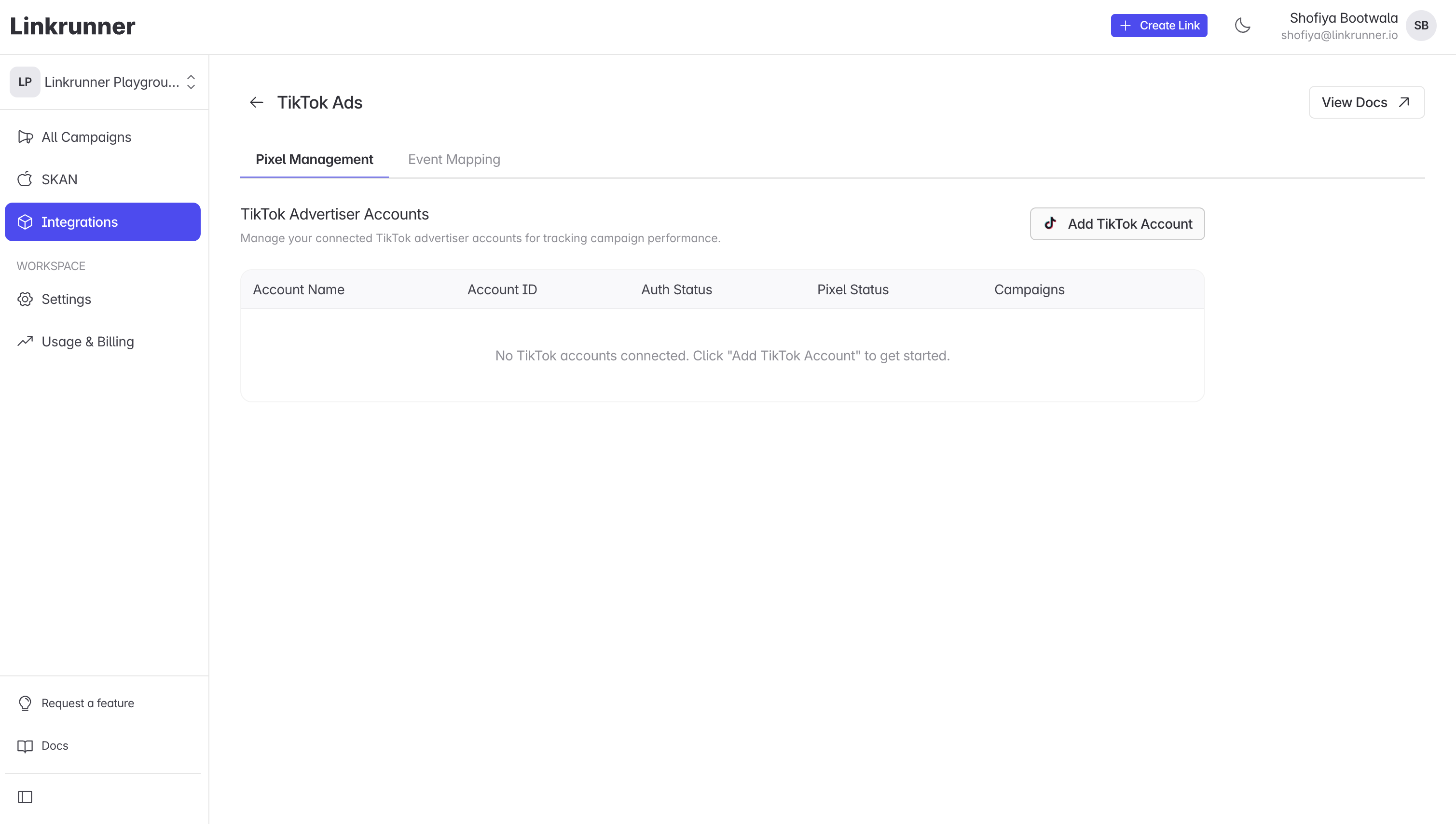
### Step 1: Connect TikTok Account on Linkrunner
1. Go to [TikTok Integration tab on Linkrunner](https://dashboard.linkrunner.io/dashboard/integrations/tiktok-ads)
 ### Step 2: Add TikTok Account
1. Click **Add TikTok Account** to add your TikTok Ads account
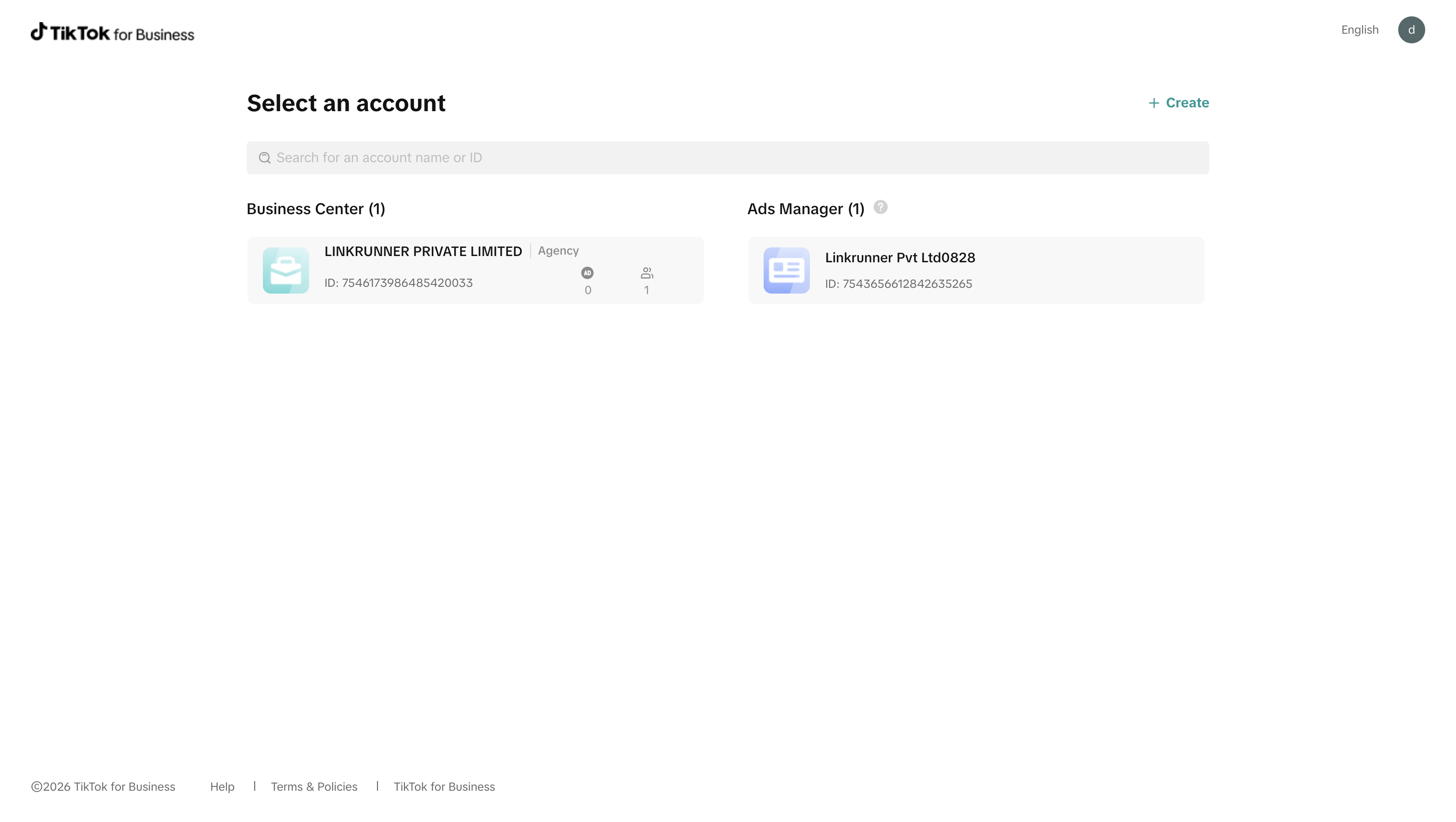
### Step 3: Navigate to TikTok Ads Manager
1. Go to [TikTok Ads Manager](https://ads.tiktok.com/i18n/home)
2. Select the Ads Manager of the account that is being used
### Step 2: Add TikTok Account
1. Click **Add TikTok Account** to add your TikTok Ads account
### Step 3: Navigate to TikTok Ads Manager
1. Go to [TikTok Ads Manager](https://ads.tiktok.com/i18n/home)
2. Select the Ads Manager of the account that is being used
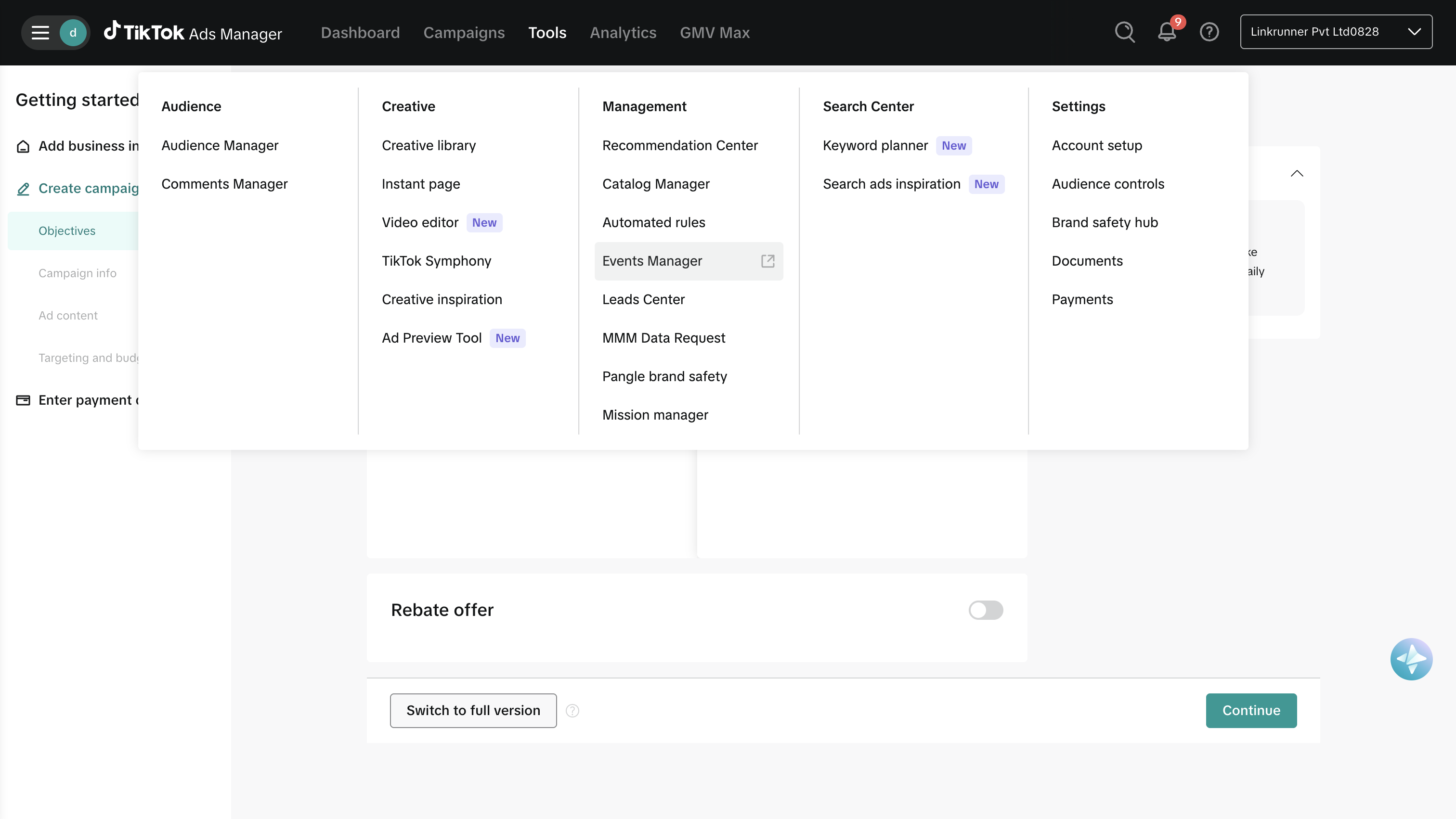
 ### Step 4: Access Events Manager
1. Select **Tools** from the top bar
2. Select **Events Manager**
### Step 4: Access Events Manager
1. Select **Tools** from the top bar
2. Select **Events Manager**
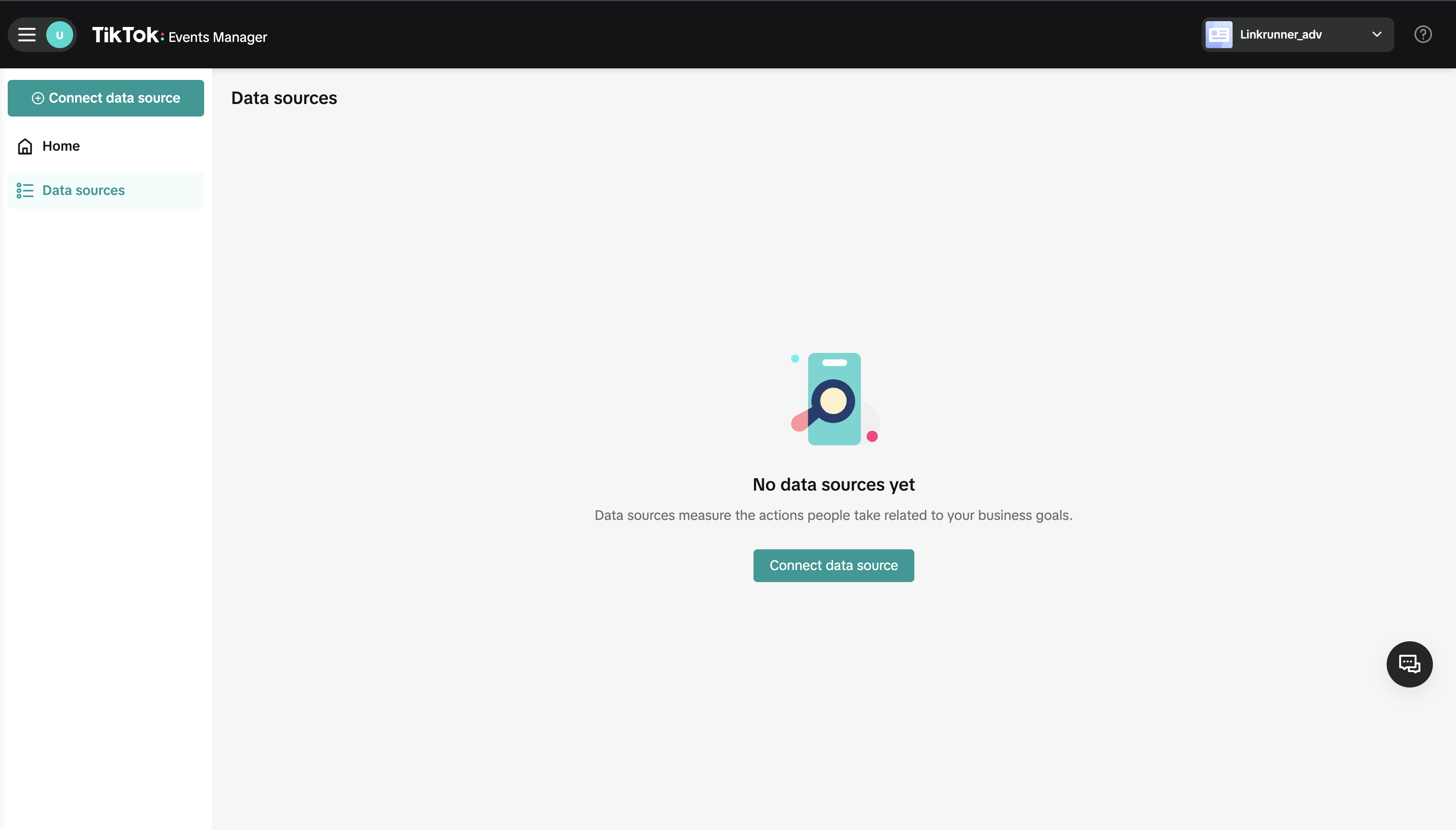
 ### Step 5: Connect Data Source
1. Click on **Connect data source**
### Step 5: Connect Data Source
1. Click on **Connect data source**
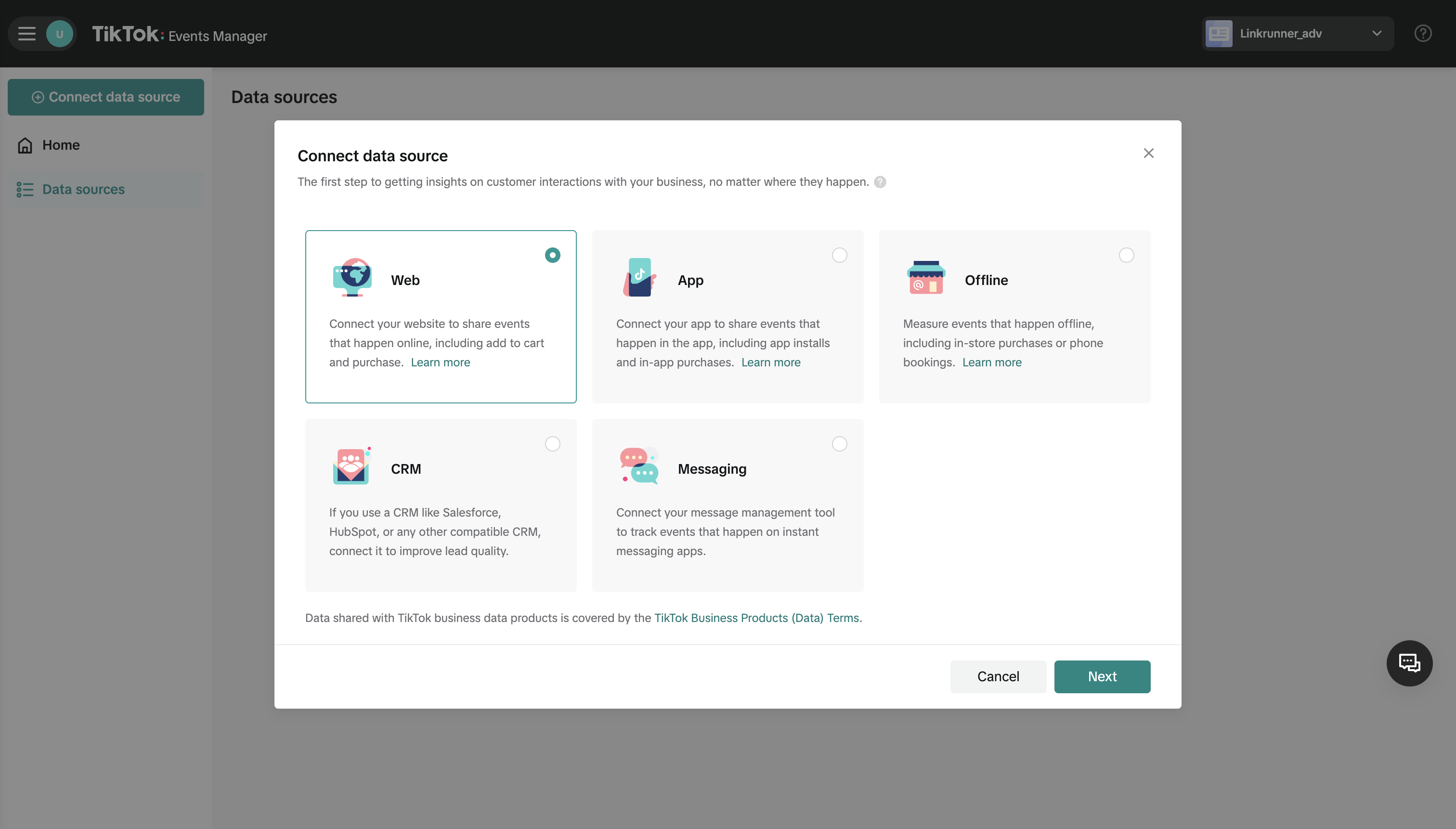
 ### Step 6: Select Web as Data Source
1. Select **Web** from the available options
### Step 6: Select Web as Data Source
1. Select **Web** from the available options
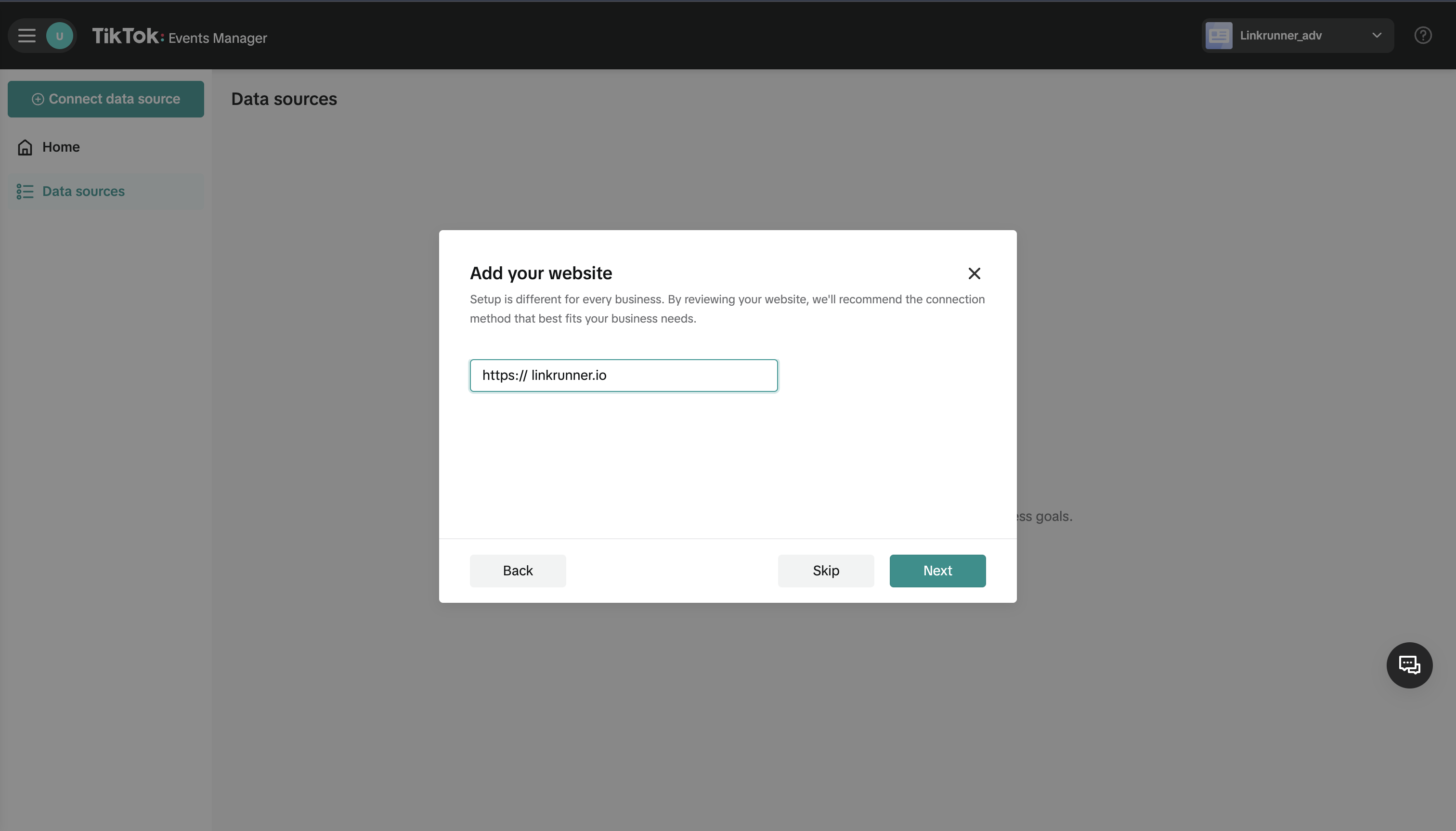
 ### Step 7: Add Your Website
1. Enter your website link in the provided field
2. Click **Continue**
### Step 7: Add Your Website
1. Enter your website link in the provided field
2. Click **Continue**
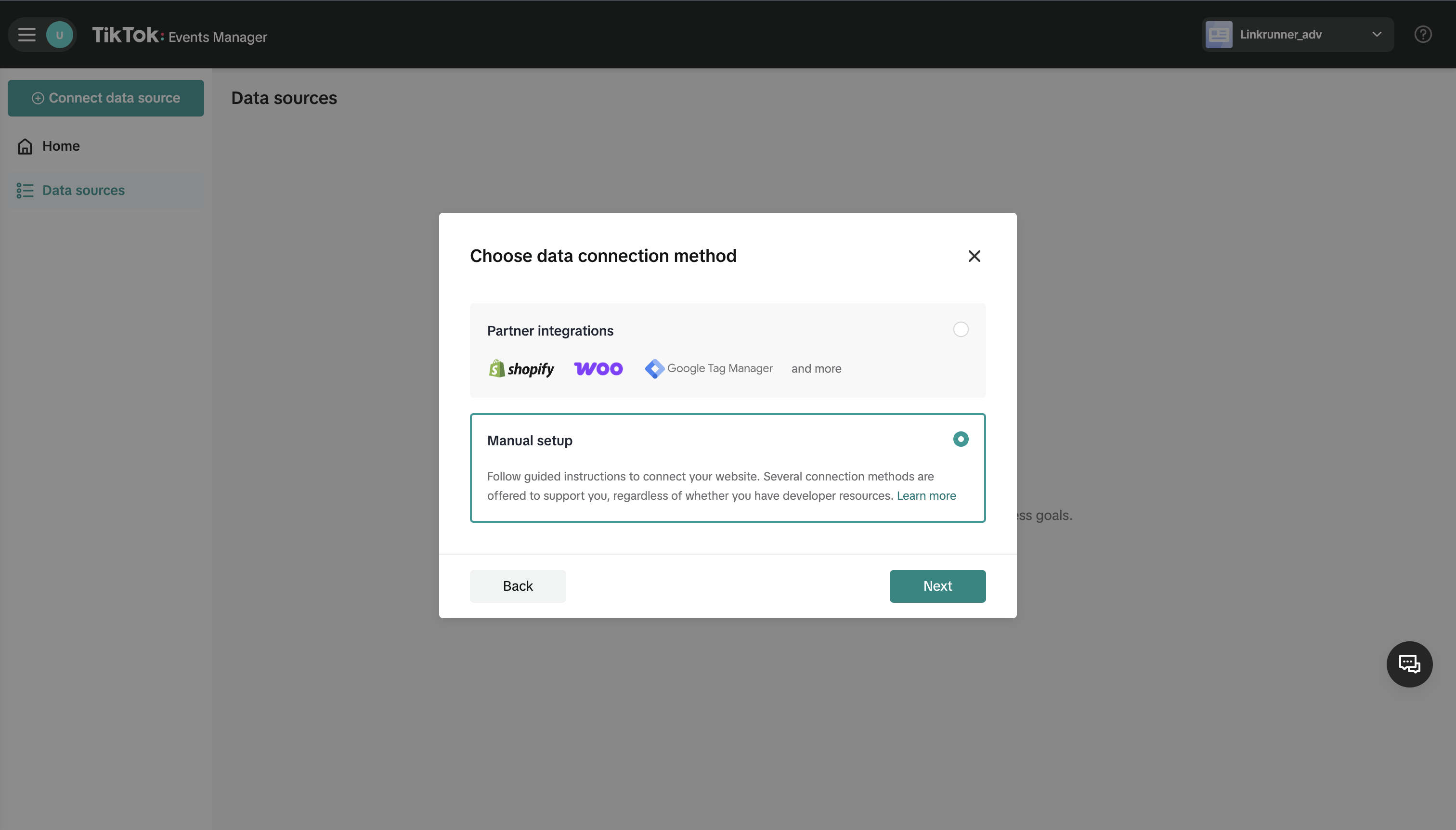
 ### Step 8: Choose Manual Setup
1. Click on **Manual setup** option
### Step 8: Choose Manual Setup
1. Click on **Manual setup** option
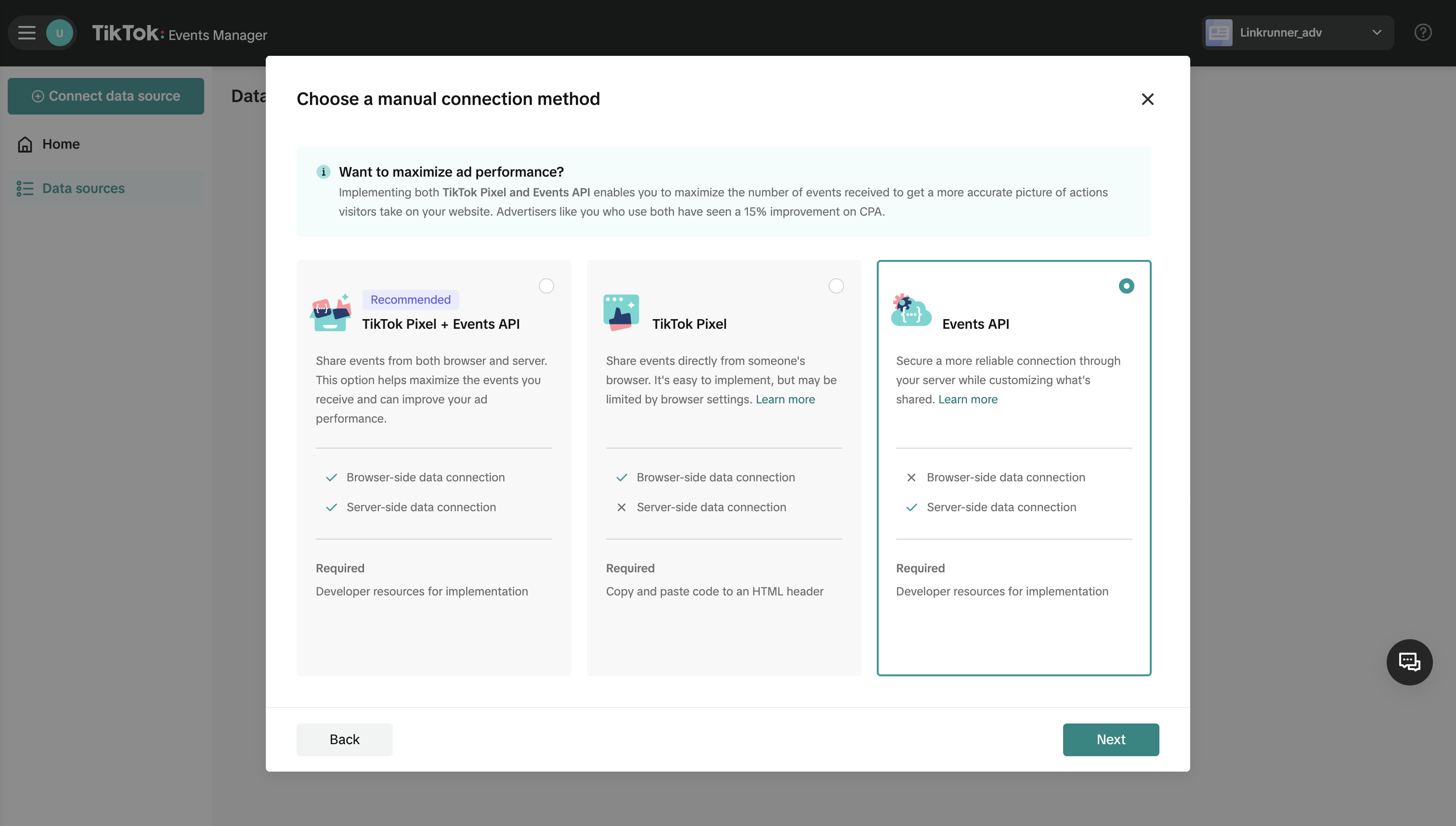
 ### Step 9: Select Events API
1. Click on **Events API** as your setup method
### Step 9: Select Events API
1. Click on **Events API** as your setup method
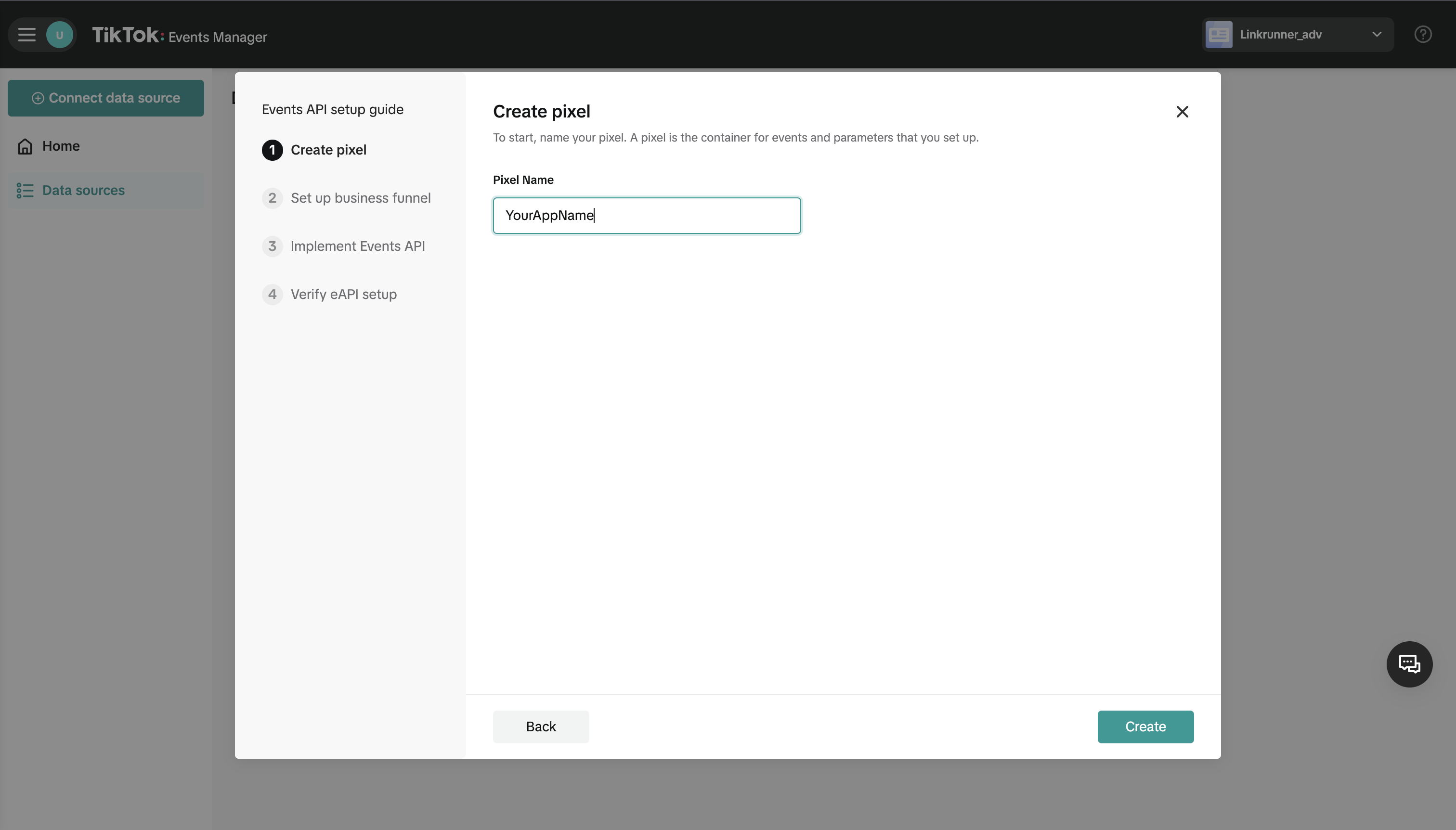
 ### Step 10: Name Your Pixel
1. Add a descriptive name for your TikTok Pixel
2. Click **Continue**
### Step 10: Name Your Pixel
1. Add a descriptive name for your TikTok Pixel
2. Click **Continue**
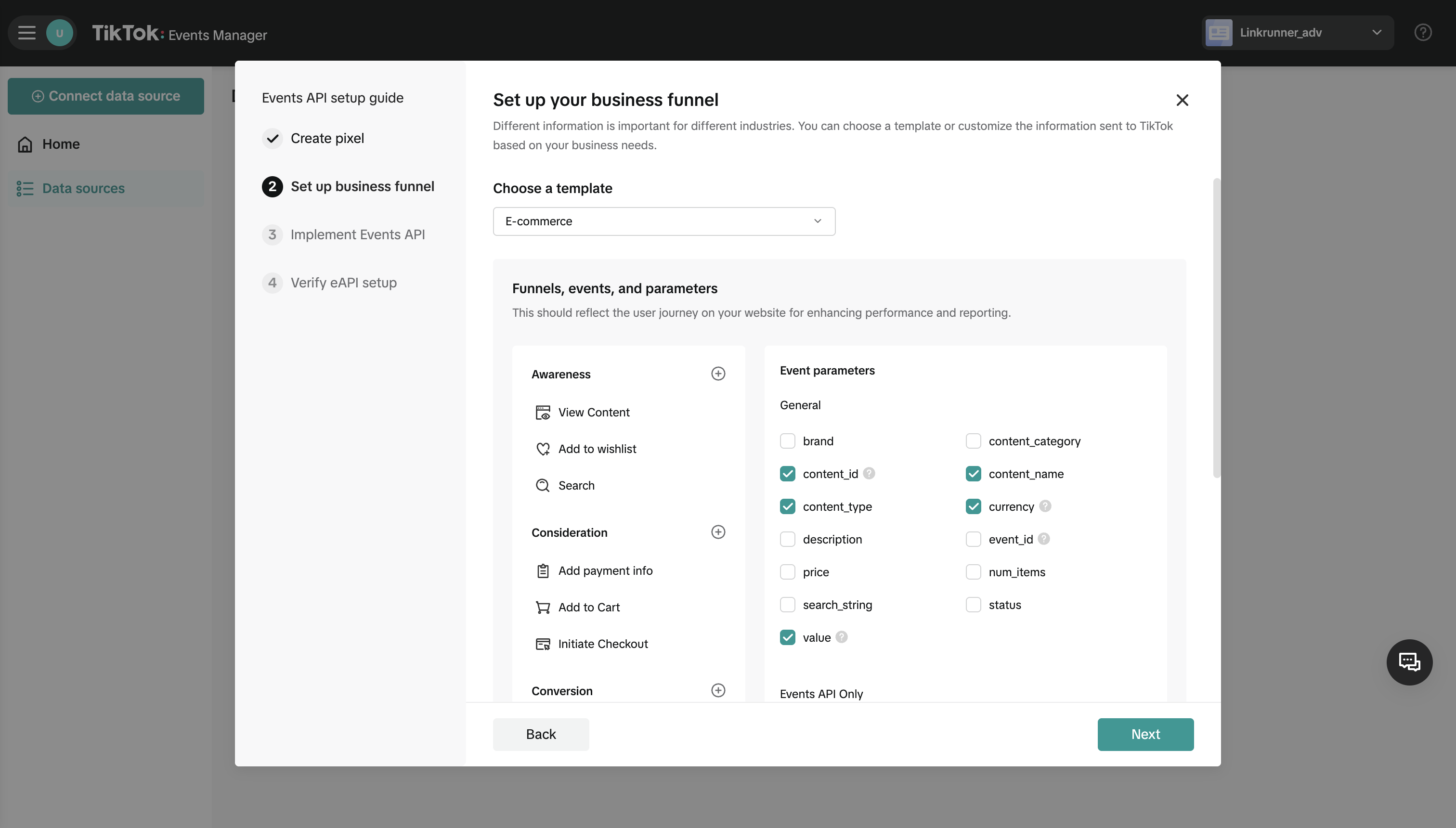
 ### Step 11: Select Template
1. Select a template (E-commerce recommended)
2. Click **Continue**
### Step 11: Select Template
1. Select a template (E-commerce recommended)
2. Click **Continue**
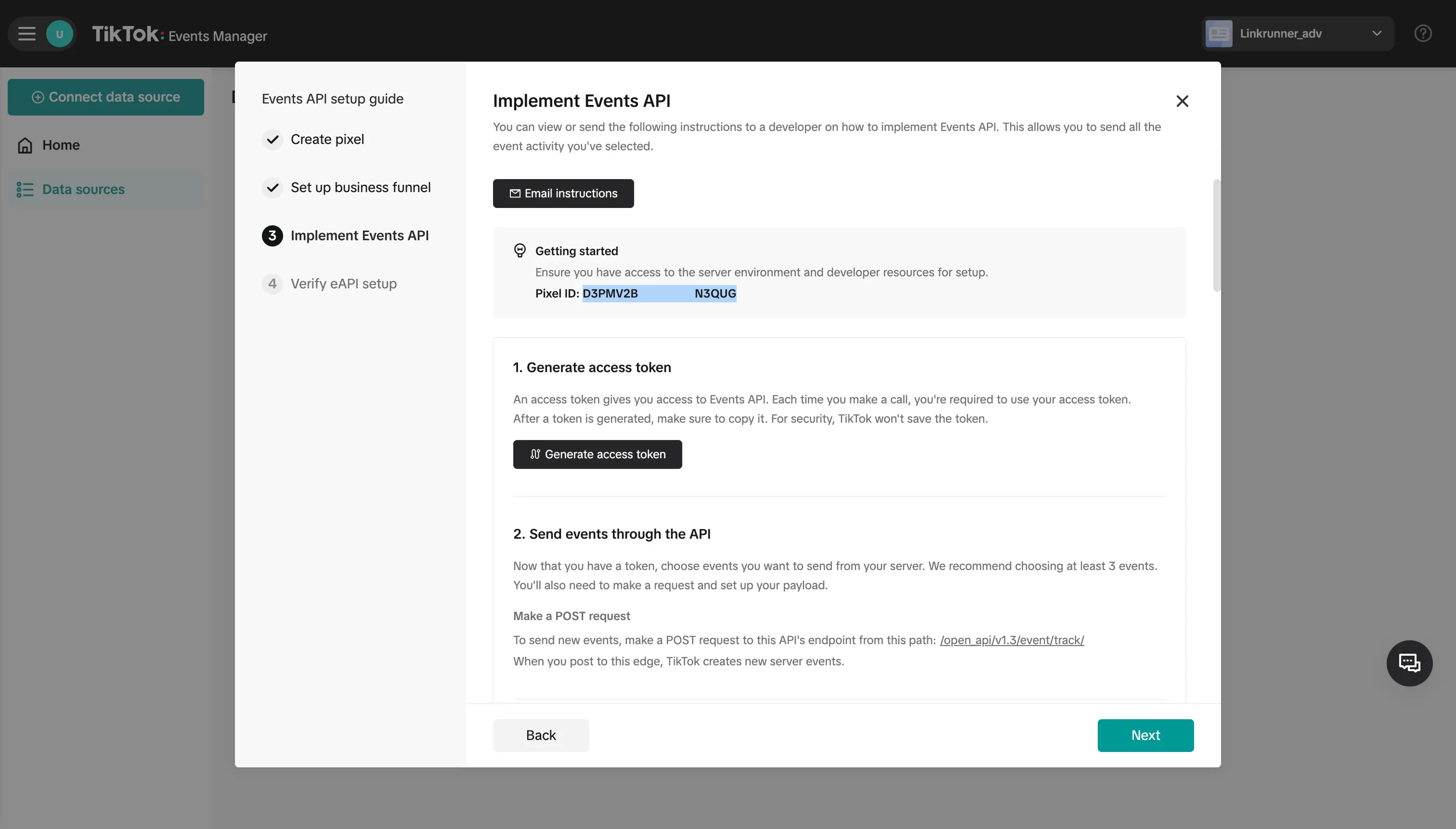
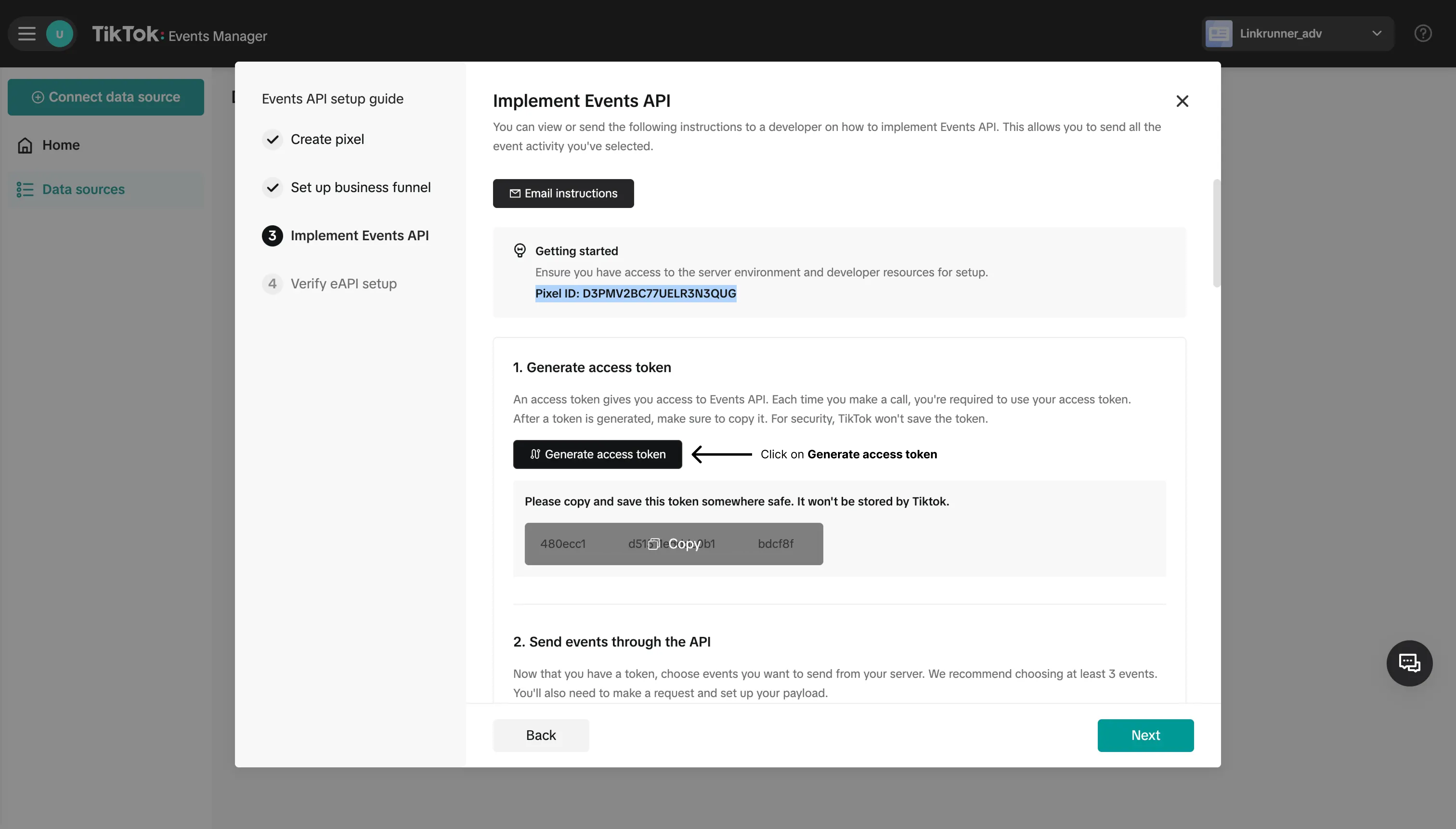
 ### Step 12: Copy Credentials
1. Copy the **Pixel ID** from the setup screen
2. Copy the **Access Token** from the setup screen
### Step 12: Copy Credentials
1. Copy the **Pixel ID** from the setup screen
2. Copy the **Access Token** from the setup screen
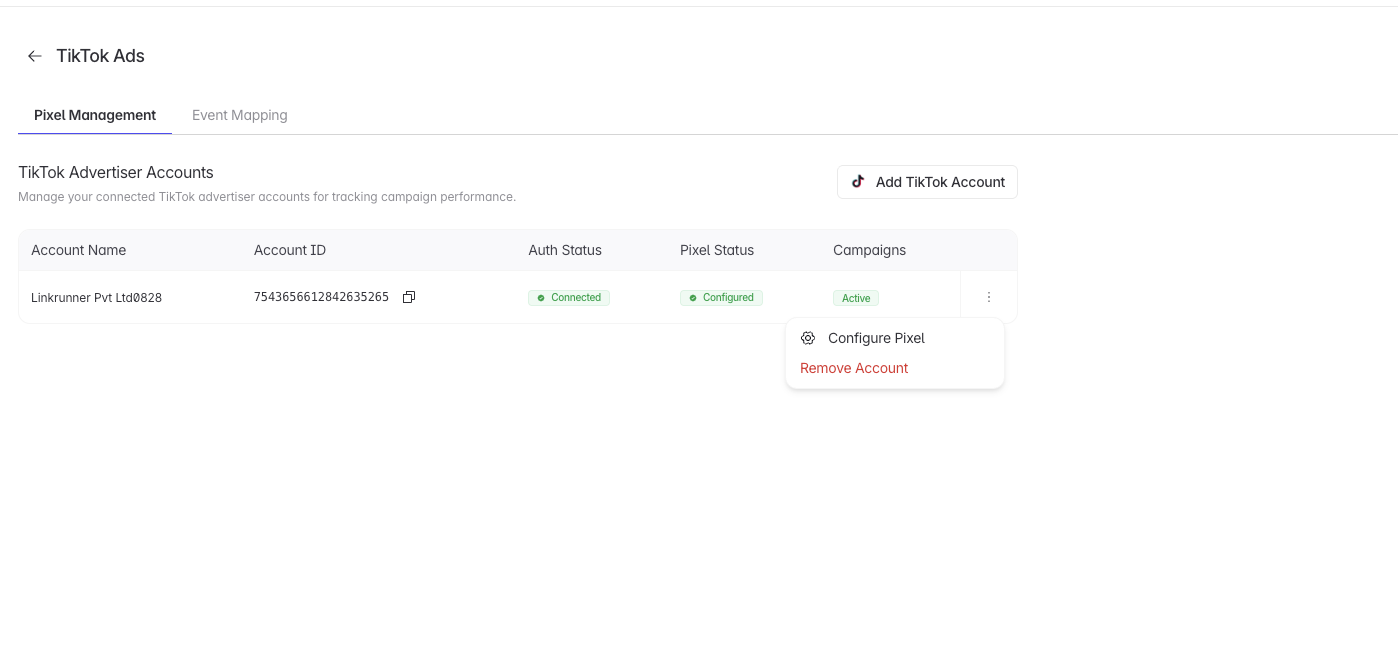
 ### Step 13: Configure Pixel on Linkrunner
1. Go back to Linkrunner and click on the TikTok Ads account you added
### Step 13: Configure Pixel on Linkrunner
1. Go back to Linkrunner and click on the TikTok Ads account you added
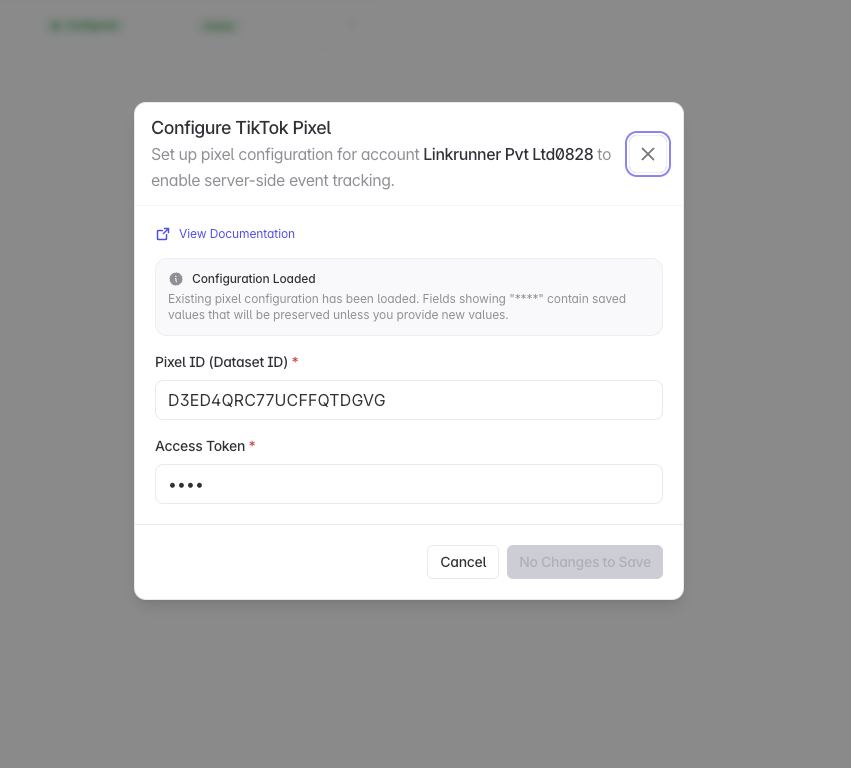
 ### Step 14: Paste Credentials
1. Paste the **Pixel ID** and **Access Token** on Linkrunner
### Step 14: Paste Credentials
1. Paste the **Pixel ID** and **Access Token** on Linkrunner
 **At this point your TikTok Pixel setup is completed!** Your TikTok Ads account is now connected to Linkrunner and ready to track conversions.
## 2. Setting up your first TikTok campaign
After your pixel is configured, you can create your first TikTok ad campaign optimized for app conversions.
### Step 1: Switch to Full Version
1. Click the **Switch to Full Version** button
**At this point your TikTok Pixel setup is completed!** Your TikTok Ads account is now connected to Linkrunner and ready to track conversions.
## 2. Setting up your first TikTok campaign
After your pixel is configured, you can create your first TikTok ad campaign optimized for app conversions.
### Step 1: Switch to Full Version
1. Click the **Switch to Full Version** button
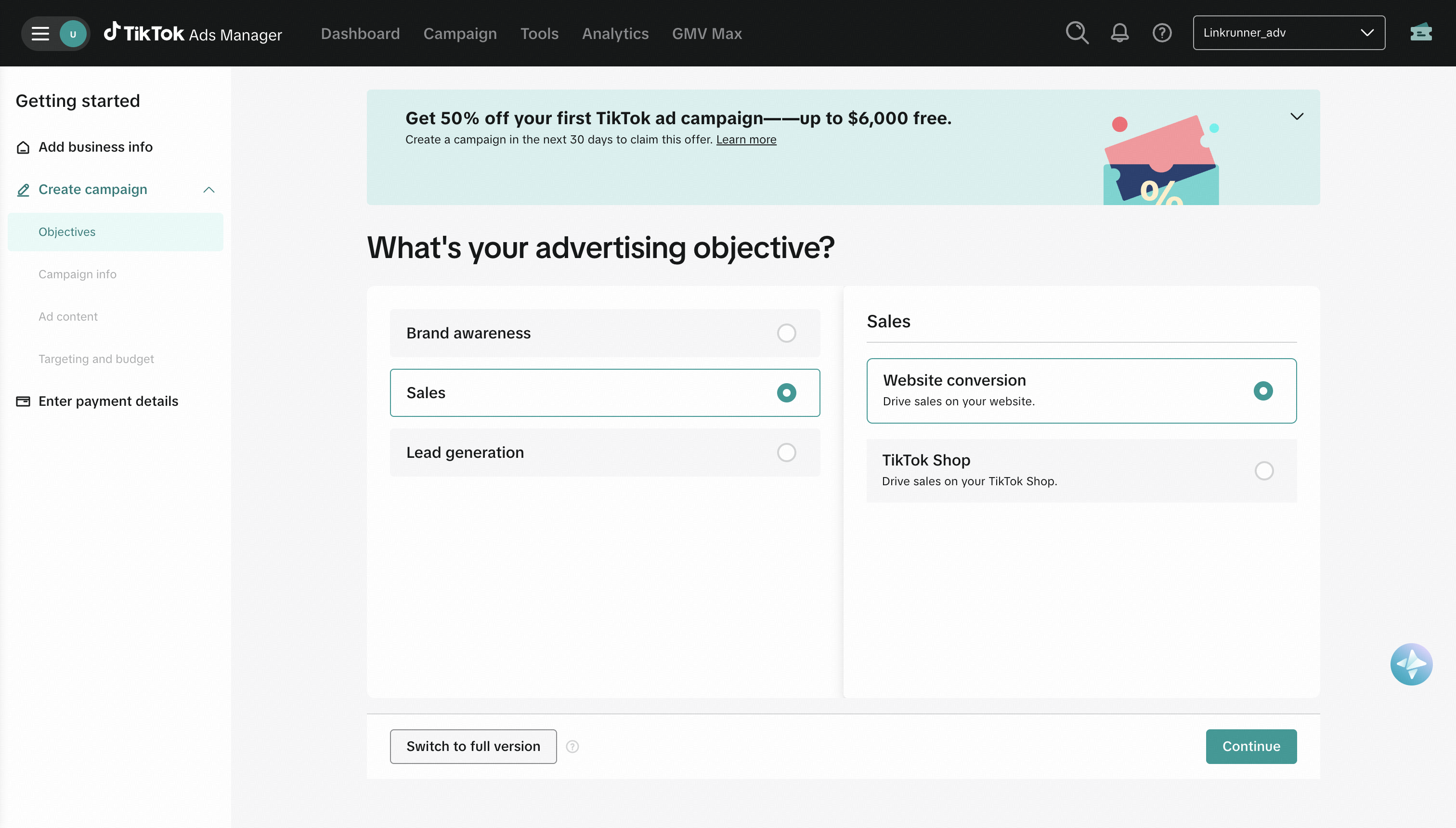 ### Step 2: Configure Campaign Settings
1. Select **Sales** as the conversion type
2. Select **Website** as the Sales Destination
3. Click **Continue**
### Step 2: Configure Campaign Settings
1. Select **Sales** as the conversion type
2. Select **Website** as the Sales Destination
3. Click **Continue**
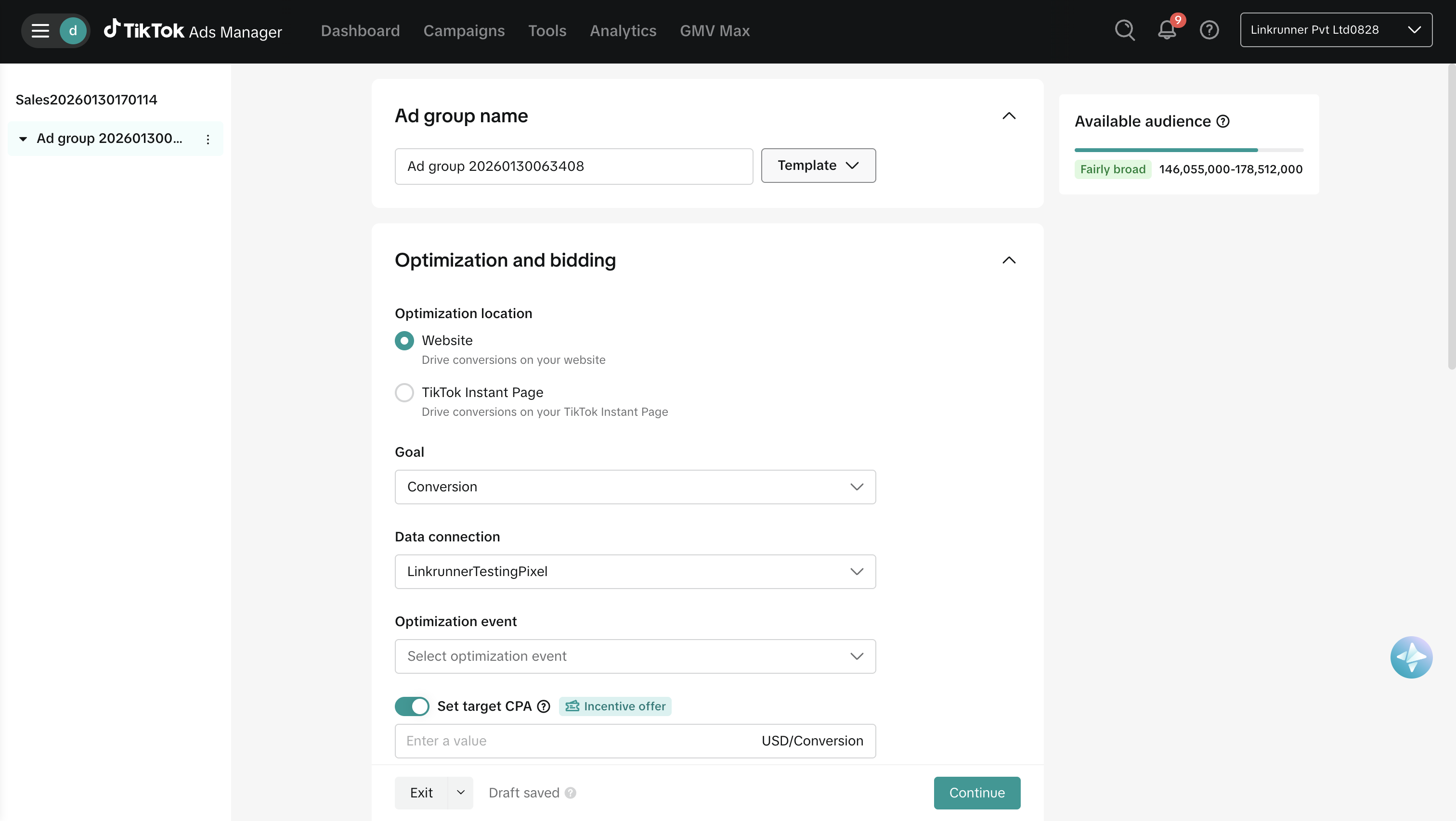
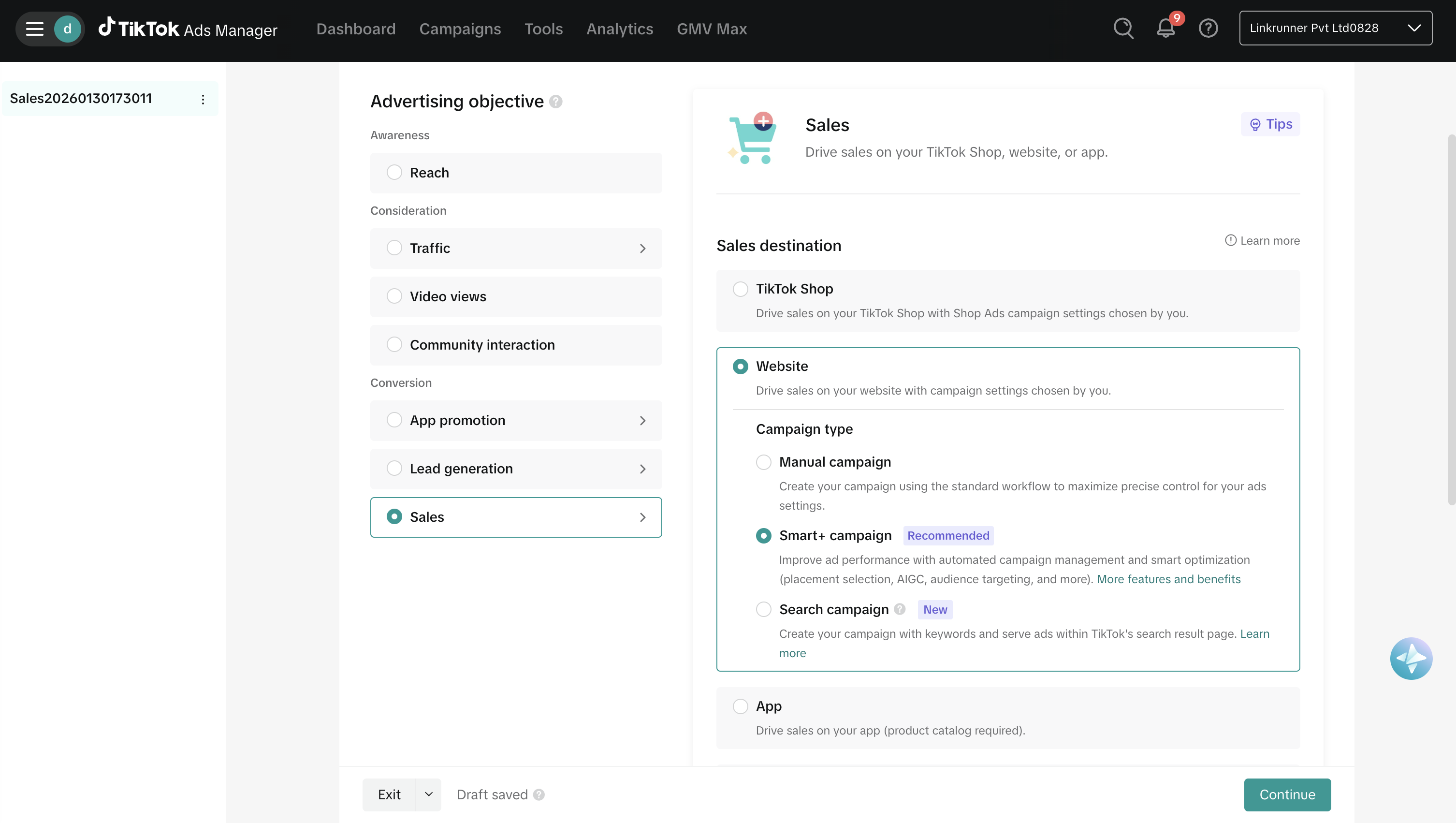 ### Step 3: Configure Optimization and Bidding
1. In the **Optimization and bidding** section:
* Select **Goal** as **Conversion**
* Select **Data connection** to the pixel you created and integrated with Linkrunner
* Select **Optimization event** based on which you would like to optimize your ad campaign (common events include: Install, Sign Up, Purchase, or custom events)
2. Click **Continue** to configure ads
### Step 3: Configure Optimization and Bidding
1. In the **Optimization and bidding** section:
* Select **Goal** as **Conversion**
* Select **Data connection** to the pixel you created and integrated with Linkrunner
* Select **Optimization event** based on which you would like to optimize your ad campaign (common events include: Install, Sign Up, Purchase, or custom events)
2. Click **Continue** to configure ads
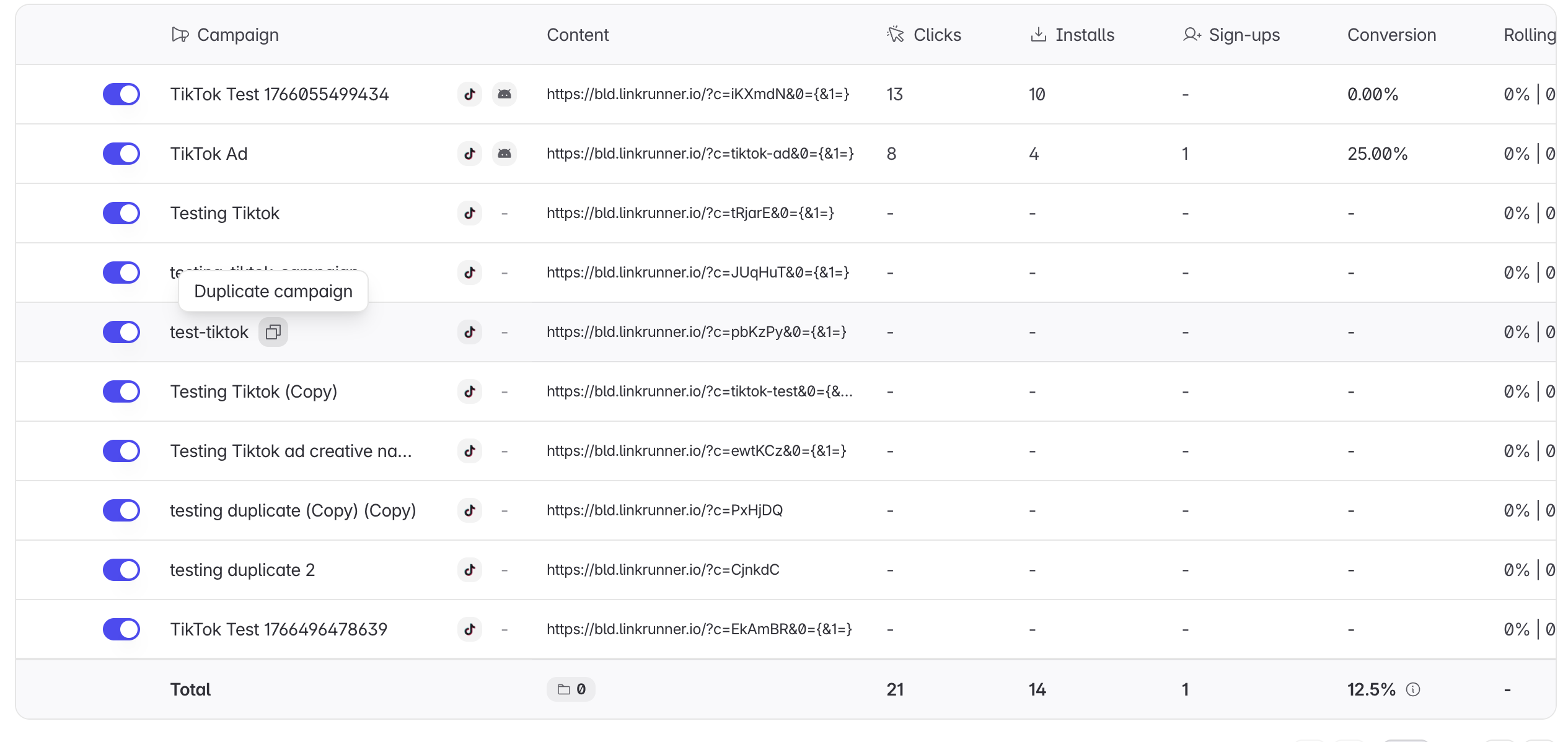
 ### Step 4: Create Linkrunner Campaign Links
Before setting up your ads, create campaign links in Linkrunner:
1. Go to [Linkrunner Dashboard](https://dashboard.linkrunner.io)
2. Create a new campaign for each ad creative you plan to run
3. Copy the **Shareable campaign link** for each campaign
You can easily duplicate campaigns once created for every ad creative, making it faster to create multiple campaigns with different tracking links.
### Step 4: Create Linkrunner Campaign Links
Before setting up your ads, create campaign links in Linkrunner:
1. Go to [Linkrunner Dashboard](https://dashboard.linkrunner.io)
2. Create a new campaign for each ad creative you plan to run
3. Copy the **Shareable campaign link** for each campaign
You can easily duplicate campaigns once created for every ad creative, making it faster to create multiple campaigns with different tracking links.
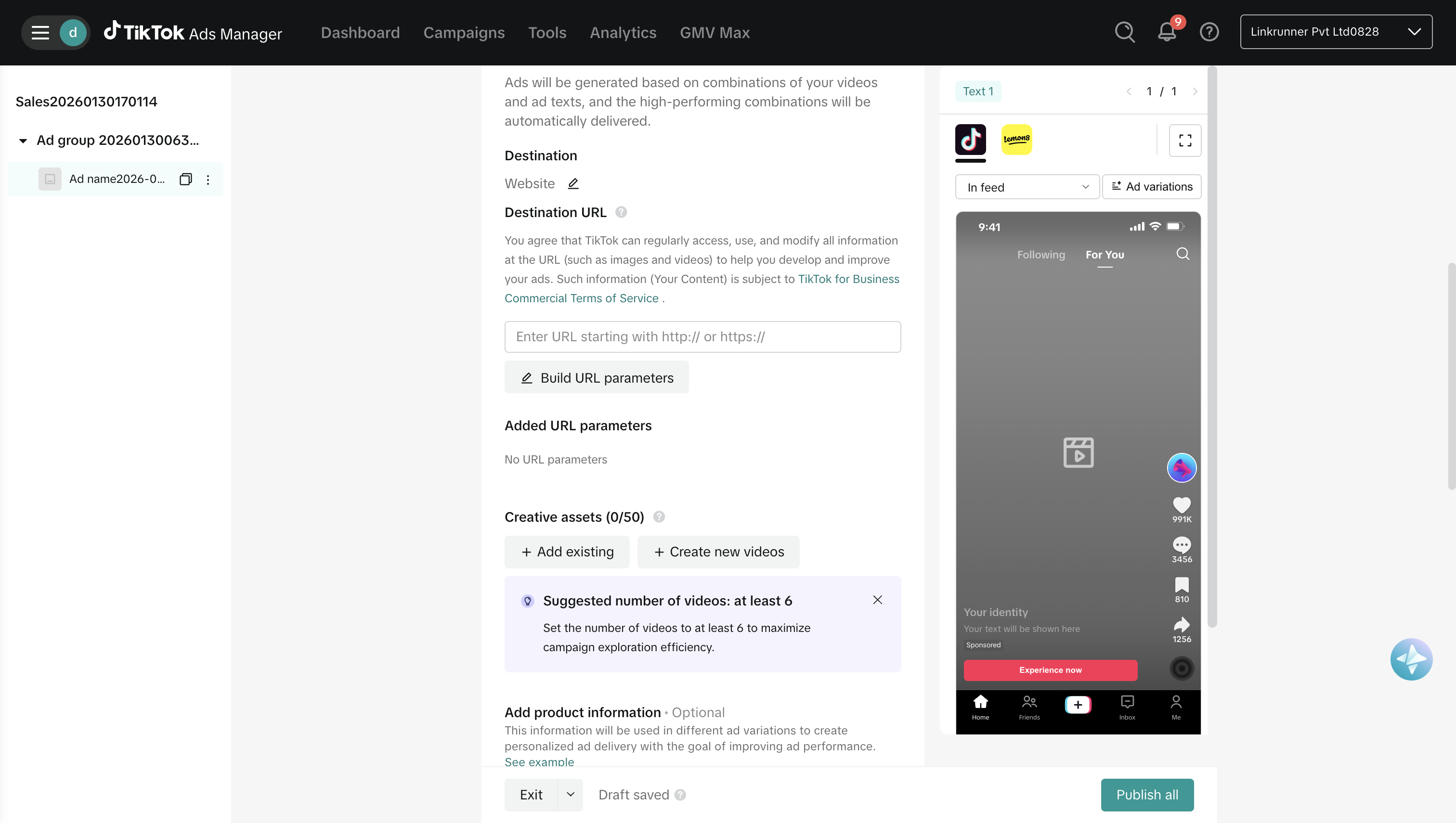
 ### Step 5: Add Destination URLs
1. For every ad you create, add a different **Linkrunner Campaign Link** in the **Destination URL** field
2. This allows you to track performance for each ad creative separately
### Step 5: Add Destination URLs
1. For every ad you create, add a different **Linkrunner Campaign Link** in the **Destination URL** field
2. This allows you to track performance for each ad creative separately
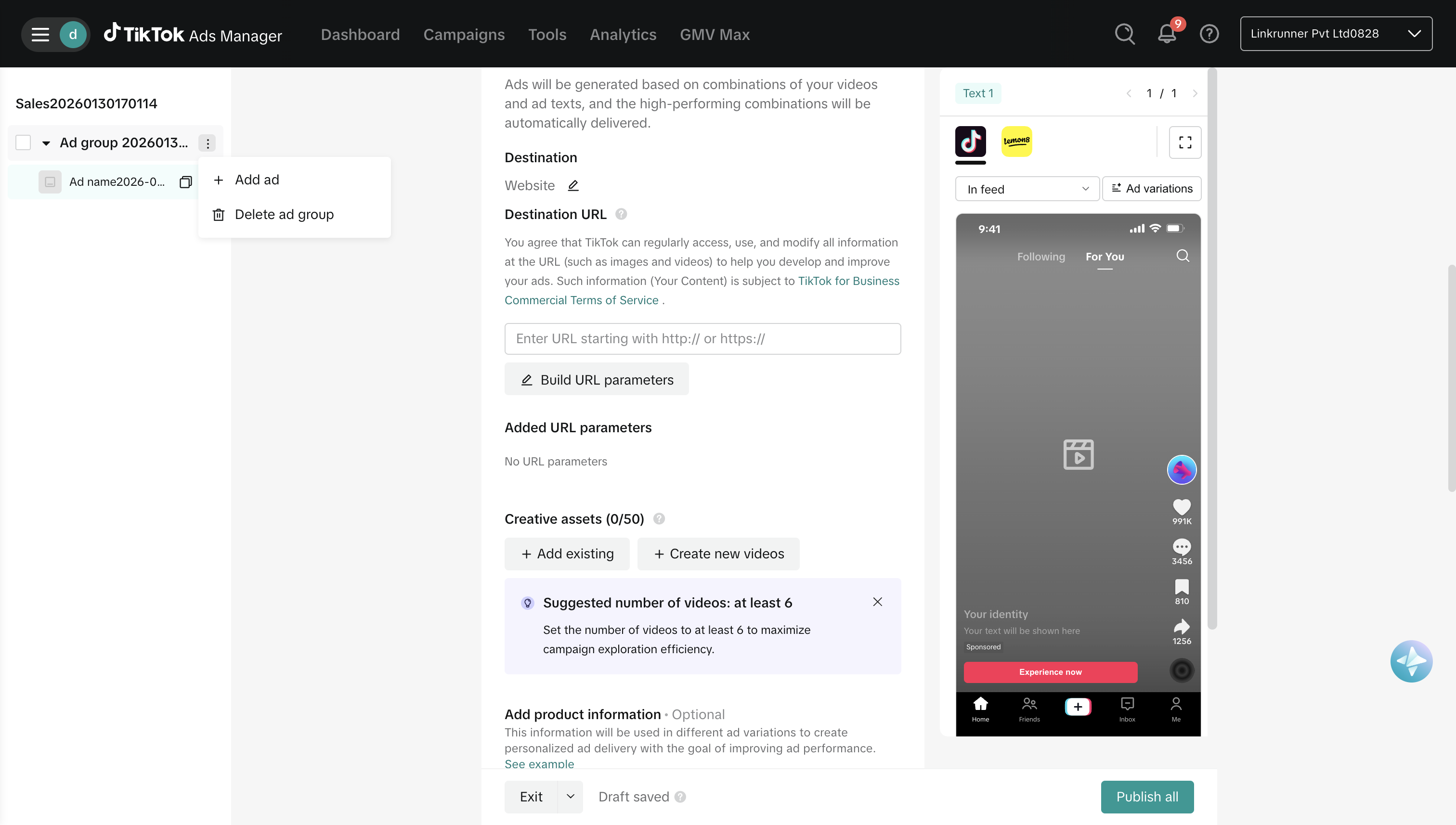
 ### Step 6: Add More Ads to Ad Group
1. Add more ads with different destination links to the ad group
### Step 6: Add More Ads to Ad Group
1. Add more ads with different destination links to the ad group
 You can easily duplicate campaigns once created for every ad creative, making it faster to create multiple campaigns with different tracking links.
## Deferred Deep Linking
One of the powerful features of running TikTok ads with Linkrunner is deferred deep linking support:
* If your campaign includes deep link parameters, Linkrunner ensures that **after the install and first open**, users land on the correct in-app content
* This means a user who clicked an ad for a specific product but hadn't installed your app yet will still be taken directly to that product screen inside the app after installation
* Works seamlessly across both iOS and Android platforms
## Why Run Web-to-App Ads?
Running **web-to-app ads** with TikTok gives you more flexibility and control over your campaigns, while still unlocking:
* **In-app event optimization** — TikTok can optimize on installs or post-install events like purchases
* **Deferred deep linking** — Users land on the right content inside your app after they install from the ad
* **Cross-platform consistency** — Track installs across iOS and Android with one unified flow
* **Better attribution** — More accurate tracking of user acquisition and in-app behavior
Start by optimizing on simple events like app installs or sign-ups before moving to more complex conversion events
like purchases. This helps TikTok's algorithm gather initial data.
## Frequently Asked Questions
Unlike Meta campaigns, TikTok campaigns **do not appear automatically** on the Linkrunner dashboard. They only show up when users click on the Linkrunner campaign links you set up as destination URLs in your TikTok ads.
**Checklist to fix this:**
1. **Verify your campaign links are set up correctly** — Each TikTok ad must have a unique Linkrunner campaign link as the destination URL ([see Step 5](#step-5-add-destination-urls))
2. **Ensure your ads are active and receiving traffic** — Campaigns only appear after at least one click comes through the tracking link
3. **Check that the Linkrunner SDK is integrated in your app** — Your app must be live with the Linkrunner SDK for installs to be attributed
4. **Confirm your TikTok pixel is configured** — Without a properly configured pixel ([see Part 1](#1-configuring-pixel-in-tiktok-events-manager)), event postbacks to TikTok won't work
If installs or other events are not appearing in TikTok Events Manager, check the following:
1. **Pixel credentials are correct** — Verify that the **Pixel ID** and **Access Token** you pasted into Linkrunner match the ones in TikTok Events Manager ([see Step 12](#step-12-copy-credentials))
2. **Access token hasn't expired** — TikTok access tokens can expire or be revoked. Regenerate the token in TikTok Events Manager and update it in Linkrunner if needed
3. **Wait for propagation** — It can take up to 45 minutes to 1 hour for initial events to appear in TikTok Events Manager
4. **Users are clicking the campaign link** — Events are only sent to TikTok for installs that came through a Linkrunner campaign link with a valid TikTok click ID (`ttclid`)
**No.** This is a key difference between the two integrations:
* **Meta Ads** — Campaigns are detected and appear automatically on the Linkrunner dashboard once they generate installs
* **TikTok Ads** — You must create individual Linkrunner campaign links and use them as destination URLs in your TikTok ads. Campaigns only appear on the dashboard when users click through these links
This is because TikTok uses a web-to-app flow where the campaign link acts as the tracking mechanism.
`ttclid` is TikTok's **Click ID** — a unique identifier that TikTok appends to your destination URL when a user clicks on your ad. It is essential for attribution.
**Why it matters:**
* Without `ttclid`, Linkrunner cannot attribute an install back to a specific TikTok ad click
* If `ttclid` is missing, event postbacks (installs, purchases, etc.) will **not** be sent back to TikTok, which means TikTok cannot optimize your campaigns
**How to ensure it works:**
* Use Linkrunner campaign links as destination URLs — `ttclid` is automatically captured when a user clicks through
* Do not modify or strip URL parameters from your campaign links
**You can, but it's not recommended.** Using a unique Linkrunner campaign link for each ad creative allows you to:
* Track performance per creative separately
* See which specific ad is driving the most installs and conversions
* Make better optimization decisions based on granular data
You can quickly duplicate campaigns in Linkrunner to create multiple links ([see Step 4](#step-4-create-linkrunner-campaign-links)).
**Yes.** Linkrunner supports sending purchase and revenue events back to TikTok, which enables TikTok to optimize your campaigns for value.
To set this up:
1. Ensure your app sends revenue events with amount and currency through the Linkrunner SDK
2. Select **Purchase** as the optimization event when creating your TikTok campaign ([see Step 3](#step-3-configure-optimization-and-bidding))
Revenue data is sent in the currency your app provides (ISO 4217 format, e.g., USD, INR).
Start with optimizing on installs or sign-ups first. Once TikTok's algorithm has gathered enough conversion data, you can switch to optimizing on purchases for better ROAS.
Linkrunner uses a **web-to-app** flow for TikTok campaigns. Selecting **Website** as the destination lets you use Linkrunner campaign links as destination URLs, which enables:
* **Deferred deep linking** — Users land on the right in-app content after install
* **Cross-platform consistency** — One unified tracking flow for both Android and iOS
* **Better attribution** — Linkrunner captures the TikTok click ID for accurate attribution
* **In-app event optimization** — Events are sent back to TikTok via the Events API for campaign optimization
Selecting "App" would bypass Linkrunner's tracking entirely.
**No.** You only need one TikTok pixel per ad account. The same pixel can be used across all your TikTok campaigns. The pixel is configured once during the initial setup ([see Part 1](#1-configuring-pixel-in-tiktok-events-manager)) and is then shared across all campaigns running under that ad account.
For any questions or assistance with TikTok Ads integration, please contact us at [support@linkrunner.io](mailto:support@linkrunner.io).
You can easily duplicate campaigns once created for every ad creative, making it faster to create multiple campaigns with different tracking links.
## Deferred Deep Linking
One of the powerful features of running TikTok ads with Linkrunner is deferred deep linking support:
* If your campaign includes deep link parameters, Linkrunner ensures that **after the install and first open**, users land on the correct in-app content
* This means a user who clicked an ad for a specific product but hadn't installed your app yet will still be taken directly to that product screen inside the app after installation
* Works seamlessly across both iOS and Android platforms
## Why Run Web-to-App Ads?
Running **web-to-app ads** with TikTok gives you more flexibility and control over your campaigns, while still unlocking:
* **In-app event optimization** — TikTok can optimize on installs or post-install events like purchases
* **Deferred deep linking** — Users land on the right content inside your app after they install from the ad
* **Cross-platform consistency** — Track installs across iOS and Android with one unified flow
* **Better attribution** — More accurate tracking of user acquisition and in-app behavior
Start by optimizing on simple events like app installs or sign-ups before moving to more complex conversion events
like purchases. This helps TikTok's algorithm gather initial data.
## Frequently Asked Questions
Unlike Meta campaigns, TikTok campaigns **do not appear automatically** on the Linkrunner dashboard. They only show up when users click on the Linkrunner campaign links you set up as destination URLs in your TikTok ads.
**Checklist to fix this:**
1. **Verify your campaign links are set up correctly** — Each TikTok ad must have a unique Linkrunner campaign link as the destination URL ([see Step 5](#step-5-add-destination-urls))
2. **Ensure your ads are active and receiving traffic** — Campaigns only appear after at least one click comes through the tracking link
3. **Check that the Linkrunner SDK is integrated in your app** — Your app must be live with the Linkrunner SDK for installs to be attributed
4. **Confirm your TikTok pixel is configured** — Without a properly configured pixel ([see Part 1](#1-configuring-pixel-in-tiktok-events-manager)), event postbacks to TikTok won't work
If installs or other events are not appearing in TikTok Events Manager, check the following:
1. **Pixel credentials are correct** — Verify that the **Pixel ID** and **Access Token** you pasted into Linkrunner match the ones in TikTok Events Manager ([see Step 12](#step-12-copy-credentials))
2. **Access token hasn't expired** — TikTok access tokens can expire or be revoked. Regenerate the token in TikTok Events Manager and update it in Linkrunner if needed
3. **Wait for propagation** — It can take up to 45 minutes to 1 hour for initial events to appear in TikTok Events Manager
4. **Users are clicking the campaign link** — Events are only sent to TikTok for installs that came through a Linkrunner campaign link with a valid TikTok click ID (`ttclid`)
**No.** This is a key difference between the two integrations:
* **Meta Ads** — Campaigns are detected and appear automatically on the Linkrunner dashboard once they generate installs
* **TikTok Ads** — You must create individual Linkrunner campaign links and use them as destination URLs in your TikTok ads. Campaigns only appear on the dashboard when users click through these links
This is because TikTok uses a web-to-app flow where the campaign link acts as the tracking mechanism.
`ttclid` is TikTok's **Click ID** — a unique identifier that TikTok appends to your destination URL when a user clicks on your ad. It is essential for attribution.
**Why it matters:**
* Without `ttclid`, Linkrunner cannot attribute an install back to a specific TikTok ad click
* If `ttclid` is missing, event postbacks (installs, purchases, etc.) will **not** be sent back to TikTok, which means TikTok cannot optimize your campaigns
**How to ensure it works:**
* Use Linkrunner campaign links as destination URLs — `ttclid` is automatically captured when a user clicks through
* Do not modify or strip URL parameters from your campaign links
**You can, but it's not recommended.** Using a unique Linkrunner campaign link for each ad creative allows you to:
* Track performance per creative separately
* See which specific ad is driving the most installs and conversions
* Make better optimization decisions based on granular data
You can quickly duplicate campaigns in Linkrunner to create multiple links ([see Step 4](#step-4-create-linkrunner-campaign-links)).
**Yes.** Linkrunner supports sending purchase and revenue events back to TikTok, which enables TikTok to optimize your campaigns for value.
To set this up:
1. Ensure your app sends revenue events with amount and currency through the Linkrunner SDK
2. Select **Purchase** as the optimization event when creating your TikTok campaign ([see Step 3](#step-3-configure-optimization-and-bidding))
Revenue data is sent in the currency your app provides (ISO 4217 format, e.g., USD, INR).
Start with optimizing on installs or sign-ups first. Once TikTok's algorithm has gathered enough conversion data, you can switch to optimizing on purchases for better ROAS.
Linkrunner uses a **web-to-app** flow for TikTok campaigns. Selecting **Website** as the destination lets you use Linkrunner campaign links as destination URLs, which enables:
* **Deferred deep linking** — Users land on the right in-app content after install
* **Cross-platform consistency** — One unified tracking flow for both Android and iOS
* **Better attribution** — Linkrunner captures the TikTok click ID for accurate attribution
* **In-app event optimization** — Events are sent back to TikTok via the Events API for campaign optimization
Selecting "App" would bypass Linkrunner's tracking entirely.
**No.** You only need one TikTok pixel per ad account. The same pixel can be used across all your TikTok campaigns. The pixel is configured once during the initial setup ([see Part 1](#1-configuring-pixel-in-tiktok-events-manager)) and is then shared across all campaigns running under that ad account.
For any questions or assistance with TikTok Ads integration, please contact us at [support@linkrunner.io](mailto:support@linkrunner.io).