> ## Documentation Index
> Fetch the complete documentation index at: https://docs.linkrunner.io/llms.txt
> Use this file to discover all available pages before exploring further.
# ShareChat Ads
> Attribute ShareChat and Moj ad installs with Linkrunner and send install and in-app event postbacks to ShareChat
## Overview
Linkrunner connects to ShareChat through ShareChat's **Direct Integration for Mobile Conversion APIs** (server-to-server postbacks). ShareChat and Moj ad clicks go through your Linkrunner campaign link, Linkrunner attributes the install and in-app events, and sends each conversion back to ShareChat so it can optimize delivery.
The full setup:
| Step | Where | What you do |
| - | - | - |
| 1 | ShareChat Ads Manager | Register your app and choose **Direct Integration** |
| 2 | Linkrunner | Add your ShareChat App ID (ADVID) |
| 3 | Linkrunner | Map the in-app events ShareChat should receive |
| 4 | Linkrunner and ShareChat | Send test postbacks and get them verified by ShareChat |
| 5 | Linkrunner | Create a campaign link with **ShareChat** as the ad channel |
| 6 | ShareChat Ads Manager | Create the ad and paste the campaign link as its CTA URL |
| 7 | Both | Check clicks, installs, and conversions |
ShareChat attribution is **click-through only**, and only clicks on your Linkrunner campaign link are attributed. An ad that sends users straight to the Play Store has no Linkrunner click, so its installs show as organic and no postback is sent to ShareChat.
## What you need
* A Linkrunner project with the Linkrunner SDK installed in your Android app
* The Play Store URL configured in Linkrunner
* A [ShareChat Ads Manager](https://ads.sharechat.com) account
* Your ShareChat account manager or ad-ops contact. You need them to confirm your ADVID, verify your postbacks, and enable the **Conversion** objective.
## 1. Register your app in ShareChat (Direct Integration)
ShareChat identifies your app in every postback with an **ADVID**. The ADVID is your app name as registered with ShareChat, for example `MyApp`. It is not the Advertiser ID shown in Ads Manager.
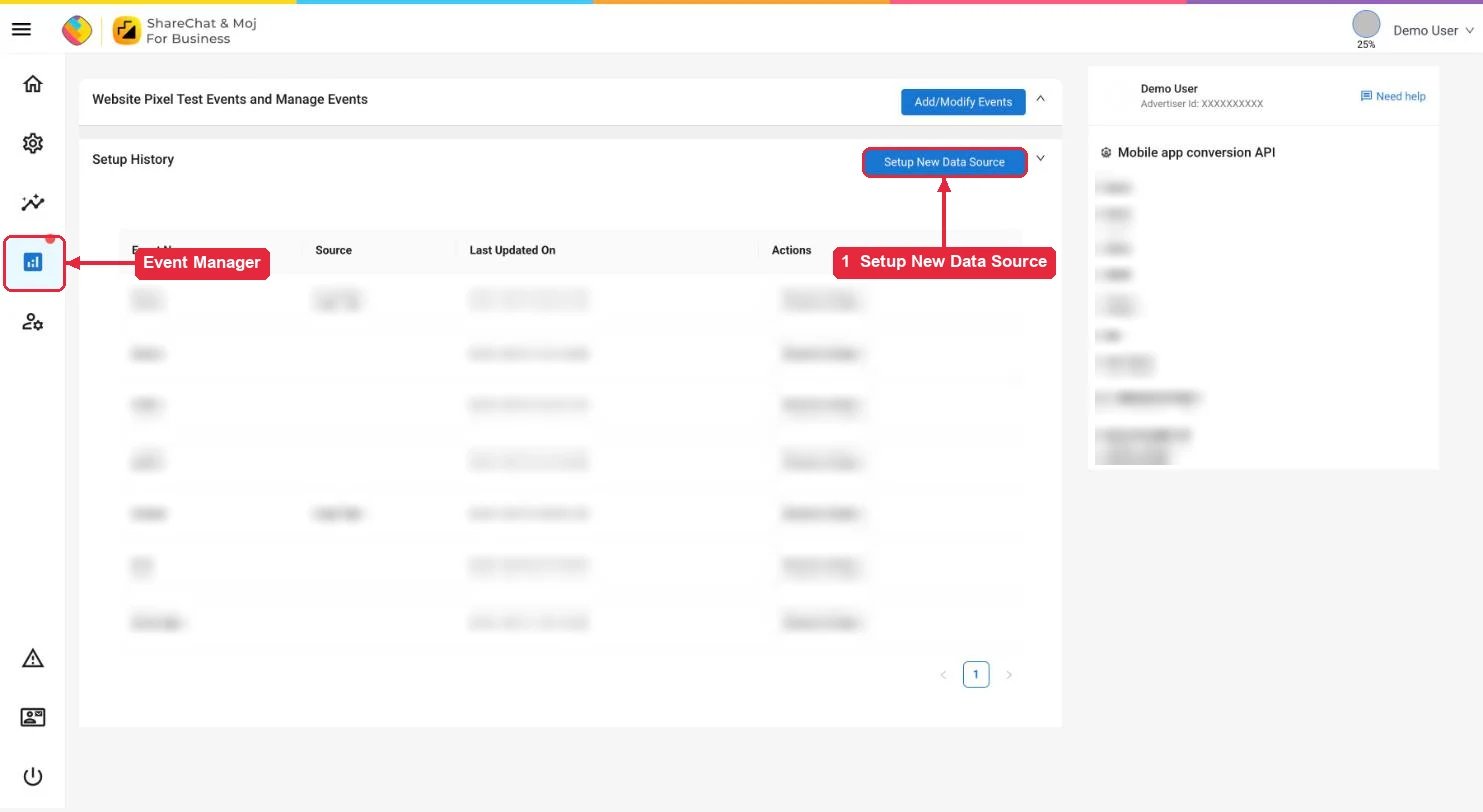
In [ShareChat Ads Manager](https://ads.sharechat.com), open **Event Manager** from the left menu, then click **Setup New Data Source**.
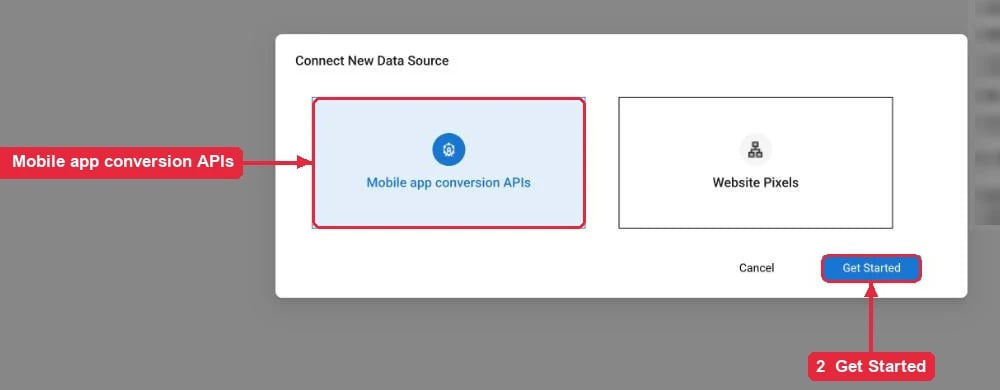
 Choose **Mobile app conversion APIs**, then click **Get Started**.
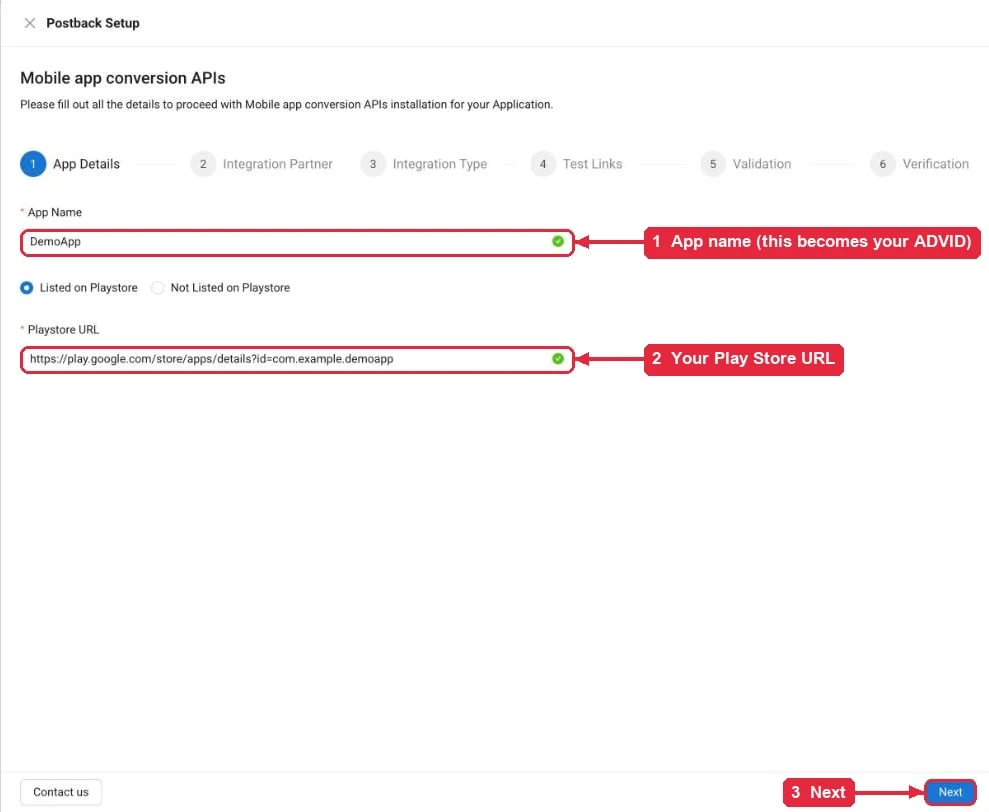
 On **App Details**, enter your app name and Play Store URL, then click **Next**. Use this same app name as your ADVID in Linkrunner.
 On **Integration Partner**, do not pick any of the listed MMPs. Click **Direct Integration** at the bottom.
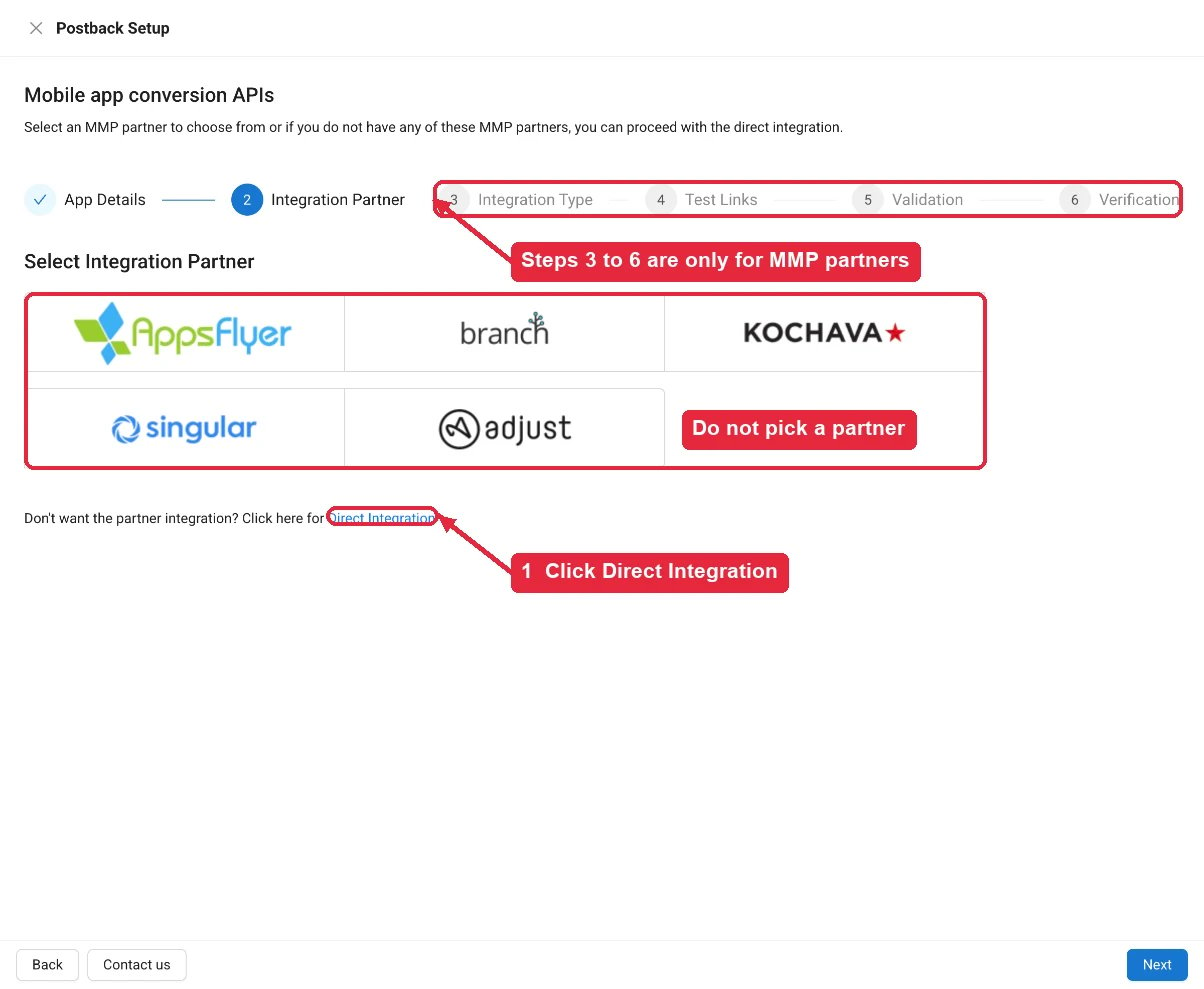 With Direct Integration you stop here in the ShareChat wizard. **Integration Type**, **Test Links**, **Validation**, and **Verification** (steps 3 to 6) are only for the listed MMP partners, so you do not need them. ShareChat verifies a Direct Integration through its ad-ops team instead, which is step 4 of this guide.
### Find your ADVID
Ads Manager does not show a field called ADVID. Your ADVID is the app name you entered on **App Details**. To look it up later, open **Event Manager**: the panel on the right lists your registered app names under **Mobile app conversion API**. Copy the name exactly as it appears there.
With Direct Integration you stop here in the ShareChat wizard. **Integration Type**, **Test Links**, **Validation**, and **Verification** (steps 3 to 6) are only for the listed MMP partners, so you do not need them. ShareChat verifies a Direct Integration through its ad-ops team instead, which is step 4 of this guide.
### Find your ADVID
Ads Manager does not show a field called ADVID. Your ADVID is the app name you entered on **App Details**. To look it up later, open **Event Manager**: the panel on the right lists your registered app names under **Mobile app conversion API**. Copy the name exactly as it appears there.
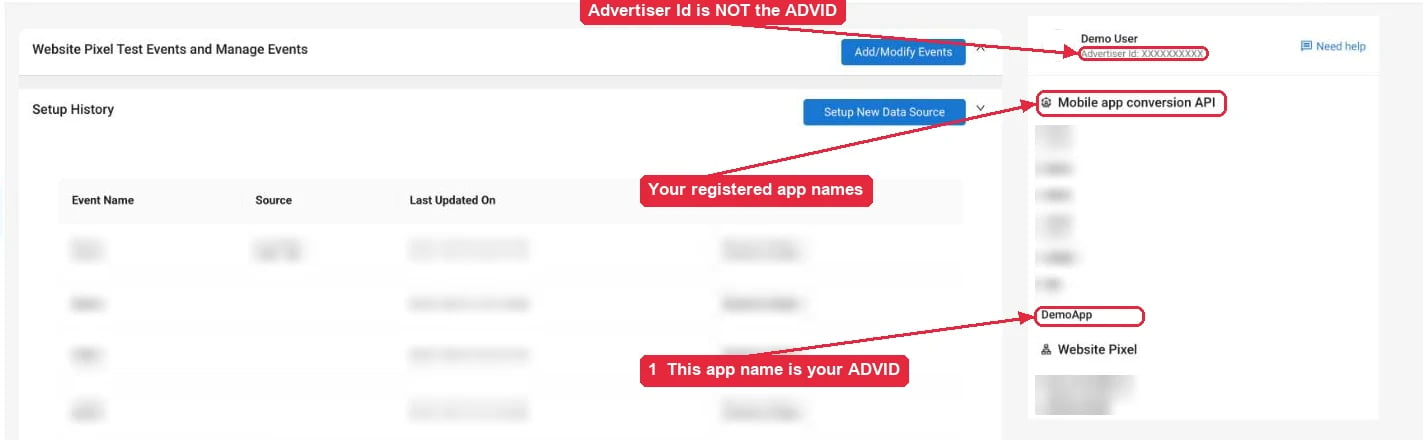 The **Advertiser Id** at the top of that panel is your ad account ID. It is not the ADVID, so do not use it in Linkrunner.
The ADVID must match what ShareChat has on file exactly, including its case. ShareChat can accept a postback with a wrong ADVID, so a typo does not show up as an error, but the conversions will not land on your app. Confirm the value with your ShareChat account manager.
## 2. Add the ADVID in Linkrunner
Open **Integrations** in Linkrunner, find **ShareChat Ads** under **Ad Networks**, and click **Configure**.
The **Advertiser Id** at the top of that panel is your ad account ID. It is not the ADVID, so do not use it in Linkrunner.
The ADVID must match what ShareChat has on file exactly, including its case. ShareChat can accept a postback with a wrong ADVID, so a typo does not show up as an error, but the conversions will not land on your app. Confirm the value with your ShareChat account manager.
## 2. Add the ADVID in Linkrunner
Open **Integrations** in Linkrunner, find **ShareChat Ads** under **Ad Networks**, and click **Configure**.
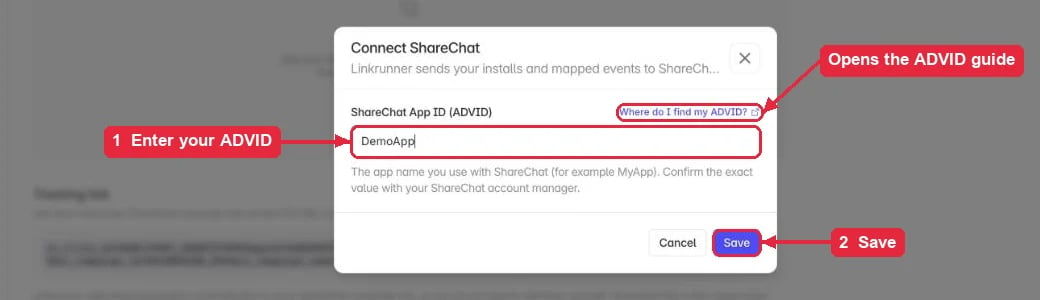
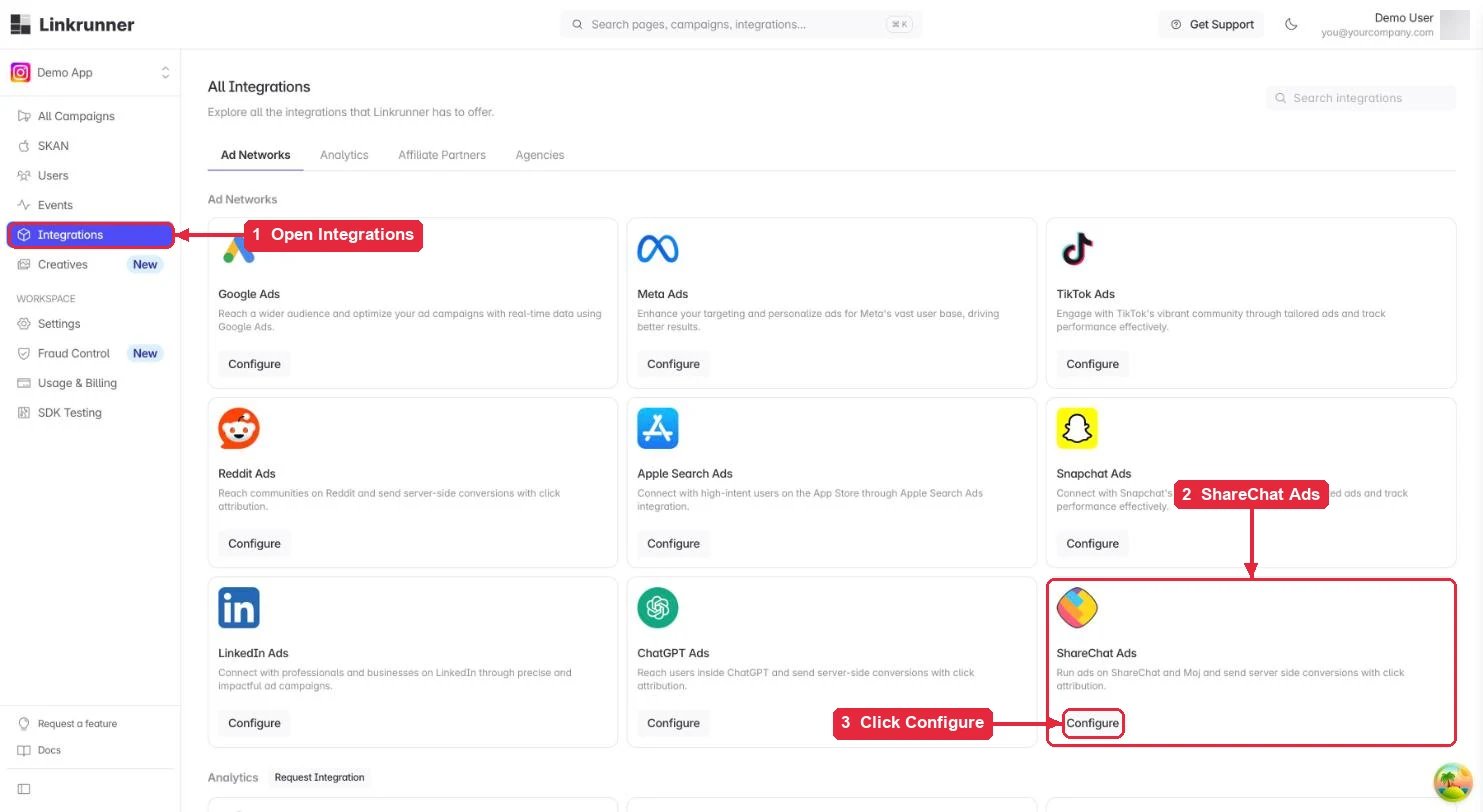 On the **Connection** tab, click **Connect ShareChat**, enter your ADVID, and click **Save**. The **Where do I find my ADVID?** link in that form opens the [Find your ADVID](#find-your-advid) section of this guide.
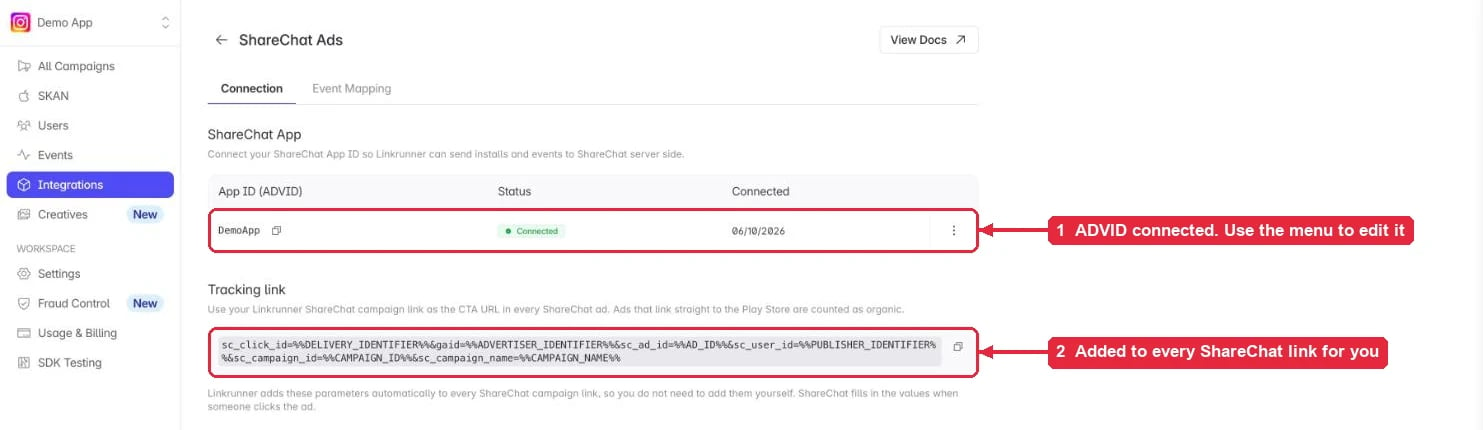
 The connection shows as **Connected**. To change the ADVID later, open the menu on the right of the row and click **Edit**. The **Tracking link** section shows the ShareChat click parameters Linkrunner adds to every ShareChat campaign link, so you never add them yourself.
 ## 3. Map events for ShareChat
Open the **Event Mapping** tab.
## 3. Map events for ShareChat
Open the **Event Mapping** tab.
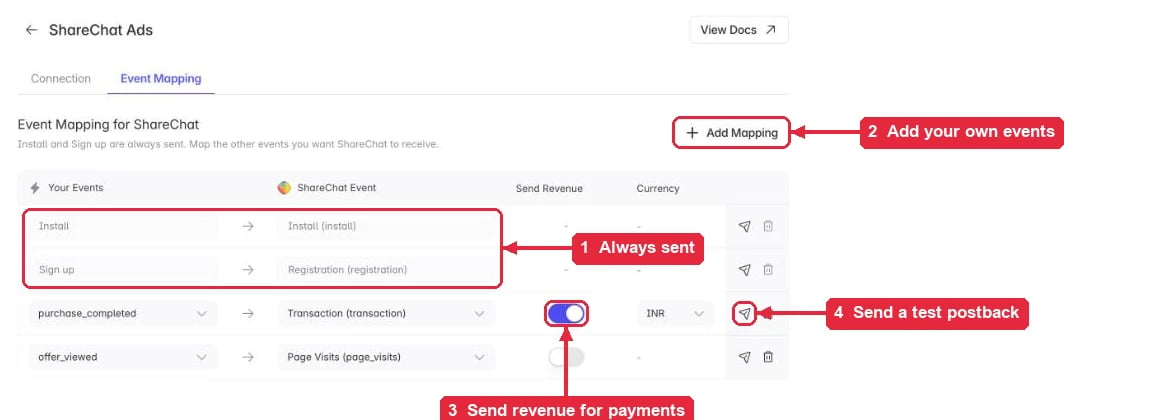 Two rows are always sent and cannot be removed:
| Linkrunner event | ShareChat event |
| - | - |
| Install | `install` |
| Sign up | `registration` |
Click **Add Mapping** to send another app event. Choose your event on the left and the ShareChat event on the right.
Two rows are always sent and cannot be removed:
| Linkrunner event | ShareChat event |
| - | - |
| Install | `install` |
| Sign up | `registration` |
Click **Add Mapping** to send another app event. Choose your event on the left and the ShareChat event on the right.
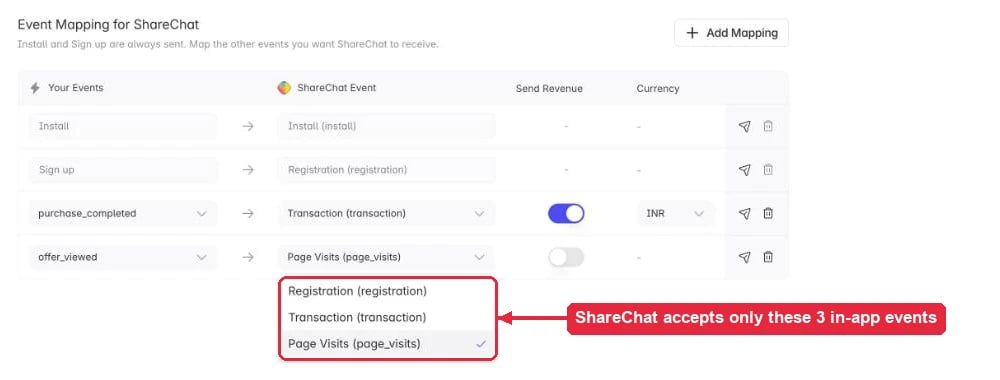 | ShareChat event | Use it for |
| - | - |
| **Registration** (`registration`) | Your real registration step, if it is not the SDK signup, for example KYC completed |
| **Transaction** (`transaction`) | Purchases, payments, deposits, or any revenue event |
| **Page Visits** (`page_visits`) | Key screen or content views |
* ShareChat accepts only these event names. An app event that is not mapped is not sent.
* You can map more than one of your events to the same ShareChat event, for example two payment events to **Transaction**.
* For a revenue event, turn on **Send Revenue** and pick the currency. Linkrunner sends the amount as ShareChat's `eventValue`, for example `499.00`. With revenue off, `eventValue` is `1`.
## 4. Get your postbacks verified by ShareChat
ShareChat asks every Direct Integration advertiser to send test postbacks and have ad-ops confirm them before you run conversion campaigns.
1. On **Event Mapping**, click the send icon on each row (Install, Sign up, and every mapping you added). Linkrunner sends one test postback per click to ShareChat with your ADVID.
2. Note the time you sent them.
3. Message your ShareChat account manager or ad-ops team with your ADVID, the events you sent, and the time.
Test postbacks from Linkrunner use these values, so ad-ops can find them:
| Parameter | Test value |
| - | - |
| `clickId` | starts with `linkrunner-test-` |
| `campaignName` | `Linkrunner test` |
| `adId`, `userId` | `linkrunner-test` |
In the same message, ask ad-ops to enable the **Conversion** objective for your ad account. ShareChat requires this permission for advertisers on S2S postbacks, and the option stays locked until they turn it on.
## 5. Create a Linkrunner campaign link
1. Go to **All Campaigns** in Linkrunner and click **Create Link**.
2. Enter a campaign name.
3. Turn on **Enable Deferred deeplinking** if the ad should open a specific in-app screen after install.
4. Open **Advanced Options**, and under **Ad Channel** select **ShareChat**.
5. Click **Create Campaign**.
| ShareChat event | Use it for |
| - | - |
| **Registration** (`registration`) | Your real registration step, if it is not the SDK signup, for example KYC completed |
| **Transaction** (`transaction`) | Purchases, payments, deposits, or any revenue event |
| **Page Visits** (`page_visits`) | Key screen or content views |
* ShareChat accepts only these event names. An app event that is not mapped is not sent.
* You can map more than one of your events to the same ShareChat event, for example two payment events to **Transaction**.
* For a revenue event, turn on **Send Revenue** and pick the currency. Linkrunner sends the amount as ShareChat's `eventValue`, for example `499.00`. With revenue off, `eventValue` is `1`.
## 4. Get your postbacks verified by ShareChat
ShareChat asks every Direct Integration advertiser to send test postbacks and have ad-ops confirm them before you run conversion campaigns.
1. On **Event Mapping**, click the send icon on each row (Install, Sign up, and every mapping you added). Linkrunner sends one test postback per click to ShareChat with your ADVID.
2. Note the time you sent them.
3. Message your ShareChat account manager or ad-ops team with your ADVID, the events you sent, and the time.
Test postbacks from Linkrunner use these values, so ad-ops can find them:
| Parameter | Test value |
| - | - |
| `clickId` | starts with `linkrunner-test-` |
| `campaignName` | `Linkrunner test` |
| `adId`, `userId` | `linkrunner-test` |
In the same message, ask ad-ops to enable the **Conversion** objective for your ad account. ShareChat requires this permission for advertisers on S2S postbacks, and the option stays locked until they turn it on.
## 5. Create a Linkrunner campaign link
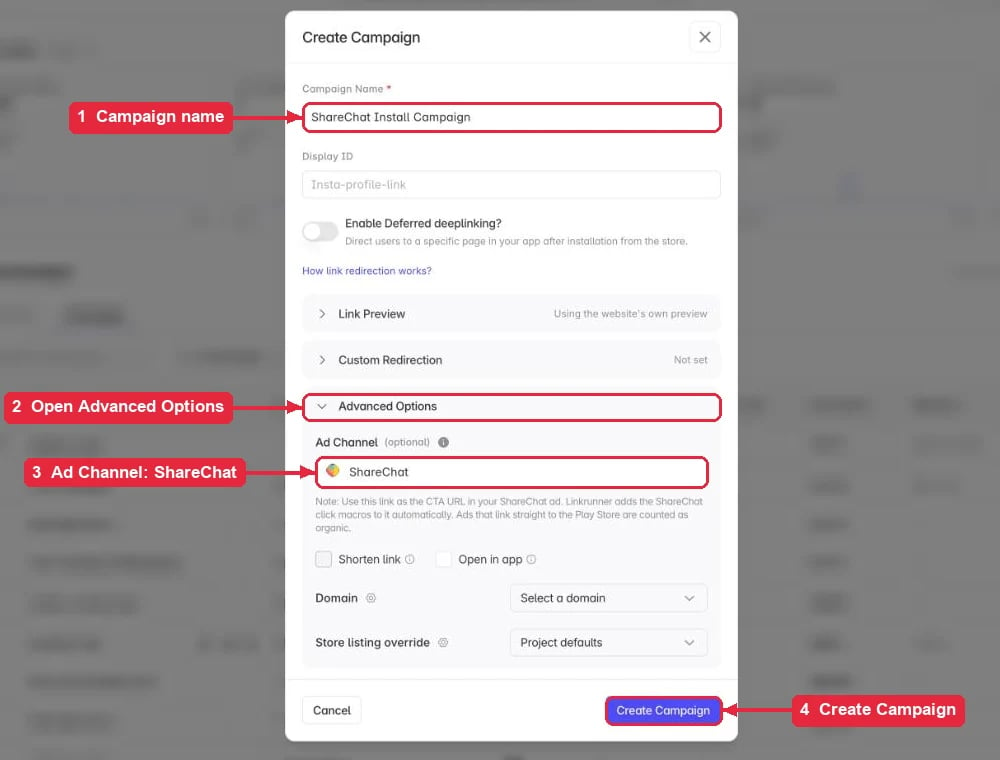
1. Go to **All Campaigns** in Linkrunner and click **Create Link**.
2. Enter a campaign name.
3. Turn on **Enable Deferred deeplinking** if the ad should open a specific in-app screen after install.
4. Open **Advanced Options**, and under **Ad Channel** select **ShareChat**.
5. Click **Create Campaign**.
 Copy the full campaign link. It already carries ShareChat's click macros.
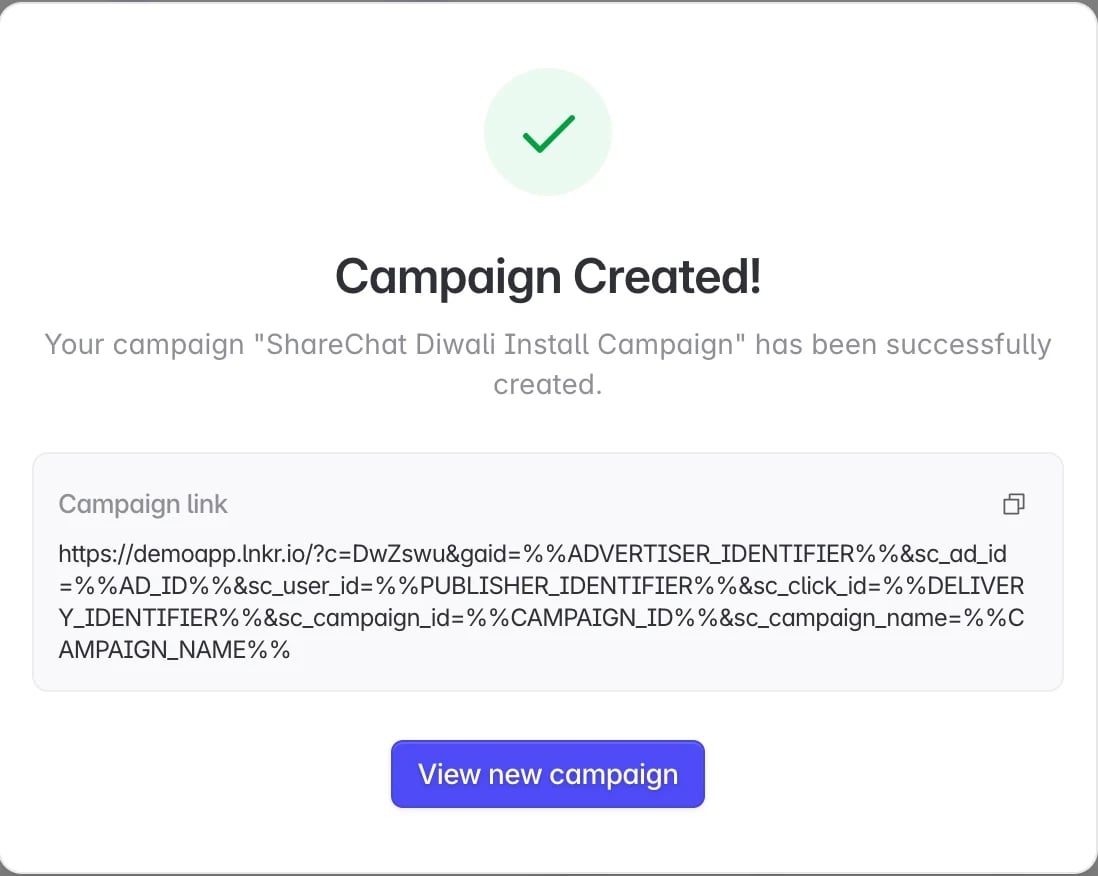 You can copy it again any time from **All Campaigns**. Filter by **ShareChat** and click the copy icon next to the campaign name.
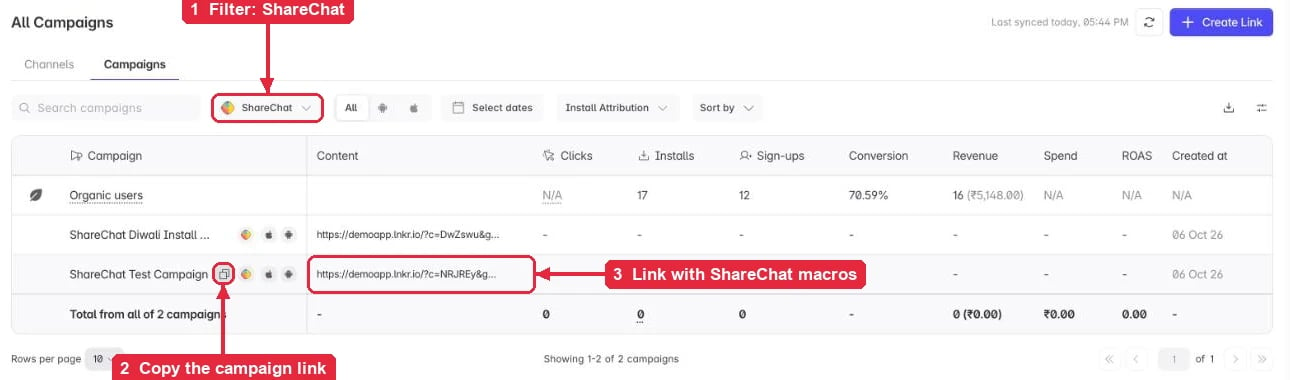 The link looks like this:
```text theme={null}
https://app.product.com/?c=AbCdEf&gaid=%%ADVERTISER_IDENTIFIER%%&sc_ad_id=%%AD_ID%%&sc_user_id=%%PUBLISHER_IDENTIFIER%%&sc_click_id=%%DELIVERY_IDENTIFIER%%&sc_campaign_id=%%CAMPAIGN_ID%%&sc_campaign_name=%%CAMPAIGN_NAME%%
```
ShareChat replaces each `%%...%%` macro when someone clicks the ad:
| Link parameter | ShareChat macro | Sent back to ShareChat as |
| - | - | - |
| `sc_click_id` | `%%DELIVERY_IDENTIFIER%%` | `clickId` |
| `gaid` | `%%ADVERTISER_IDENTIFIER%%` | `gaid` |
| `sc_ad_id` | `%%AD_ID%%` | `adId` |
| `sc_user_id` | `%%PUBLISHER_IDENTIFIER%%` | `userId` |
| `sc_campaign_name` | `%%CAMPAIGN_NAME%%` | `campaignName` |
| `sc_campaign_id` | `%%CAMPAIGN_ID%%` | stored on the click in Linkrunner |
Do not remove or rename these parameters. `sc_click_id` is what ShareChat matches every postback on. Without it, Linkrunner still records the click and install, but sends nothing to ShareChat.
Create one Linkrunner campaign for each ShareChat campaign you want reported separately in Linkrunner.
## 6. Create and run the ad in ShareChat
In ShareChat Ads Manager, click **New Campaign** on the overview page. The campaign form has three sections: **Campaign Info**, **Set Up Campaign**, and **Creatives**.
### Campaign Info
1. Pick your **Advertiser Categories** and enter a **Campaign Title**.
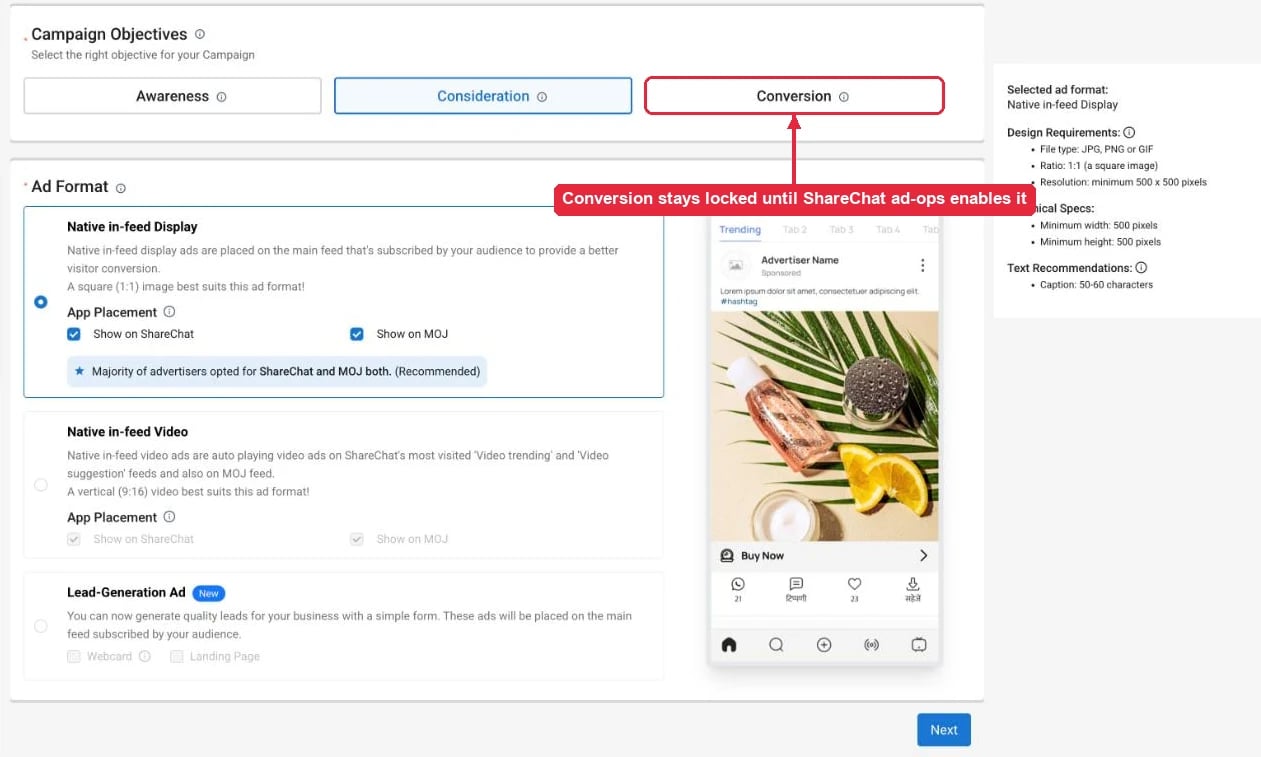
2. Under **Campaign Objectives**, choose **Conversion**. If it is locked, ad-ops has not enabled it yet (step 4).
3. Choose an **Ad Format**, for example **Native in-feed Display** (1:1 image) or **Native in-feed Video** (9:16 video), and the placements (ShareChat, Moj, or both).
The link looks like this:
```text theme={null}
https://app.product.com/?c=AbCdEf&gaid=%%ADVERTISER_IDENTIFIER%%&sc_ad_id=%%AD_ID%%&sc_user_id=%%PUBLISHER_IDENTIFIER%%&sc_click_id=%%DELIVERY_IDENTIFIER%%&sc_campaign_id=%%CAMPAIGN_ID%%&sc_campaign_name=%%CAMPAIGN_NAME%%
```
ShareChat replaces each `%%...%%` macro when someone clicks the ad:
| Link parameter | ShareChat macro | Sent back to ShareChat as |
| - | - | - |
| `sc_click_id` | `%%DELIVERY_IDENTIFIER%%` | `clickId` |
| `gaid` | `%%ADVERTISER_IDENTIFIER%%` | `gaid` |
| `sc_ad_id` | `%%AD_ID%%` | `adId` |
| `sc_user_id` | `%%PUBLISHER_IDENTIFIER%%` | `userId` |
| `sc_campaign_name` | `%%CAMPAIGN_NAME%%` | `campaignName` |
| `sc_campaign_id` | `%%CAMPAIGN_ID%%` | stored on the click in Linkrunner |
Do not remove or rename these parameters. `sc_click_id` is what ShareChat matches every postback on. Without it, Linkrunner still records the click and install, but sends nothing to ShareChat.
Create one Linkrunner campaign for each ShareChat campaign you want reported separately in Linkrunner.
## 6. Create and run the ad in ShareChat
In ShareChat Ads Manager, click **New Campaign** on the overview page. The campaign form has three sections: **Campaign Info**, **Set Up Campaign**, and **Creatives**.
### Campaign Info
1. Pick your **Advertiser Categories** and enter a **Campaign Title**.
2. Under **Campaign Objectives**, choose **Conversion**. If it is locked, ad-ops has not enabled it yet (step 4).
3. Choose an **Ad Format**, for example **Native in-feed Display** (1:1 image) or **Native in-feed Video** (9:16 video), and the placements (ShareChat, Moj, or both).
 ### Set Up Campaign
Set **Budget & Schedule** and **Target Audience** as you normally would.
Start with a small daily budget so you can confirm the full click, install, and postback flow before you scale.
### Creatives
Upload your image or video and caption. Wherever the creative asks for the **CTA** or **Landing Page URL**, paste the full Linkrunner campaign link from step 5, unchanged.
Do not paste the Play Store URL, and do not use ShareChat's Play Store `referrer` method from their help page. That method is for advertisers without a measurement partner. With Linkrunner, ShareChat must send the click to the Linkrunner link first, so Linkrunner can capture `sc_click_id`, send the user to the store, attribute the install, and send the postbacks.
Submit the campaign. It runs after ShareChat approves the creative.
## 7. Check that it works
* **In Linkrunner:** open **All Campaigns** and filter by **ShareChat**. Clicks show on your campaign as soon as people tap the ad, then installs and events as they happen.
* **In ShareChat:** ask your account manager to confirm they are receiving `install`, `registration`, and your mapped events for your ADVID. ShareChat Ads Manager has no self-serve postback log.
To test on your own device before launch:
1. Uninstall your app from an Android test device.
2. Open your ShareChat campaign link on that device with test values in place of the macros, for example `sc_click_id=test-click-1`.
3. Install the app from the Play Store and open it.
4. Sign up and trigger one mapped event.
5. Check the install on the campaign in Linkrunner, and ask ad-ops to confirm they got the events for `clickId=test-click-1`.
## How postbacks work
For each attributed install, signup, and mapped event, Linkrunner sends a server-to-server `GET` request to ShareChat:
```text theme={null}
https://sc-s2s-external.sharechat.com/a1s-s2s-service/v1/events//post?clickId=&gaid=&campaignName=&adId=&userId=&EventTime=&eventName=&eventValue=
```
This is what one user produces, from click to payment, with the ADVID `MyApp`:
| User action | ShareChat receives |
| - | - |
| Installs and opens the app | `eventName=install&eventValue=1&installType=0` |
| Signs up | `eventName=registration&eventValue=1` |
| Fires `viewed_product`, mapped to Page Visits | `eventName=page_visits&eventValue=1` |
| Pays ₹499, mapped to Transaction with revenue on | `eventName=transaction&eventValue=499.00` |
| Fires an event that is not mapped | nothing |
Every request carries the same `clickId`, `gaid`, `campaignName`, `adId`, and `userId` from the original click. `EventTime` is the install time for `install` and the event time for everything else. ShareChat answers `200` with `{"message":"Events received."}` when it accepts a postback. Linkrunner retries when ShareChat is unavailable or rate limits the request, and does not retry a request ShareChat rejects as invalid.
## Frequently Asked Questions
The ad is not using your Linkrunner campaign link, or the link lost its parameters. Check that the ad's CTA URL is the full Linkrunner link from step 5, with `sc_click_id=%%DELIVERY_IDENTIFIER%%` still on it. Installs from ads that link straight to the Play Store are always organic.
No. Those steps are for the MMPs listed in ShareChat's partner list. With Direct Integration, ShareChat's ad-ops team verifies your test postbacks instead (step 4).
ShareChat enables it per ad account for advertisers using S2S postbacks. Ask your ShareChat account manager or ad-ops team to enable conversion campaigns for your account.
Only after the ads use a Linkrunner campaign link. ShareChat does not report its own attributions to Linkrunner, so a campaign that ran before you switched its link has no Linkrunner clicks to match.
The ADVID is your app name as registered with ShareChat, for example `MyApp`. It is not the Advertiser ID shown in Ads Manager. Your ShareChat account manager confirms the exact value.
ShareChat receives only Install, Sign up, and the events you mapped on **Event Mapping**. An event is also skipped when the install did not come from a ShareChat click with `sc_click_id`.
No. ShareChat attribution in Linkrunner is click-through only.
No. ShareChat has no reporting API for Linkrunner to read, so ShareChat campaigns in Linkrunner show clicks, installs, events, and revenue, but no cost.
## Related setup
Configure Android App Links and iOS Universal Links.
Read deferred deep link data after first app open.
**Need help?** Contact [support@linkrunner.io](mailto:support@linkrunner.io)
This documentation is built and hosted on [Mintlify](https://mintlify.com), a developer documentation platform.
### Set Up Campaign
Set **Budget & Schedule** and **Target Audience** as you normally would.
Start with a small daily budget so you can confirm the full click, install, and postback flow before you scale.
### Creatives
Upload your image or video and caption. Wherever the creative asks for the **CTA** or **Landing Page URL**, paste the full Linkrunner campaign link from step 5, unchanged.
Do not paste the Play Store URL, and do not use ShareChat's Play Store `referrer` method from their help page. That method is for advertisers without a measurement partner. With Linkrunner, ShareChat must send the click to the Linkrunner link first, so Linkrunner can capture `sc_click_id`, send the user to the store, attribute the install, and send the postbacks.
Submit the campaign. It runs after ShareChat approves the creative.
## 7. Check that it works
* **In Linkrunner:** open **All Campaigns** and filter by **ShareChat**. Clicks show on your campaign as soon as people tap the ad, then installs and events as they happen.
* **In ShareChat:** ask your account manager to confirm they are receiving `install`, `registration`, and your mapped events for your ADVID. ShareChat Ads Manager has no self-serve postback log.
To test on your own device before launch:
1. Uninstall your app from an Android test device.
2. Open your ShareChat campaign link on that device with test values in place of the macros, for example `sc_click_id=test-click-1`.
3. Install the app from the Play Store and open it.
4. Sign up and trigger one mapped event.
5. Check the install on the campaign in Linkrunner, and ask ad-ops to confirm they got the events for `clickId=test-click-1`.
## How postbacks work
For each attributed install, signup, and mapped event, Linkrunner sends a server-to-server `GET` request to ShareChat:
```text theme={null}
https://sc-s2s-external.sharechat.com/a1s-s2s-service/v1/events//post?clickId=&gaid=&campaignName=&adId=&userId=&EventTime=&eventName=&eventValue=
```
This is what one user produces, from click to payment, with the ADVID `MyApp`:
| User action | ShareChat receives |
| - | - |
| Installs and opens the app | `eventName=install&eventValue=1&installType=0` |
| Signs up | `eventName=registration&eventValue=1` |
| Fires `viewed_product`, mapped to Page Visits | `eventName=page_visits&eventValue=1` |
| Pays ₹499, mapped to Transaction with revenue on | `eventName=transaction&eventValue=499.00` |
| Fires an event that is not mapped | nothing |
Every request carries the same `clickId`, `gaid`, `campaignName`, `adId`, and `userId` from the original click. `EventTime` is the install time for `install` and the event time for everything else. ShareChat answers `200` with `{"message":"Events received."}` when it accepts a postback. Linkrunner retries when ShareChat is unavailable or rate limits the request, and does not retry a request ShareChat rejects as invalid.
## Frequently Asked Questions
The ad is not using your Linkrunner campaign link, or the link lost its parameters. Check that the ad's CTA URL is the full Linkrunner link from step 5, with `sc_click_id=%%DELIVERY_IDENTIFIER%%` still on it. Installs from ads that link straight to the Play Store are always organic.
No. Those steps are for the MMPs listed in ShareChat's partner list. With Direct Integration, ShareChat's ad-ops team verifies your test postbacks instead (step 4).
ShareChat enables it per ad account for advertisers using S2S postbacks. Ask your ShareChat account manager or ad-ops team to enable conversion campaigns for your account.
Only after the ads use a Linkrunner campaign link. ShareChat does not report its own attributions to Linkrunner, so a campaign that ran before you switched its link has no Linkrunner clicks to match.
The ADVID is your app name as registered with ShareChat, for example `MyApp`. It is not the Advertiser ID shown in Ads Manager. Your ShareChat account manager confirms the exact value.
ShareChat receives only Install, Sign up, and the events you mapped on **Event Mapping**. An event is also skipped when the install did not come from a ShareChat click with `sc_click_id`.
No. ShareChat attribution in Linkrunner is click-through only.
No. ShareChat has no reporting API for Linkrunner to read, so ShareChat campaigns in Linkrunner show clicks, installs, events, and revenue, but no cost.
## Related setup
Configure Android App Links and iOS Universal Links.
Read deferred deep link data after first app open.
**Need help?** Contact [support@linkrunner.io](mailto:support@linkrunner.io)
This documentation is built and hosted on [Mintlify](https://mintlify.com), a developer documentation platform.