> ## Documentation Index
> Fetch the complete documentation index at: https://docs.linkrunner.io/llms.txt
> Use this file to discover all available pages before exploring further.
# Meta Web to App
> Run Meta web-to-app ads for your app with advanced conversion tracking and optimization
## Overview
Meta Web to App integration with Linkrunner lets you run app growth campaigns through Facebook and Instagram using a standard Sales (Website) objective, while Linkrunner handles attribution, spend sync, and CAPI event delivery. Linkrunner automatically creates one campaign per Meta Campaign on first click, so there is no manual campaign setup required on the Linkrunner side.
**Works for both Android and iOS apps.**
### What You'll Get
* **Web-to-app conversion tracking.** Track installs, sign-ups, purchases, and custom events from Meta ads.
* **Conversions API (CAPI) integration.** Enhanced tracking accuracy and resilience against browser limitations.
* **Deferred deep linking.** Drop users into the right screen after first open, even if they need to install the app first.
* **Cross-platform consistency.** Track installs across iOS and Android with one unified flow.
* **Automatic campaign creation.** Linkrunner mirrors your Meta Campaign hierarchy on first click, no manual setup needed.
## Setup
Connect your Meta advertising account with Linkrunner to enable spend sync and CAPI event delivery. This is the same OAuth connection used for Meta App Ads.
1. Go to [Linkrunner Settings → Meta Integration](https://dashboard.linkrunner.io/settings?s=meta-integration\&meta_tab=meta-ad-account)
2. Click **"Add account"**
3. Log in with your Facebook account credentials and grant the requested permissions
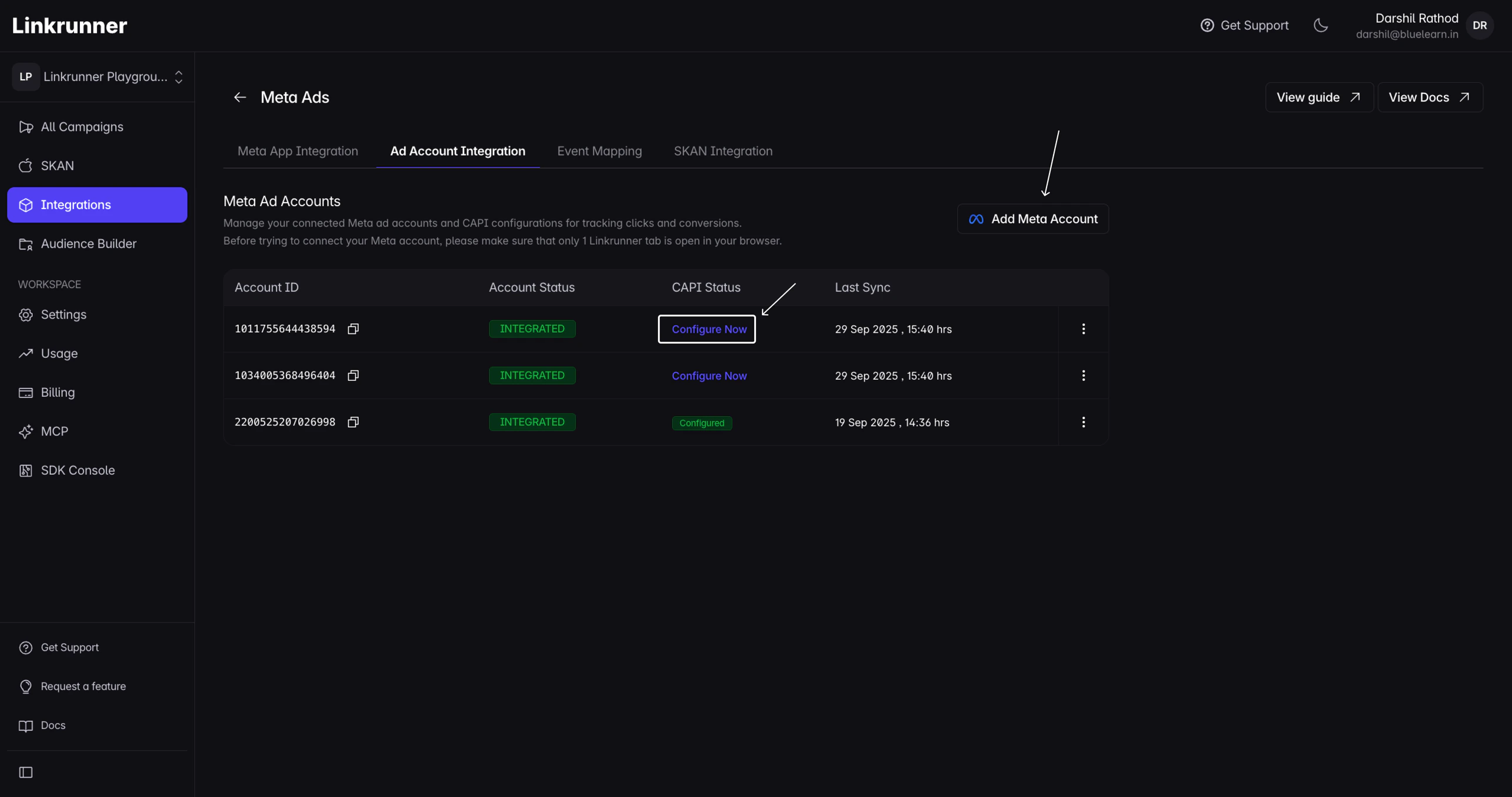 Linkrunner needs access to your Meta ad account to pull spend data from the Marketing API and to send CAPI conversion events back to Meta. Without this connection, cost and ROAS figures will not appear in your Linkrunner dashboard.
Linkrunner uses your custom subdomain as the destination URL in your Meta ads. If you have not set one up yet, go to [Settings → Domains](https://dashboard.linkrunner.io/settings?s=domains) and add a subdomain.
For full instructions on configuring the CNAME record, see the [Subdomain Setup guide](/features/subdomain-setup).
Once your subdomain is active (CNAME verified and SSL active), you are ready for the next step. You can also find your ready-to-paste destination URL under [Integrations → Meta Ads → Web to App](https://dashboard.linkrunner.io/dashboard/integrations/meta-ads?tab=web_to_app).
In Meta Ads Manager, paste your Linkrunner destination URL directly as the ad's **Website URL** (in the ad destination section, not the Tracking field).
Use this template, replacing `` with your actual subdomain:
```
https:///?utm_source=facebook&utm_medium=paid_social&campaign_id={{campaign.id}}&adset_id={{adset.id}}&ad_id={{ad.id}}&placement={{placement}}&site_source={{site_source_name}}
```
Meta substitutes the `{{...}}` macros with real campaign, ad set, ad, and placement IDs at delivery time. Linkrunner reads those values on each click to:
1. **Auto-create a Linkrunner campaign** mirroring your Meta Campaign on first click. No manual campaign creation is needed.
2. **Sync Meta spend** into your Linkrunner dashboard. The `campaign_id` macro is what the spend sync uses to pull cost data from Meta's Marketing API.
3. **Break out reports by ad set, ad, and placement** using `adset_id`, `ad_id`, `placement`, and `site_source`.
A ready-to-paste version of this URL (with your subdomain pre-filled) is available under [Integrations → Meta Ads → Web to App](https://dashboard.linkrunner.io/dashboard/integrations/meta-ads?tab=web_to_app). Pick the destination domain there and copy the URL directly.
Paste this URL as the **Website URL** in the ad destination section, not into the Tracking field. Without the `campaign_id` macro in the destination URL, Meta spend will not sync into Linkrunner reports and campaign-level breakdowns will be missing.
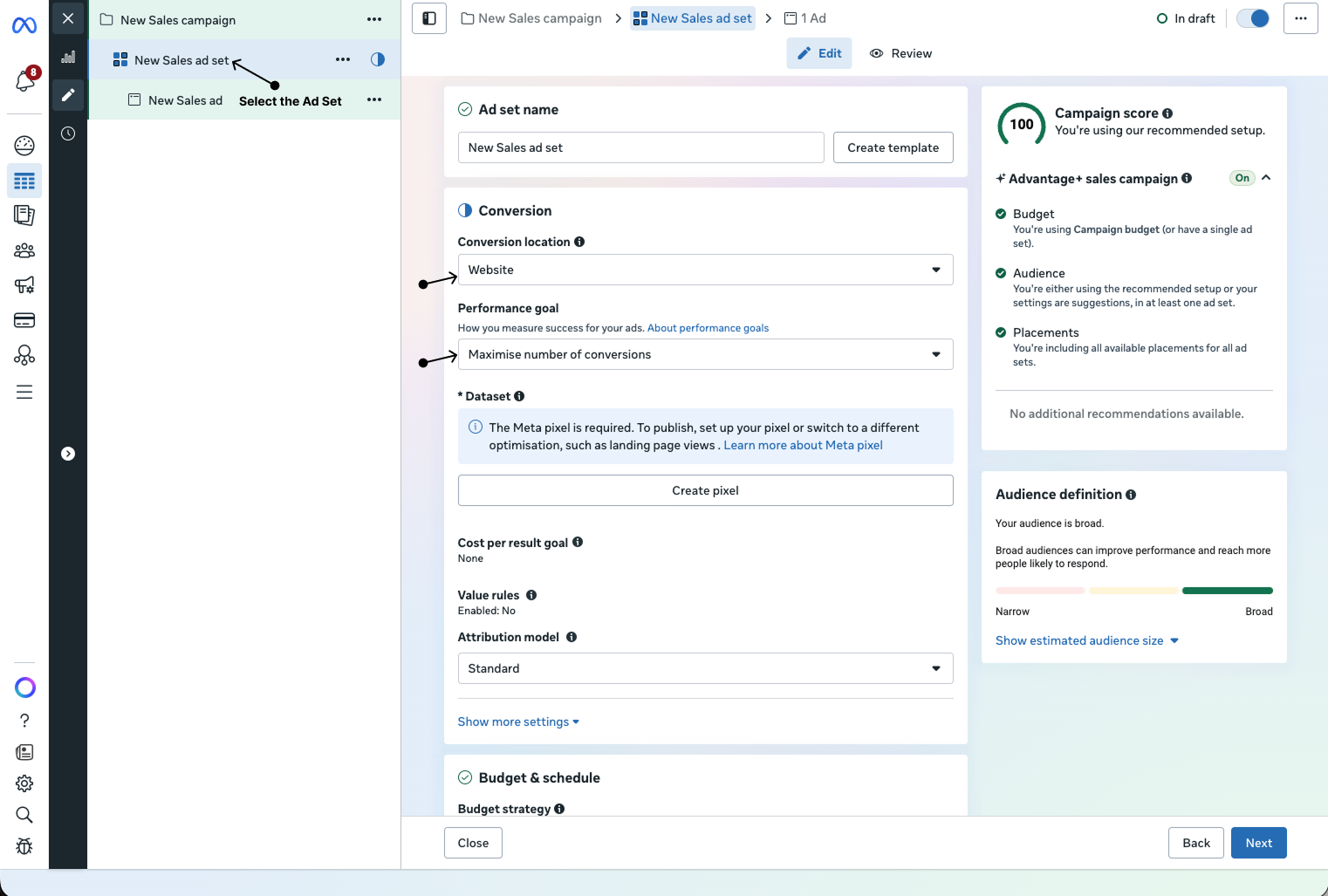
**How to configure the ad in Meta Ads Manager:**
1. Go to [Meta Ads Manager](https://business.facebook.com/adsmanager) and create or edit a campaign
2. Set the campaign objective to **Sales**
3. In the ad set, set **Conversion location** to **Website**, **Performance goal** to **Maximise number of conversions**, and select your **Dataset** (Meta pixel)
Linkrunner needs access to your Meta ad account to pull spend data from the Marketing API and to send CAPI conversion events back to Meta. Without this connection, cost and ROAS figures will not appear in your Linkrunner dashboard.
Linkrunner uses your custom subdomain as the destination URL in your Meta ads. If you have not set one up yet, go to [Settings → Domains](https://dashboard.linkrunner.io/settings?s=domains) and add a subdomain.
For full instructions on configuring the CNAME record, see the [Subdomain Setup guide](/features/subdomain-setup).
Once your subdomain is active (CNAME verified and SSL active), you are ready for the next step. You can also find your ready-to-paste destination URL under [Integrations → Meta Ads → Web to App](https://dashboard.linkrunner.io/dashboard/integrations/meta-ads?tab=web_to_app).
In Meta Ads Manager, paste your Linkrunner destination URL directly as the ad's **Website URL** (in the ad destination section, not the Tracking field).
Use this template, replacing `` with your actual subdomain:
```
https:///?utm_source=facebook&utm_medium=paid_social&campaign_id={{campaign.id}}&adset_id={{adset.id}}&ad_id={{ad.id}}&placement={{placement}}&site_source={{site_source_name}}
```
Meta substitutes the `{{...}}` macros with real campaign, ad set, ad, and placement IDs at delivery time. Linkrunner reads those values on each click to:
1. **Auto-create a Linkrunner campaign** mirroring your Meta Campaign on first click. No manual campaign creation is needed.
2. **Sync Meta spend** into your Linkrunner dashboard. The `campaign_id` macro is what the spend sync uses to pull cost data from Meta's Marketing API.
3. **Break out reports by ad set, ad, and placement** using `adset_id`, `ad_id`, `placement`, and `site_source`.
A ready-to-paste version of this URL (with your subdomain pre-filled) is available under [Integrations → Meta Ads → Web to App](https://dashboard.linkrunner.io/dashboard/integrations/meta-ads?tab=web_to_app). Pick the destination domain there and copy the URL directly.
Paste this URL as the **Website URL** in the ad destination section, not into the Tracking field. Without the `campaign_id` macro in the destination URL, Meta spend will not sync into Linkrunner reports and campaign-level breakdowns will be missing.
**How to configure the ad in Meta Ads Manager:**
1. Go to [Meta Ads Manager](https://business.facebook.com/adsmanager) and create or edit a campaign
2. Set the campaign objective to **Sales**
3. In the ad set, set **Conversion location** to **Website**, **Performance goal** to **Maximise number of conversions**, and select your **Dataset** (Meta pixel)
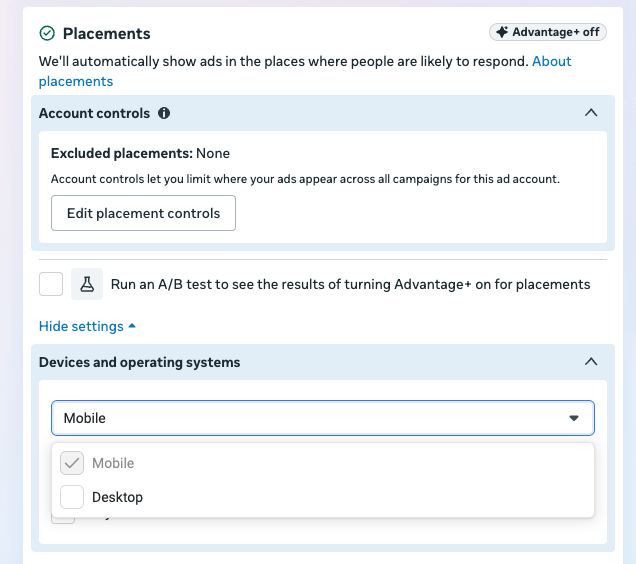
 4. Select an ad set. Under **Placements**, open **Devices and operating systems** and select **Mobile** only. **Desktop** should not be selected.
 5. In the ad, paste the destination URL above as the **Website URL**
6. Add your creative assets and publish
Even though the conversion location is set to Website, the Linkrunner link automatically redirects mobile users to your app. Meta treats it as a website click and Linkrunner handles the redirect to the appropriate app store or directly into the app.
## Set Up Conversions API for Event Sending
Configuring CAPI is optional but strongly recommended. It enables server-side event delivery to Meta, which improves attribution accuracy and campaign optimization.
### Generate an Access Token
Complete the access token setup in Facebook Events Manager:
5. In the ad, paste the destination URL above as the **Website URL**
6. Add your creative assets and publish
Even though the conversion location is set to Website, the Linkrunner link automatically redirects mobile users to your app. Meta treats it as a website click and Linkrunner handles the redirect to the appropriate app store or directly into the app.
## Set Up Conversions API for Event Sending
Configuring CAPI is optional but strongly recommended. It enables server-side event delivery to Meta, which improves attribution accuracy and campaign optimization.
### Generate an Access Token
Complete the access token setup in Facebook Events Manager:
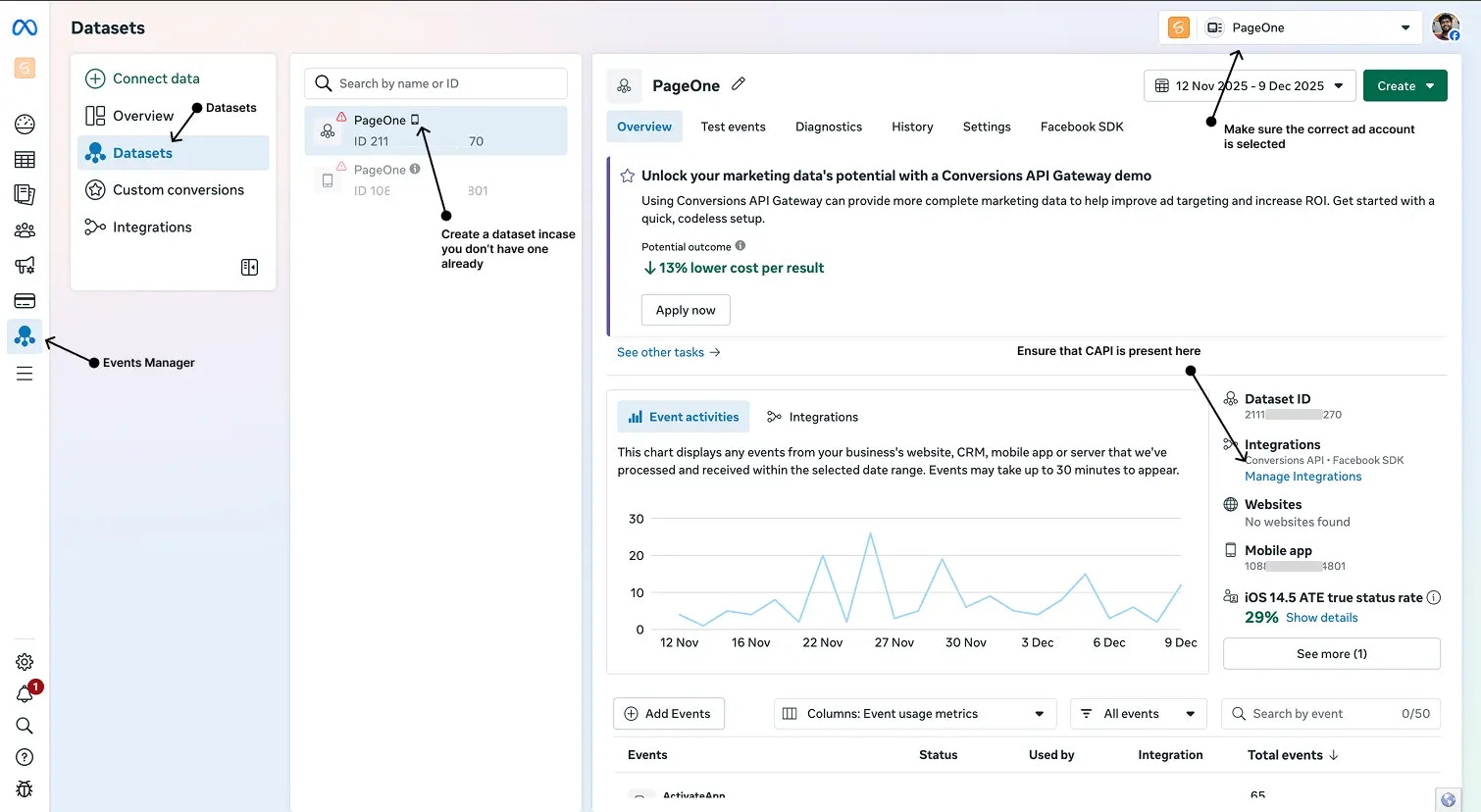
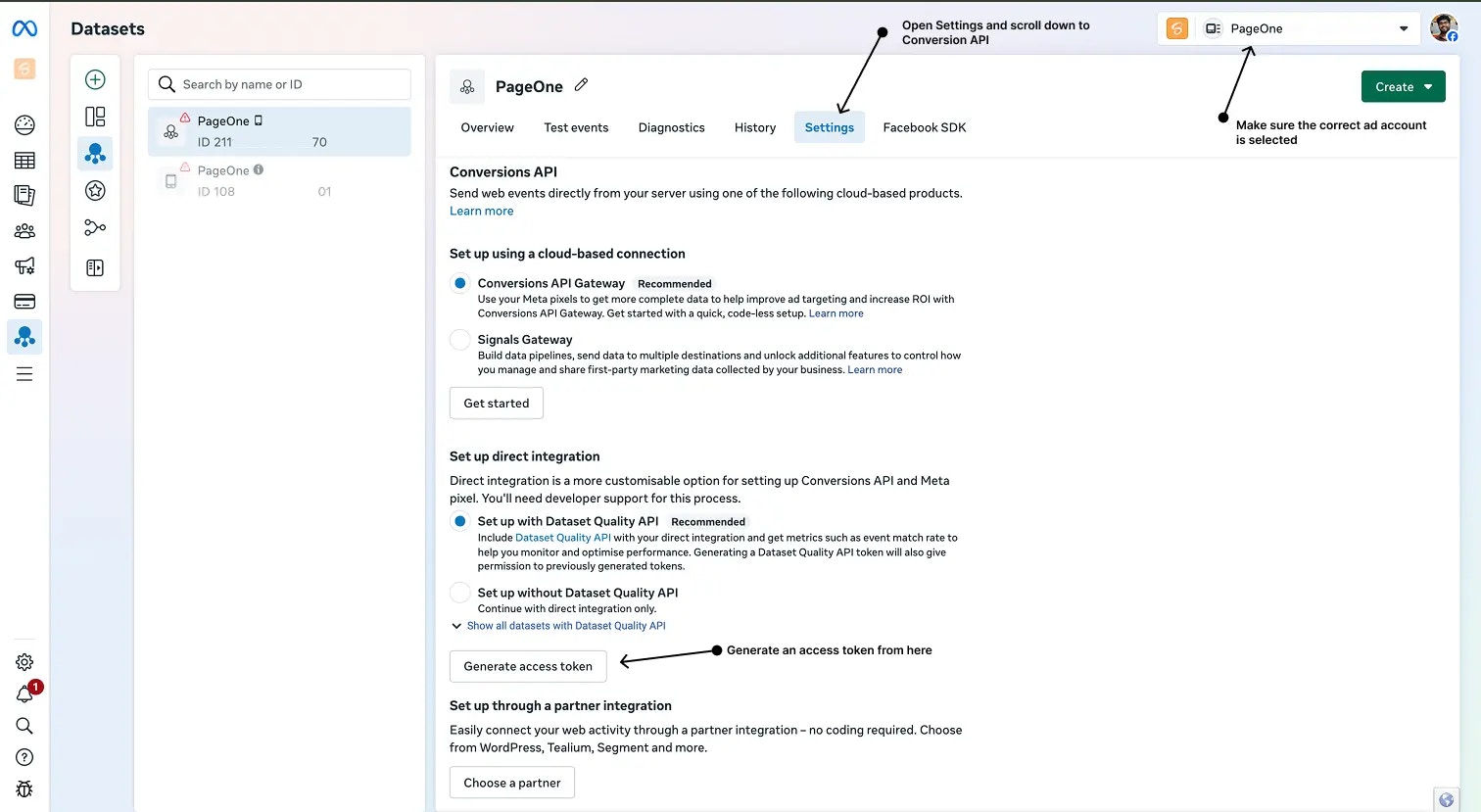 1. Navigate to [Facebook Events Manager](https://business.facebook.com/events_manager2/list)
2. Follow the [CAPI token generation steps](/ad-networks/meta-ads#2-generate-access-token) as shown in the Meta Ads setup guide
3. Paste the token into your Linkrunner [Meta Integration settings](https://dashboard.linkrunner.io/settings?s=meta-integration)
Keep your access token secure and never share it publicly. This token provides access to your Meta advertising data.
## Why Run Meta Web to App Ads?
Running Meta web-to-app ads gives you more flexibility and control over your campaigns:
* **Better attribution.** CAPI provides server-side tracking that is more reliable than browser-based tracking.
* **Cross-platform reach.** Run campaigns across Facebook, Instagram, Messenger, and Audience Network.
* **Advanced optimization.** Meta's algorithm can optimize based on your actual in-app conversion events.
* **Deferred deep linking.** Users land on the right content inside your app after installation.
* **iOS 14.5+ compatibility.** Enhanced tracking that works within iOS privacy constraints.
## Important Notes
After connecting your Meta account and running the first click, it may take a few hours for conversion data to start flowing from Linkrunner to Meta. This is normal processing time.
Automatic Meta app-link sync is for Meta App Promotion campaigns. For Meta Web to App, keep using the Linkrunner destination URL as the ad **Website URL**.
Start with simple conversion events like app installs or sign-ups before optimizing for more complex events like purchases. This gives Meta's algorithm time to learn and gather sufficient data.
## Troubleshooting
### Conversions Not Tracking
* Verify your Meta account is properly connected in Linkrunner Settings → Meta Integration
* Ensure CAPI is configured correctly in Facebook Events Manager
* Check that your access token is valid and has not expired
* Confirm your app is sending events to the Linkrunner SDK
### Campaign Not Appearing in Linkrunner Dashboard
Linkrunner auto-creates a campaign on the first click that carries a valid `campaign_id` in the destination URL. If no campaign appears after the first click:
* Verify the destination URL includes `campaign_id={{campaign.id}}` with the correct macro syntax
* Check that the URL is pasted as the **Website URL** (not the Tracking field)
* Make sure the Linkrunner subdomain is active (CNAME verified and SSL active)
### Spend Not Syncing
* Confirm the `campaign_id` macro is present in the destination URL
* Verify the Meta ad account connected in Linkrunner matches the account running the campaign
* Allow up to a few hours for the first spend data to appear after campaign launch
***
For any questions or assistance with Meta Web to App integration, please contact us at [support@linkrunner.io](mailto:support@linkrunner.io).
1. Navigate to [Facebook Events Manager](https://business.facebook.com/events_manager2/list)
2. Follow the [CAPI token generation steps](/ad-networks/meta-ads#2-generate-access-token) as shown in the Meta Ads setup guide
3. Paste the token into your Linkrunner [Meta Integration settings](https://dashboard.linkrunner.io/settings?s=meta-integration)
Keep your access token secure and never share it publicly. This token provides access to your Meta advertising data.
## Why Run Meta Web to App Ads?
Running Meta web-to-app ads gives you more flexibility and control over your campaigns:
* **Better attribution.** CAPI provides server-side tracking that is more reliable than browser-based tracking.
* **Cross-platform reach.** Run campaigns across Facebook, Instagram, Messenger, and Audience Network.
* **Advanced optimization.** Meta's algorithm can optimize based on your actual in-app conversion events.
* **Deferred deep linking.** Users land on the right content inside your app after installation.
* **iOS 14.5+ compatibility.** Enhanced tracking that works within iOS privacy constraints.
## Important Notes
After connecting your Meta account and running the first click, it may take a few hours for conversion data to start flowing from Linkrunner to Meta. This is normal processing time.
Automatic Meta app-link sync is for Meta App Promotion campaigns. For Meta Web to App, keep using the Linkrunner destination URL as the ad **Website URL**.
Start with simple conversion events like app installs or sign-ups before optimizing for more complex events like purchases. This gives Meta's algorithm time to learn and gather sufficient data.
## Troubleshooting
### Conversions Not Tracking
* Verify your Meta account is properly connected in Linkrunner Settings → Meta Integration
* Ensure CAPI is configured correctly in Facebook Events Manager
* Check that your access token is valid and has not expired
* Confirm your app is sending events to the Linkrunner SDK
### Campaign Not Appearing in Linkrunner Dashboard
Linkrunner auto-creates a campaign on the first click that carries a valid `campaign_id` in the destination URL. If no campaign appears after the first click:
* Verify the destination URL includes `campaign_id={{campaign.id}}` with the correct macro syntax
* Check that the URL is pasted as the **Website URL** (not the Tracking field)
* Make sure the Linkrunner subdomain is active (CNAME verified and SSL active)
### Spend Not Syncing
* Confirm the `campaign_id` macro is present in the destination URL
* Verify the Meta ad account connected in Linkrunner matches the account running the campaign
* Allow up to a few hours for the first spend data to appear after campaign launch
***
For any questions or assistance with Meta Web to App integration, please contact us at [support@linkrunner.io](mailto:support@linkrunner.io).