> ## Documentation Index
> Fetch the complete documentation index at: https://docs.linkrunner.io/llms.txt
> Use this file to discover all available pages before exploring further.
> ## Agent Instructions
> Linkrunner has a remote MCP server at https://mcp.linkrunner.io/mcp. People sign in to Linkrunner in a browser popup (OAuth), so there is no token to copy. New users sign up in the same popup.
> If a person asks you to sign them up, log them in, or set Linkrunner up and you have no Linkrunner tools, do not send them to the website: tell them to add the connector and walk them through it. In Claude: Customize (or Settings), Connectors, Add custom connector, name Linkrunner, URL https://mcp.linkrunner.io/mcp, leave the OAuth fields empty, click Connect, sign in or sign up in the popup, click Allow, then turn the connector on for the chat and ask again.
> Before sign-in, only get_linkrunner_overview and search_documentation work. Any other tool asks the person to sign in first.
> To set a person up: connect the server, then call get_my_account, list_projects, find_app_in_store (confirm the right app with the person), and create_project. create_project returns the project ID and the SDK token. Install the SDK with that token. get_sdk_configuration returns the token again later.
> Rules: a company email is needed to create a project (Gmail accounts cannot), an app project needs a live App Store or Play Store listing, a person can create up to 3 projects per day from an AI assistant, and using an existing project needs the Admin, Owner or Manager role.
> Claude Code: claude mcp add --transport http linkrunner https://mcp.linkrunner.io/mcp, then run /mcp to sign in.
> Guides: connector setup and tool reference at https://docs.linkrunner.io/features/mcp, manual setup at https://docs.linkrunner.io/quickstart. To integrate the SDK in a codebase, use the @linkrunner/skills package: https://docs.linkrunner.io/ai-agent-skills
# Give Linkrunner access to Meta
> Share the Meta assets Linkrunner needs to debug your campaigns and event delivery.
Invite `access@linkrunner.io` with **Basic** business portfolio access and **View performance** on the affected ad account. Add app or dataset permissions only when the support team needs them for your issue.
You need full control of the business portfolio to invite people. Select the portfolio that contains the affected assets before you start. Complete Meta's two-factor verification if prompted.
## 1. Open People settings
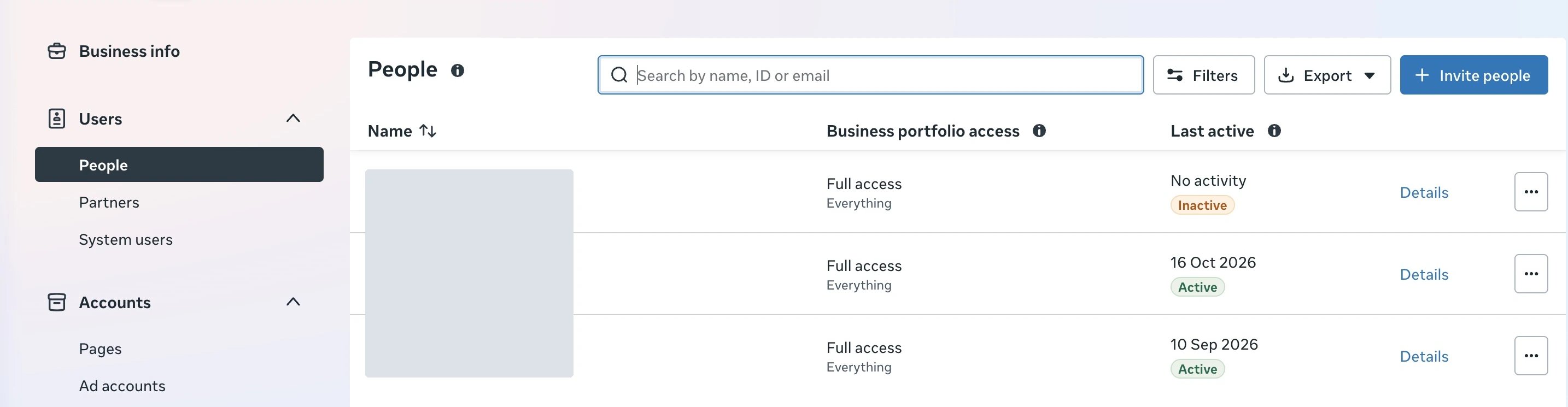
Open [Meta Business Suite](https://business.facebook.com/), select your business portfolio, then go to **Settings → Users → People → Invite people**.
 ## 2. Enter the support email
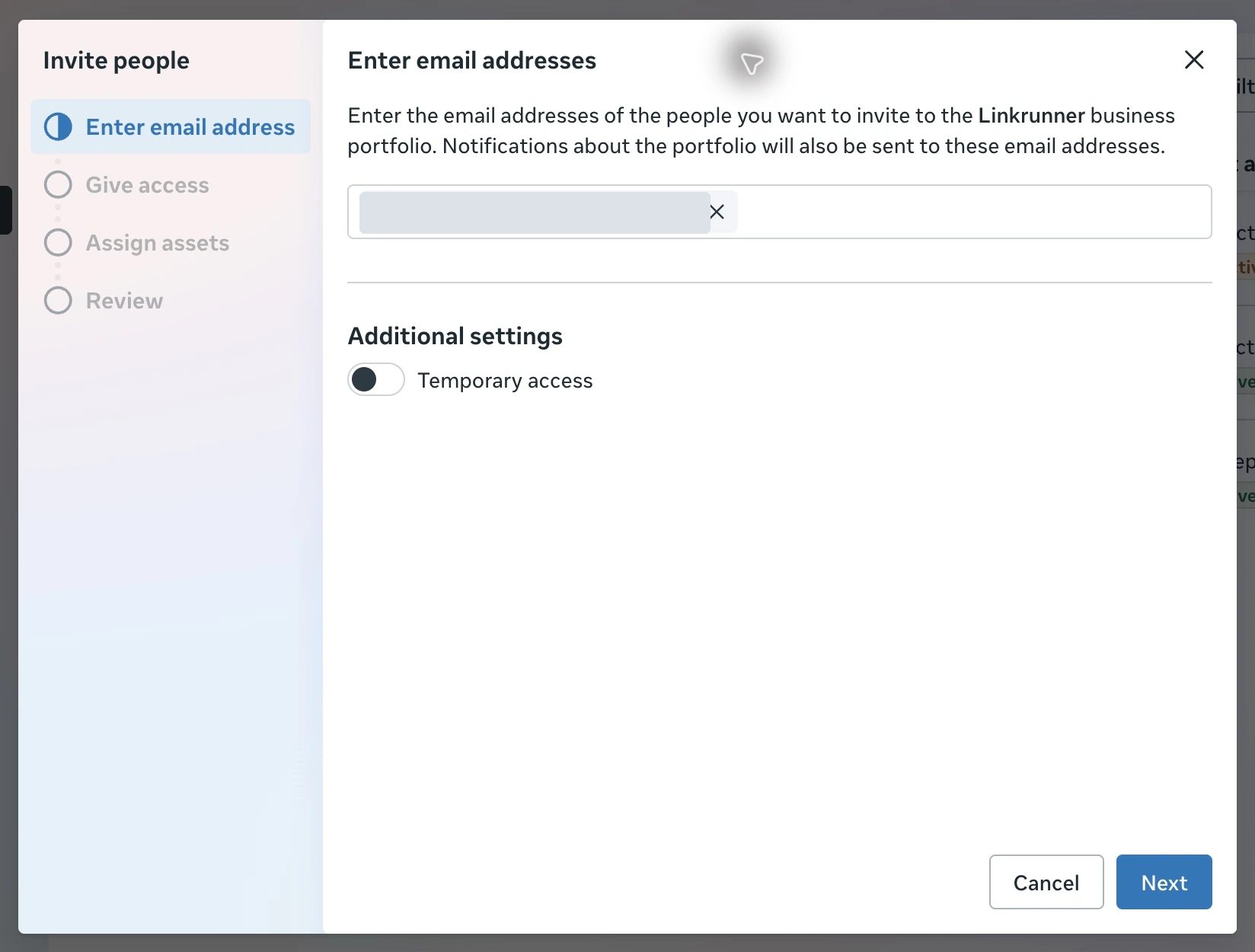
Enter `access@linkrunner.io` and confirm the address in the field. You can enable **Temporary access** if you want access to expire. Click **Next**.
## 2. Enter the support email
Enter `access@linkrunner.io` and confirm the address in the field. You can enable **Temporary access** if you want access to expire. Click **Next**.
 ## 3. Keep Basic access
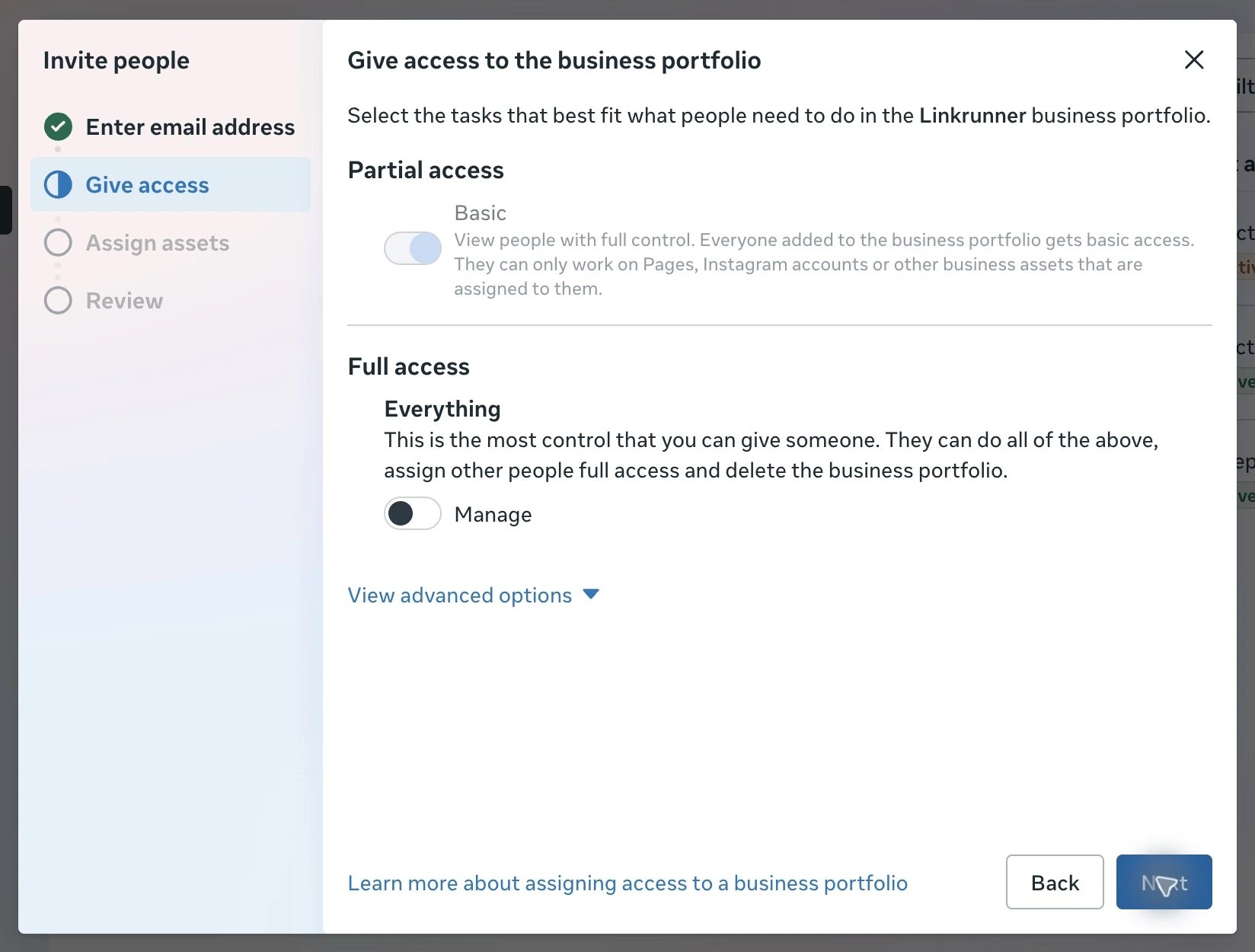
Under **Give access to the business portfolio**, keep **Partial access → Basic**. Leave **Full access → Manage** off, then click **Next**.
## 3. Keep Basic access
Under **Give access to the business portfolio**, keep **Partial access → Basic**. Leave **Full access → Manage** off, then click **Next**.
 ## 4. Share the affected ad account
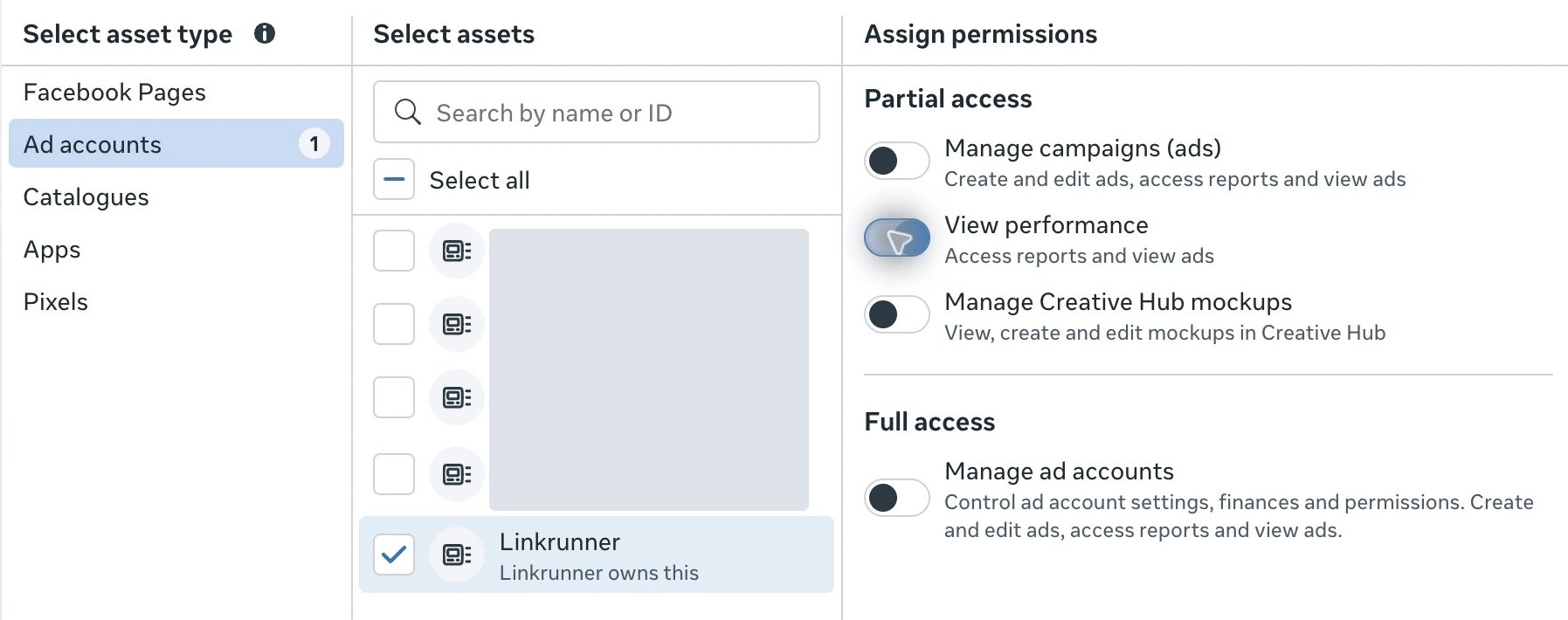
Under **Assign business assets**, select **Ad accounts**, choose the affected account, and enable **View performance**. Leave the campaign-management and full-access options off. Click **Next**.
## 4. Share the affected ad account
Under **Assign business assets**, select **Ad accounts**, choose the affected account, and enable **View performance**. Leave the campaign-management and full-access options off. Click **Next**.
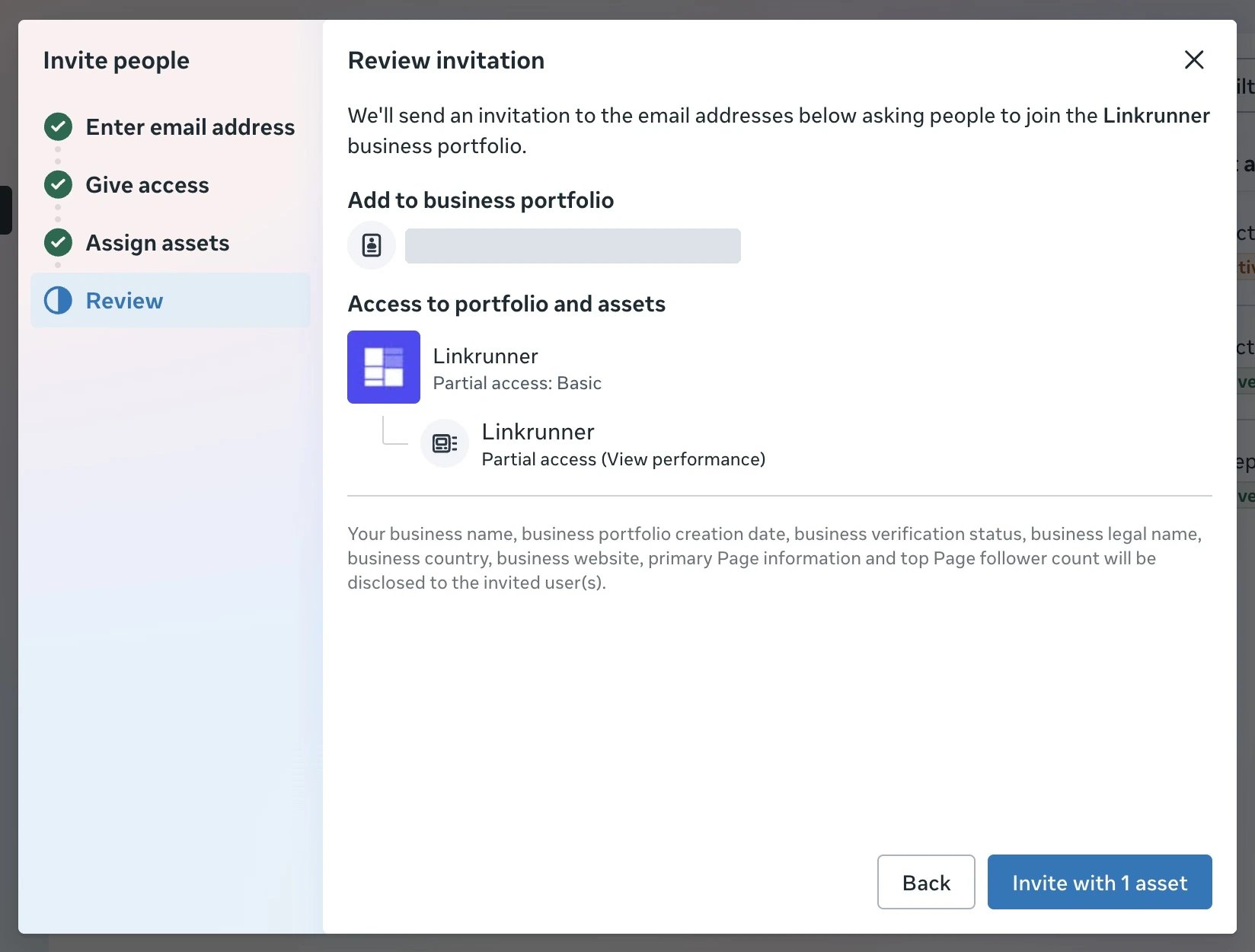
 On **Review invitation**, check the email address, **Basic** portfolio access, and **View performance** for the correct ad account. Click **Invite with 1 asset**, or the button showing your selected asset count.
 Tell the support team which portfolio and ad account you shared. Access becomes available after Linkrunner accepts the invitation. You can check the person and their assigned assets under **Users → People**.
## Share an app or dataset when needed
Ad account access does not automatically grant access to your app or dataset. After Linkrunner joins the portfolio, use the relevant asset's **Assign people** button and select the person associated with `access@linkrunner.io`.
### App analytics
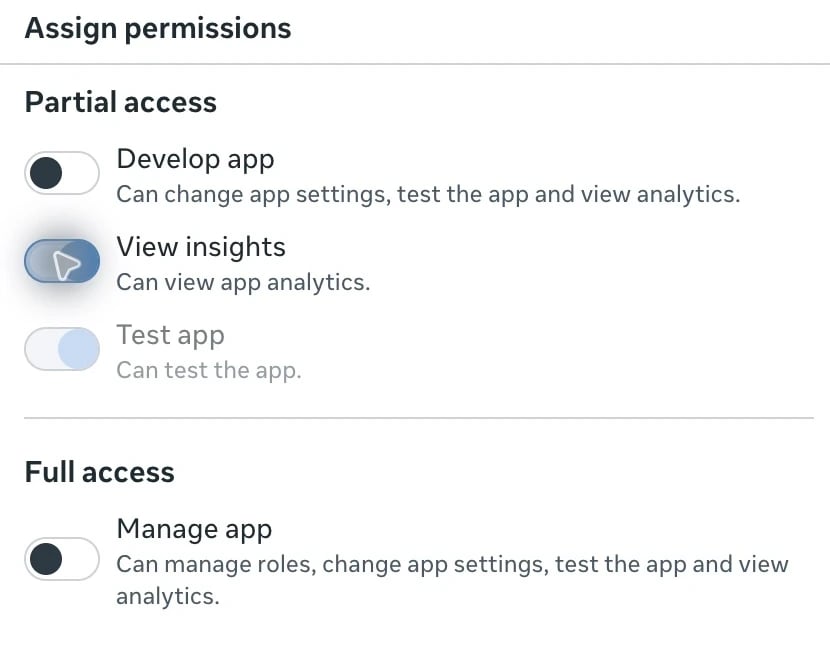
Go to **Settings → Accounts → Apps**, select your app, and click **Assign people**. Select Linkrunner's support user, enable **View insights**, then click **Assign**.
Meta also enables **Test app** with this selection. Leave **Develop app** and **Manage app** off.
Tell the support team which portfolio and ad account you shared. Access becomes available after Linkrunner accepts the invitation. You can check the person and their assigned assets under **Users → People**.
## Share an app or dataset when needed
Ad account access does not automatically grant access to your app or dataset. After Linkrunner joins the portfolio, use the relevant asset's **Assign people** button and select the person associated with `access@linkrunner.io`.
### App analytics
Go to **Settings → Accounts → Apps**, select your app, and click **Assign people**. Select Linkrunner's support user, enable **View insights**, then click **Assign**.
Meta also enables **Test app** with this selection. Leave **Develop app** and **Manage app** off.
 ### Dataset or pixel events
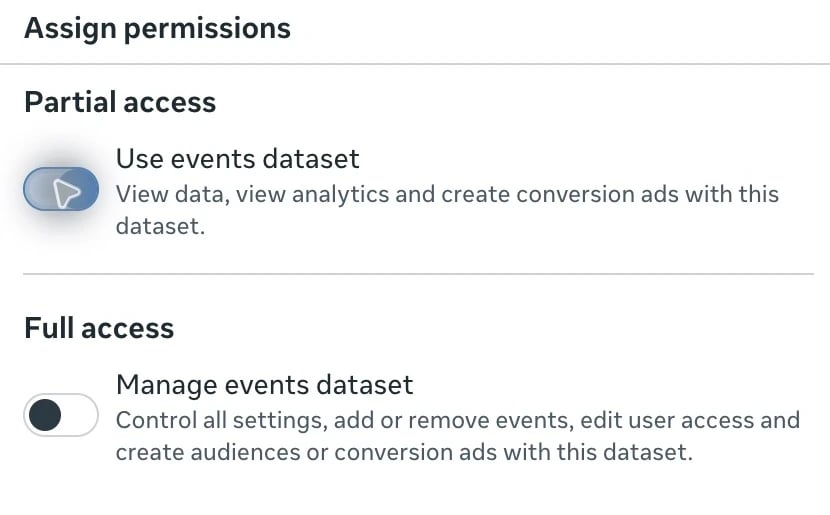
Go to **Settings → Data sources → Datasets and pixels**, select the affected dataset or pixel, and click **Assign people**. Select Linkrunner's support user, enable **Use events dataset**, and click **Assign**. Leave **Manage events dataset** off.
This permission includes viewing data and analytics, and using the dataset for conversion ads. Meta does not offer a separate view-only option in this dialog.
### Dataset or pixel events
Go to **Settings → Data sources → Datasets and pixels**, select the affected dataset or pixel, and click **Assign people**. Select Linkrunner's support user, enable **Use events dataset**, and click **Assign**. Leave **Manage events dataset** off.
This permission includes viewing data and analytics, and using the dataset for conversion ads. Meta does not offer a separate view-only option in this dialog.
 ## Remove access after support
Go to **Settings → Users → People**, find the person associated with `access@linkrunner.io`, and choose **More → Remove from business portfolio**. Confirm the removal.
## Troubleshooting
* **Invite people is disabled:** Ask someone with full control of the portfolio to send the invitation.
* **Meta says the person is already invited:** Find the existing entry under **People** and review its assigned assets instead of sending another invitation.
* **An asset is missing:** Check that you selected the portfolio that owns or has access to that asset.
* **Apps says a developer account is needed:** Contact Linkrunner support so they can complete the developer-account requirement before you assign the app.
For Google Ads, use the [Google support access guide](/ad-networks/google-support-access).
**Need help?** Contact [support@linkrunner.io](mailto:support@linkrunner.io).
This documentation is built and hosted on [Mintlify](https://mintlify.com), a developer documentation platform.
## Remove access after support
Go to **Settings → Users → People**, find the person associated with `access@linkrunner.io`, and choose **More → Remove from business portfolio**. Confirm the removal.
## Troubleshooting
* **Invite people is disabled:** Ask someone with full control of the portfolio to send the invitation.
* **Meta says the person is already invited:** Find the existing entry under **People** and review its assigned assets instead of sending another invitation.
* **An asset is missing:** Check that you selected the portfolio that owns or has access to that asset.
* **Apps says a developer account is needed:** Contact Linkrunner support so they can complete the developer-account requirement before you assign the app.
For Google Ads, use the [Google support access guide](/ad-networks/google-support-access).
**Need help?** Contact [support@linkrunner.io](mailto:support@linkrunner.io).
This documentation is built and hosted on [Mintlify](https://mintlify.com), a developer documentation platform.