> ## Documentation Index
> Fetch the complete documentation index at: https://docs.linkrunner.io/llms.txt
> Use this file to discover all available pages before exploring further.
# Meta Ads
> Configure your Meta app integration settings to enable proper attribution tracking for your mobile app campaigns
## Overview
Connect Meta Ads to send installs, registrations, purchases, and custom app events from Linkrunner to Meta. Use this guide to connect your Meta app and ad account, configure Conversions API, and map the events Meta should receive.
### What You'll Get
* **Automatic attribution tracking** — Track installs and conversions from your Meta ad campaigns
* **View-through attribution** — Attribute installs from users who viewed but didn't click your ads ([setup required](#6-enable-meta-view-through-attribution-android))
* **Event mapping** — Map your in-app events to Meta events for postback conversion tracking
* **Revenue tracking** — Share revenue data with Meta to optimize for value
* **Default events included** — App Install events and Sign up events are captured automatically
## Setup Process
Setting up Meta Ads integration involves configuring your Meta app credentials, mapping events, and setting up conversion tracking in Meta Events Manager.
Running iOS App Promotion campaigns? Meta measures iOS installs via SKAdNetwork. After completing this guide, follow
the [Meta SKAN Setup](/features/meta-skan-setup) guide.
## 1. Configure Meta App Integration
This process connects your app and Meta ad account with Linkrunner.
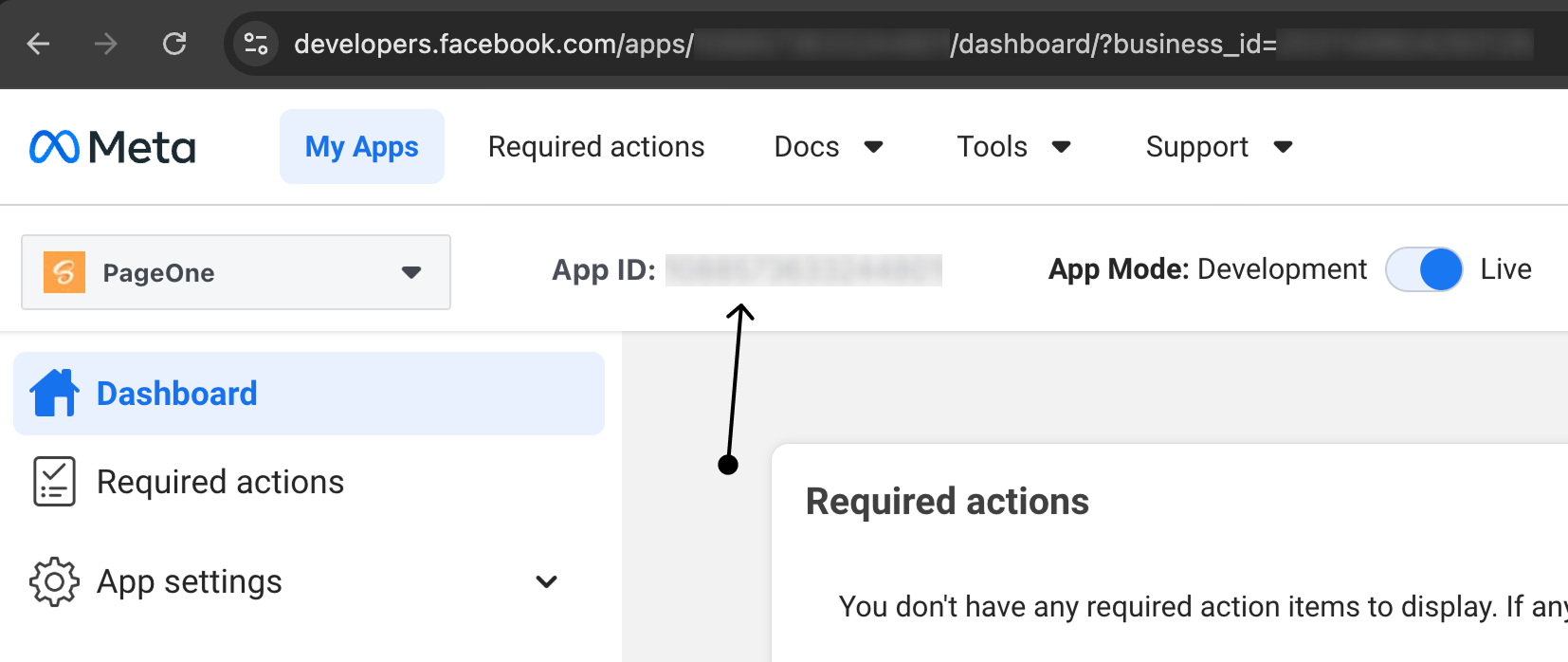
### Step 1: Get Your Meta App ID
1. Go to [Meta for Developers](https://developers.facebook.com/)
2. Navigate to your App Dashboard
3. Go to **Settings** → **Basic**
4. Copy your **App ID**
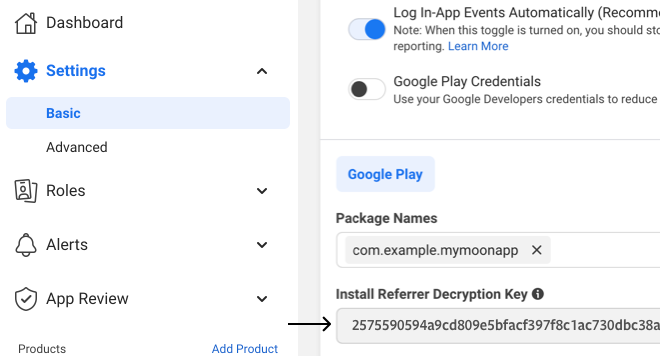
### Step 2: Get Your Referrer Decryption Key
1. In the same App Dashboard under **Settings** → **Basic**
2. Scroll down to the **Android** section
3. Copy the **Install Referrer Decryption Key**
The Install Referrer Decryption Key is required for Android attribution tracking. Make sure you have this configured
in your Meta app settings.
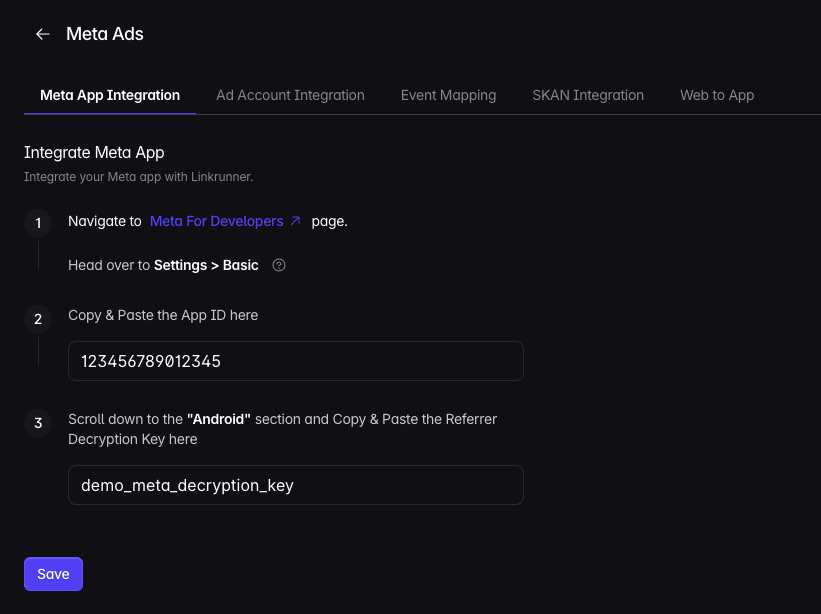
### Step 3: Configure in Linkrunner Dashboard
1. Go to [Meta App Integration](https://dashboard.linkrunner.io/dashboard/integrations/meta-ads?tab=integration)
2. Enter your **App ID** in the designated field
3. Enter your **Referrer Decryption Key**
4. Click **Save**
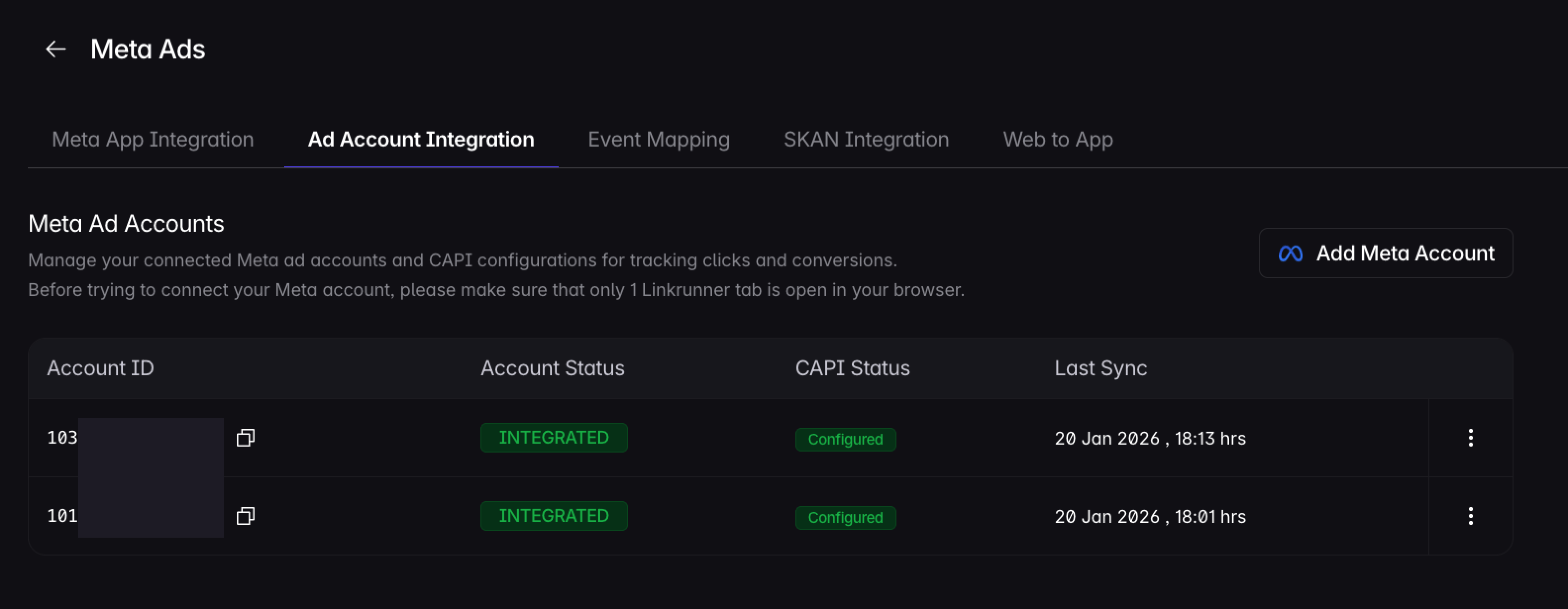
### Step 4: Connect Meta Ad Account
1. Go to [Ad Account Integration](https://dashboard.linkrunner.io/dashboard/integrations/meta-ads?tab=ad_account)
2. Click **Add Meta Account**
3. Log in with Meta and connect your ad account
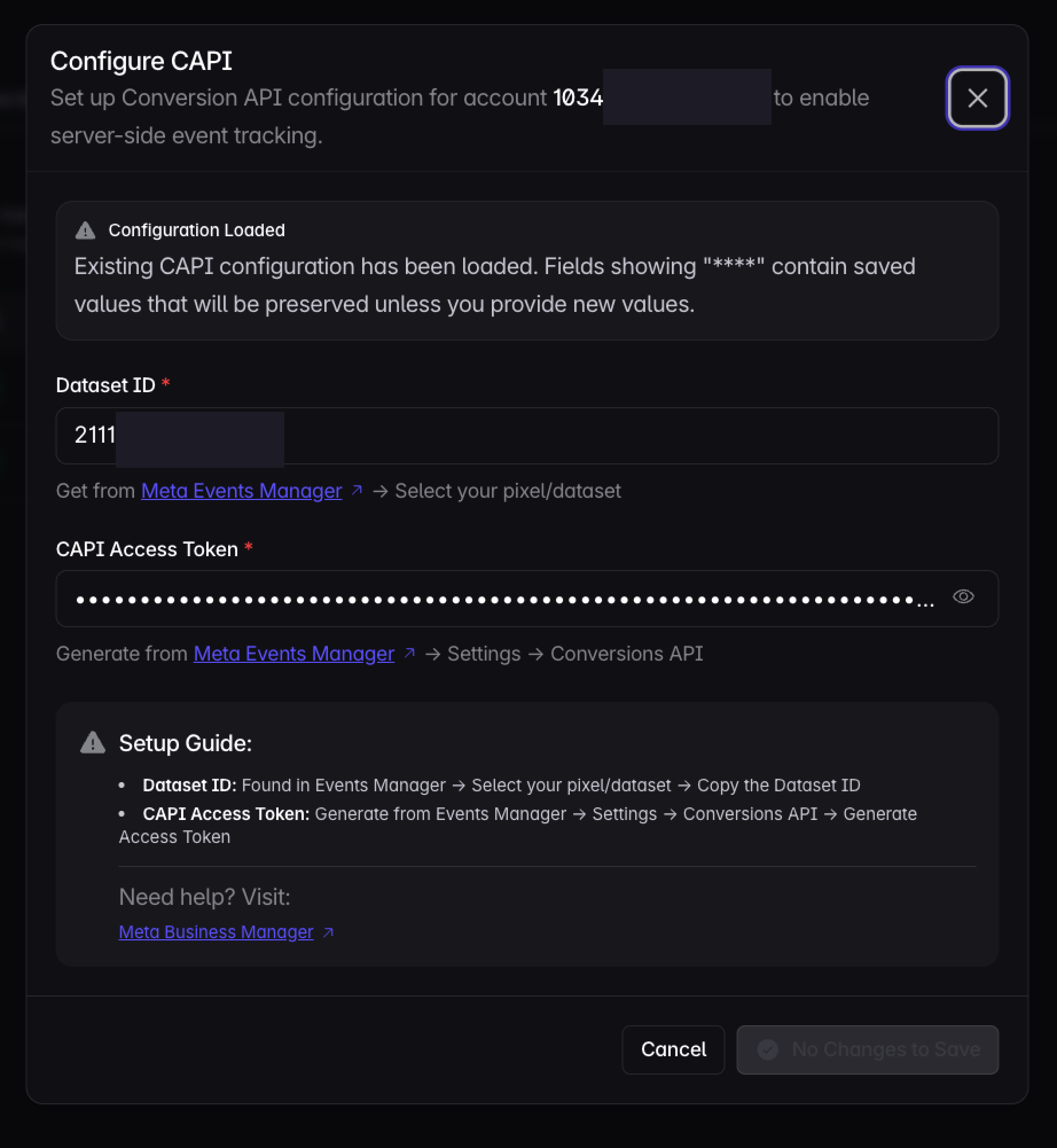
### Step 5: Configure CAPI
1. Click **Configure CAPI** for the connected ad account
2. Enter the **Dataset ID** from Meta Events Manager
3. Enter the **CAPI Access Token** from Meta Events Manager → **Settings** → **Conversions API**
4. Click **Save**
## 2. Set Up Event Mapping
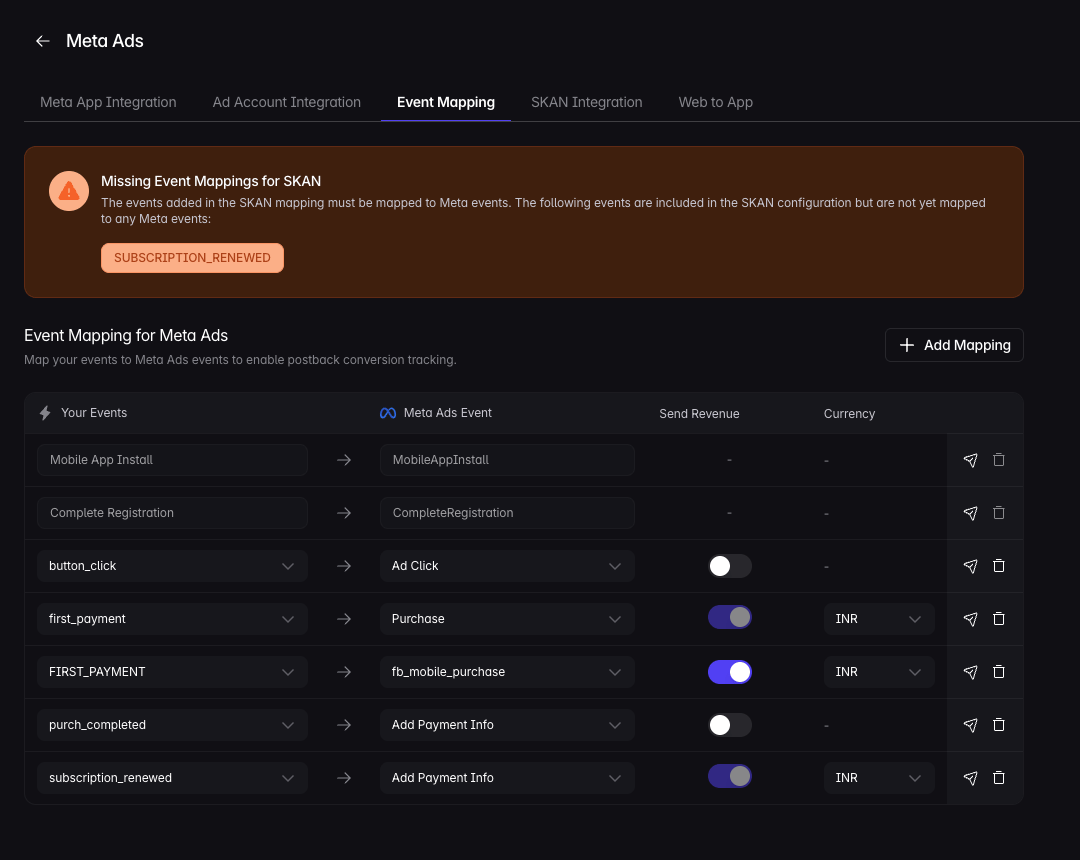
Map your app events to Meta events so Linkrunner can send postback conversions.
**MobileAppInstall** and **CompleteRegistration** are sent to Meta by default. You do not need mappings for these
events.
1. Go to [Meta Ads Event Mapping](https://dashboard.linkrunner.io/dashboard/integrations/meta-ads?tab=event_mapping)
2. Click **Add Mapping**
3. Select your event under **Your Events**
4. Select the matching **Meta Ads Event**
5. Turn on **Send Revenue** only for revenue events, then choose the **Currency**
6. Click **Save**
7. Click the paper plane **Send to ad network** icon to fire a test event
After Linkrunner fires an event, it can take up to 1 hour to appear in Meta Events Manager.
If you cannot see **MobileAppInstall** or **CompleteRegistration** in Meta Events Manager, click the paper plane
**Send to ad network** icon for that event.
## 3. Configure Events in Meta Events Manager
Use Meta Events Manager to verify that Meta receives events from Linkrunner.
1. Go to [Meta Ads Dashboard](https://business.facebook.com/)
2. Open **Events Manager** → **Datasets**
3. Select your app dataset, or click **Create Dataset**
4. Go to **Settings** → **Conversions API** and confirm the dataset can receive Conversions API events
5. Open the **Events** tab to view events from Linkrunner
6. Create custom conversion events for the events you want to optimize campaigns on
If events do not appear in Meta Events Manager after 1 hour, verify your App ID and Referrer Decryption Key are
correct.
## 4. Campaign Tracking
Once your integration is configured, Meta ad campaigns will automatically appear on the Linkrunner Dashboard as they go live.
### Automatic Campaign Detection
* **No manual setup required** — Campaigns are detected automatically
* **Real-time tracking** — See campaign performance as soon as ads start running
* **Attribution data** — Track installs, events, and revenue back to specific campaigns
### Viewing Campaign Data
1. Go to your [Linkrunner Dashboard](https://dashboard.linkrunner.io)
2. Navigate to the **Campaigns** section
3. Filter by **Meta** to see all your Meta ad campaigns
4. View detailed attribution and conversion data for each campaign
## 5. Deferred Deep Linking
Use deferred deep links when a Meta install should open a specific screen after first app open. Linkrunner returns the selected URL in the SDK `getAttributionData()` response.
Campaign, ad set, and ad creative rows appear in Linkrunner after they receive at least one install.
### Meta App Promotion Deep Links
For Meta App Promotion campaigns, add the destination in Meta Ads Manager at the ad level. Linkrunner reads the ad creative `app_link` from Meta and returns it from `getAttributionData()`.
1. Open the campaign in [Meta Ads Manager](https://business.facebook.com/adsmanager)
2. Edit the **Ad** inside your App Promotion ad set
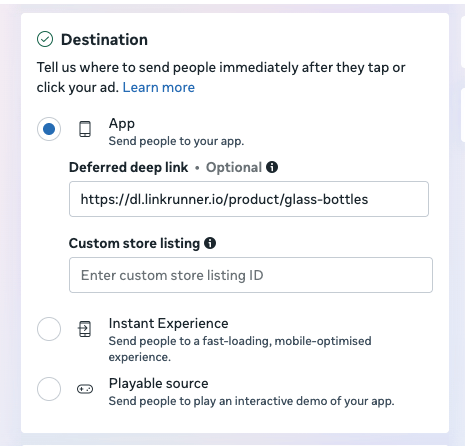
3. In **Destination**, choose **App**
4. Add your Linkrunner or app-link URL in **Deferred deep link**
5. Leave **Custom store listing** empty unless you want Meta to send users to a specific store listing
6. Publish the ad
The fresh Meta sync runs every 30 minutes for the last 2 days of active clicks and spend. When an active ad has an `app_link`, Linkrunner stores it on the matching ad creative. If you update or remove the app link in Meta, Linkrunner updates the auto-synced value on the next fresh sync that sees that ad.
Meta app links can use a Linkrunner domain, another app-link domain, an MMP link, or a custom scheme. If Linkrunner imports the link from Meta, the domain does not need to be added in Linkrunner.
Linkrunner syncs **Deferred deep link**. It does not currently sync Meta's **Custom store listing** value. That field controls the store page Meta opens when the app is not installed and is separate from the deep link returned by `getAttributionData()`.
Do not use a Play Store or App Store URL as the app link. Meta exposes store destinations separately, and Linkrunner only returns the app link.
### Priority Order
Linkrunner uses manual ad entity values before auto-synced Meta values:
1. **Manual Ad Creative Level**: Used first
2. **Manual Ad Set Level**: Used when the ad creative has no manual deep link
3. **Meta App Promotion App Link**: Used when Meta returns an ad creative `app_link`
4. **Campaign Level**: Used as the fallback
### Campaign-Level Deep Links
Use this when every ad in the campaign should open the same destination.
1. Navigate to the **Campaigns** section in your [Linkrunner Dashboard](https://dashboard.linkrunner.io)
2. Find your Meta campaign in the list
3. Click the **Edit** button on the campaign row
4. In the campaign settings, locate the **Deferred Deep Link** field
5. Enter your deep link URL, such as `https://myapp.com/product/12345`
6. Click **Save** to apply the changes
### Ad Set-Level Deep Links
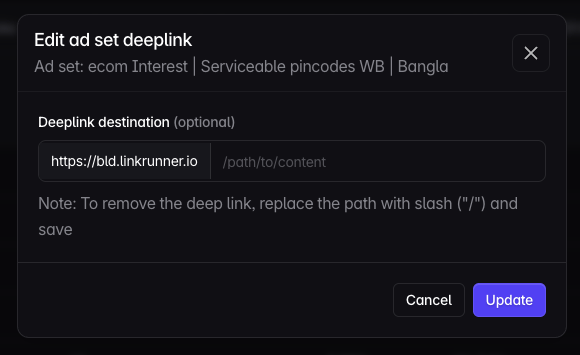
Use this when an ad set should open a different destination from the campaign default. Manual ad set links use your Linkrunner project domain and override auto-synced Meta app links.
1. Navigate to the **Campaigns** section in your [Linkrunner Dashboard](https://dashboard.linkrunner.io)
2. Find your Meta campaign in the list
3. Click on the **ad set name** to open the ad set details
4. In the ad set configuration, locate the **Deferred Deep Link** field
5. Enter your deep link URL, such as `https://myapp.com/category/electronics`
6. Click **Update** to apply the changes
If no ad set deep link is set, Linkrunner uses the campaign deep link.
### Ad Creative-Level Deep Links
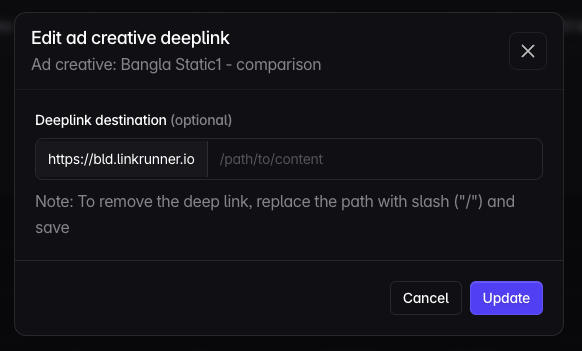
Use this when one ad should open a specific product, offer, or screen. Manual ad creative links use your Linkrunner project domain and override auto-synced Meta app links.
1. Navigate to the **Campaigns** section in your [Linkrunner Dashboard](https://dashboard.linkrunner.io)
2. Find your Meta campaign in the list
3. Click on the **ad creative name** (or ad name) to open the ad creative details
4. In the ad creative configuration, locate the **Deferred Deep Link** field
5. Enter your deep link URL, such as `https://myapp.com/product/12345?promo=summer`
6. Click **Update** to apply the changes
If no ad creative deep link is set, Linkrunner checks the ad set, then the campaign.
## 6. Enable Meta View-Through Attribution (Android)
By default, Linkrunner attributes installs from Meta ads using click-based attribution. To also attribute installs from users who **viewed** your ad but didn't click on it (view-through conversions), you need to enable Meta Install Referrer support.
Meta Install Referrer allows Linkrunner to receive ad campaign metadata directly from the Facebook or Instagram app installed on the user's device. This enables view-through conversion tracking, giving you a more complete picture of your Meta campaign performance.
### How It Works
1. A user views your Meta ad but doesn't click on it
2. The user later installs your app organically
3. The Linkrunner SDK retrieves campaign metadata stored by the Facebook/Instagram app on the device
4. Linkrunner attributes the install back to the original Meta ad view
### Setup
To enable this, you need to make your Facebook App ID available to the Linkrunner SDK in your Android app's `AndroidManifest.xml`.
Add the following to your `AndroidManifest.xml`:
```xml theme={null}
```
And add your App ID to `strings.xml`:
```xml theme={null}
YOUR_FACEBOOK_APP_ID
```
If you already have the Facebook SDK integrated, the Linkrunner SDK will automatically read the Facebook App ID from the existing `meta-data` tag. No additional configuration is needed.
### Requirements
* **Android SDK** version 3.5.2 or higher
* **Flutter SDK** version 3.6.2 or higher
* **React Native SDK** version 2.6.2 or higher
* Users must have **Facebook app** version 428.x.x+ or **Instagram app** version 296.x.x+ installed on their device
View-through attribution requires the Facebook or Instagram app to be installed on the user's device. If neither app is present, only click-based attribution will be available.
For more details, see the [Meta Install Referrer](/features/meta-install-referrer) documentation.
## FAQ and Discrepancies
For answers to common questions and an explanation of why numbers in Meta Ads Manager may not exactly match Linkrunner, see [Meta Ads FAQ and Discrepancies](/ad-networks/meta-ads-discrepancies).
## Troubleshooting
### Events Not Showing Up in Meta
* Verify your Referrer Decryption Key is correct
* Check that your dataset is configured to receive Conversions API events
* Wait up to 1 hour for events to appear in Meta Events Manager
* Test your event mappings using the paper plane **Send to ad network** icon in Linkrunner
### Campaigns Not Appearing in Dashboard
Campaigns will only appear in the Linkrunner dashboard after the first install comes through that campaign, not immediately when the campaign is launched.
**Before troubleshooting, verify:**
* **App is live with Linkrunner SDK** — Ensure your app is deployed with the Linkrunner SDK integrated and has 100% rollout to users
* **Meta decryption key is configured** — Verify the [Install Referrer Decryption Key](#step-2-get-your-referrer-decryption-key) is correctly added in your Linkrunner dashboard settings
* **Campaigns are running** — Confirm your Meta ad campaigns are active and serving impressions
* **First install received** — Campaigns appear only after the first user installs your app via that campaign
Campaigns do not appear immediately after launch. You must wait for at least one install to come through the
campaign before it will show up in your dashboard.
### Revenue Data Not Tracking
* Confirm "Send Revenue" is enabled in your event mapping
* Verify the correct currency is selected
* Ensure your app is sending revenue values with events
***
For any questions or assistance with Meta Ads integration, please contact us at [support@linkrunner.io](mailto:support@linkrunner.io).
 1. Go to [Meta for Developers](https://developers.facebook.com/)
2. Navigate to your App Dashboard
3. Go to **Settings** → **Basic**
4. Copy your **App ID**
### Step 2: Get Your Referrer Decryption Key
1. Go to [Meta for Developers](https://developers.facebook.com/)
2. Navigate to your App Dashboard
3. Go to **Settings** → **Basic**
4. Copy your **App ID**
### Step 2: Get Your Referrer Decryption Key
 1. In the same App Dashboard under **Settings** → **Basic**
2. Scroll down to the **Android** section
3. Copy the **Install Referrer Decryption Key**
1. In the same App Dashboard under **Settings** → **Basic**
2. Scroll down to the **Android** section
3. Copy the **Install Referrer Decryption Key**
 ### Step 4: Connect Meta Ad Account
1. Go to [Ad Account Integration](https://dashboard.linkrunner.io/dashboard/integrations/meta-ads?tab=ad_account)
2. Click **Add Meta Account**
3. Log in with Meta and connect your ad account
### Step 4: Connect Meta Ad Account
1. Go to [Ad Account Integration](https://dashboard.linkrunner.io/dashboard/integrations/meta-ads?tab=ad_account)
2. Click **Add Meta Account**
3. Log in with Meta and connect your ad account
 ### Step 5: Configure CAPI
1. Click **Configure CAPI** for the connected ad account
2. Enter the **Dataset ID** from Meta Events Manager
3. Enter the **CAPI Access Token** from Meta Events Manager → **Settings** → **Conversions API**
4. Click **Save**
### Step 5: Configure CAPI
1. Click **Configure CAPI** for the connected ad account
2. Enter the **Dataset ID** from Meta Events Manager
3. Enter the **CAPI Access Token** from Meta Events Manager → **Settings** → **Conversions API**
4. Click **Save**
 ## 2. Set Up Event Mapping
Map your app events to Meta events so Linkrunner can send postback conversions.
## 2. Set Up Event Mapping
Map your app events to Meta events so Linkrunner can send postback conversions.
 The fresh Meta sync runs every 30 minutes for the last 2 days of active clicks and spend. When an active ad has an `app_link`, Linkrunner stores it on the matching ad creative. If you update or remove the app link in Meta, Linkrunner updates the auto-synced value on the next fresh sync that sees that ad.
 If no ad set deep link is set, Linkrunner uses the campaign deep link.
### Ad Creative-Level Deep Links
Use this when one ad should open a specific product, offer, or screen. Manual ad creative links use your Linkrunner project domain and override auto-synced Meta app links.
1. Navigate to the **Campaigns** section in your [Linkrunner Dashboard](https://dashboard.linkrunner.io)
2. Find your Meta campaign in the list
3. Click on the **ad creative name** (or ad name) to open the ad creative details
4. In the ad creative configuration, locate the **Deferred Deep Link** field
5. Enter your deep link URL, such as `https://myapp.com/product/12345?promo=summer`
6. Click **Update** to apply the changes
If no ad set deep link is set, Linkrunner uses the campaign deep link.
### Ad Creative-Level Deep Links
Use this when one ad should open a specific product, offer, or screen. Manual ad creative links use your Linkrunner project domain and override auto-synced Meta app links.
1. Navigate to the **Campaigns** section in your [Linkrunner Dashboard](https://dashboard.linkrunner.io)
2. Find your Meta campaign in the list
3. Click on the **ad creative name** (or ad name) to open the ad creative details
4. In the ad creative configuration, locate the **Deferred Deep Link** field
5. Enter your deep link URL, such as `https://myapp.com/product/12345?promo=summer`
6. Click **Update** to apply the changes
 If no ad creative deep link is set, Linkrunner checks the ad set, then the campaign.
## 6. Enable Meta View-Through Attribution (Android)
By default, Linkrunner attributes installs from Meta ads using click-based attribution. To also attribute installs from users who **viewed** your ad but didn't click on it (view-through conversions), you need to enable Meta Install Referrer support.
Meta Install Referrer allows Linkrunner to receive ad campaign metadata directly from the Facebook or Instagram app installed on the user's device. This enables view-through conversion tracking, giving you a more complete picture of your Meta campaign performance.
### How It Works
1. A user views your Meta ad but doesn't click on it
2. The user later installs your app organically
3. The Linkrunner SDK retrieves campaign metadata stored by the Facebook/Instagram app on the device
4. Linkrunner attributes the install back to the original Meta ad view
### Setup
To enable this, you need to make your Facebook App ID available to the Linkrunner SDK in your Android app's `AndroidManifest.xml`.
If no ad creative deep link is set, Linkrunner checks the ad set, then the campaign.
## 6. Enable Meta View-Through Attribution (Android)
By default, Linkrunner attributes installs from Meta ads using click-based attribution. To also attribute installs from users who **viewed** your ad but didn't click on it (view-through conversions), you need to enable Meta Install Referrer support.
Meta Install Referrer allows Linkrunner to receive ad campaign metadata directly from the Facebook or Instagram app installed on the user's device. This enables view-through conversion tracking, giving you a more complete picture of your Meta campaign performance.
### How It Works
1. A user views your Meta ad but doesn't click on it
2. The user later installs your app organically
3. The Linkrunner SDK retrieves campaign metadata stored by the Facebook/Instagram app on the device
4. Linkrunner attributes the install back to the original Meta ad view
### Setup
To enable this, you need to make your Facebook App ID available to the Linkrunner SDK in your Android app's `AndroidManifest.xml`.