> ## Documentation Index
> Fetch the complete documentation index at: https://docs.linkrunner.io/llms.txt
> Use this file to discover all available pages before exploring further.
# Google Web to App
> Run Google web-to-app campaigns and attribute installs from Search, Display, and Performance Max ads through your website.
## Overview
Google Web to App lets you run Search, Display, or Performance Max campaigns that drive app installs through the web. Your ad's Final URL is your Linkrunner domain: Google appends the click parameters to it automatically, Linkrunner records the click, sends mobile users into your app or its store listing, and forwards desktop users to your website. No code on your website is required.
**Works for both Android and iOS apps.**
## How It Works
1. A user clicks your Google ad. The ad's Final URL is your Linkrunner domain.
2. Google automatically appends the click IDs (`gclid`, `wbraid`, `gbraid`) and your Final URL suffix parameters to that URL.
3. Linkrunner records the click with all parameters. No code runs on your website.
4. Mobile users see a lightweight redirect page that opens your app if installed, or takes them to the App Store / Play Store. Desktop users are forwarded to your website with the parameters preserved.
5. When the app is opened after install, Linkrunner attributes it to the campaign.
## Connect your Google Ads account
Connecting your Google Ads account lets Linkrunner sync your campaigns and spend, and send in-app conversions back to Google so it can optimize your web-to-app campaigns.
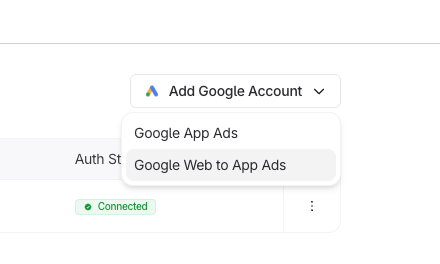
Go to [Integrations → Google Ads](https://dashboard.linkrunner.io/dashboard/integrations/google-ads), click **Add Google Account**, and choose how to connect:
* **Google App Ads**: campaign sync and spend reporting.
* **Google Web to App Ads**: everything above, plus permission to upload in-app conversions to your Google Ads conversion actions. Choose this for web-to-app so Google can optimize Search and Performance Max campaigns on real in-app events.
Click **Google Web to App Ads** for this setup, then sign in with a Google account that has access to your Google Ads account and approve the requested permissions.
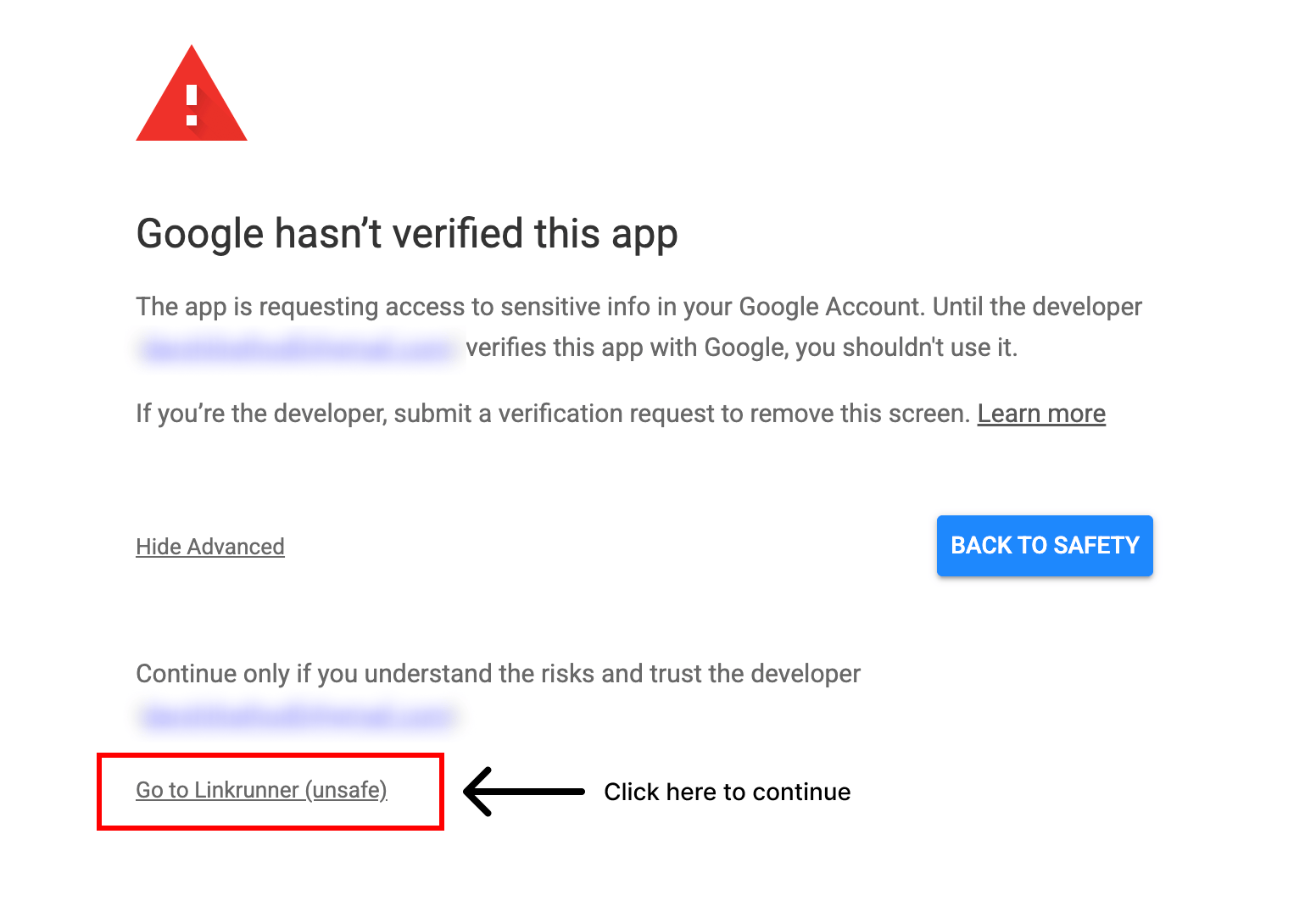
 Google may show **Google hasn't verified this app** while Linkrunner's Data
Manager permission is under Google verification. It is safe to continue when
you started the login from Linkrunner. Click **Advanced** if needed, then
click **Go to Linkrunner (unsafe)**.
Google may show **Google hasn't verified this app** while Linkrunner's Data
Manager permission is under Google verification. It is safe to continue when
you started the login from Linkrunner. Click **Advanced** if needed, then
click **Go to Linkrunner (unsafe)**.
 Web to App Ads asks for one extra Google permission (Data Manager) so
Linkrunner can send conversions to your account. If you connected with App Ads
earlier, the **Web to App** column on the Account Integration tab shows a
reconnect option. Click it and sign in with **Google Web to App Ads**.
## Setup
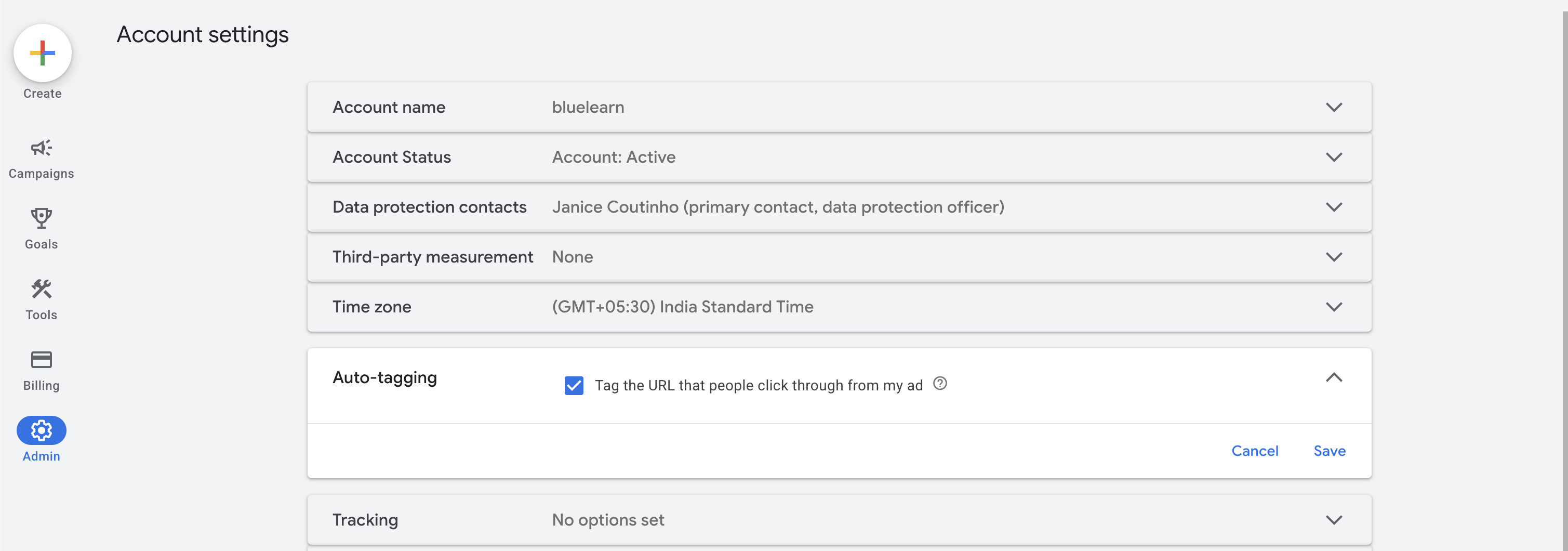
Auto-tagging is a Google Ads account setting that appends a `gclid` (and `wbraid` / `gbraid` on iOS) to every ad click URL. Linkrunner depends on these click IDs for attribution. Without auto-tagging, no click IDs are appended and attribution cannot work.
To verify or enable auto-tagging:
1. Open [Google Ads](https://ads.google.com) and go to **Admin → Account settings**
2. Find the **Auto-tagging** section
3. Make sure **Tag the URL that people click through from my ad** is checked
4. Click **Save**
Web to App Ads asks for one extra Google permission (Data Manager) so
Linkrunner can send conversions to your account. If you connected with App Ads
earlier, the **Web to App** column on the Account Integration tab shows a
reconnect option. Click it and sign in with **Google Web to App Ads**.
## Setup
Auto-tagging is a Google Ads account setting that appends a `gclid` (and `wbraid` / `gbraid` on iOS) to every ad click URL. Linkrunner depends on these click IDs for attribution. Without auto-tagging, no click IDs are appended and attribution cannot work.
To verify or enable auto-tagging:
1. Open [Google Ads](https://ads.google.com) and go to **Admin → Account settings**
2. Find the **Auto-tagging** section
3. Make sure **Tag the URL that people click through from my ad** is checked
4. Click **Save**
 Auto-tagging must be on before you run any web-to-app traffic. ValueTrack
macros (such as `{campaignid}`) do not include click IDs. Click IDs come
exclusively from auto-tagging.
Linkrunner uses your custom subdomain as the final destination URL. If you have not set one up yet, go to [Settings → Domains](https://dashboard.linkrunner.io/settings?s=domains) and add a subdomain.
For full instructions on configuring the CNAME record, see the [Subdomain Setup guide](/features/subdomain-setup).
Once your subdomain is active (CNAME verified and SSL active), you are ready for the next step. You can also find a ready-to-paste Final URL suffix template under [Integrations → Google Ads → Web to App](https://dashboard.linkrunner.io/dashboard/integrations/google-ads?tab=web_to_app). The domain picker there pre-fills your subdomain so you can copy the template directly.
The Final URL suffix is appended to every landing page URL in your campaign. Set it at the account or campaign level in Google Ads.
Use this template, keeping the ValueTrack macros exactly as shown:
```
utm_source=google&utm_medium=cpc&gad_campaignid={campaignid}&adset_id={adgroupid}&ad_id={creative}&utm_term={keyword}&network={network}&device={device}
```
Google substitutes the `{...}` macros with real values at delivery time. `gad_campaignid` is what Linkrunner uses to look up and auto-create the campaign. `adset_id` and `ad_id` are the same parameter names Linkrunner reads for Meta Web to App, and they feed the ad group and ad level breakdowns in your dashboard. `utm_term`, `network`, and `device` are standard reporting parameters carried along for future use.
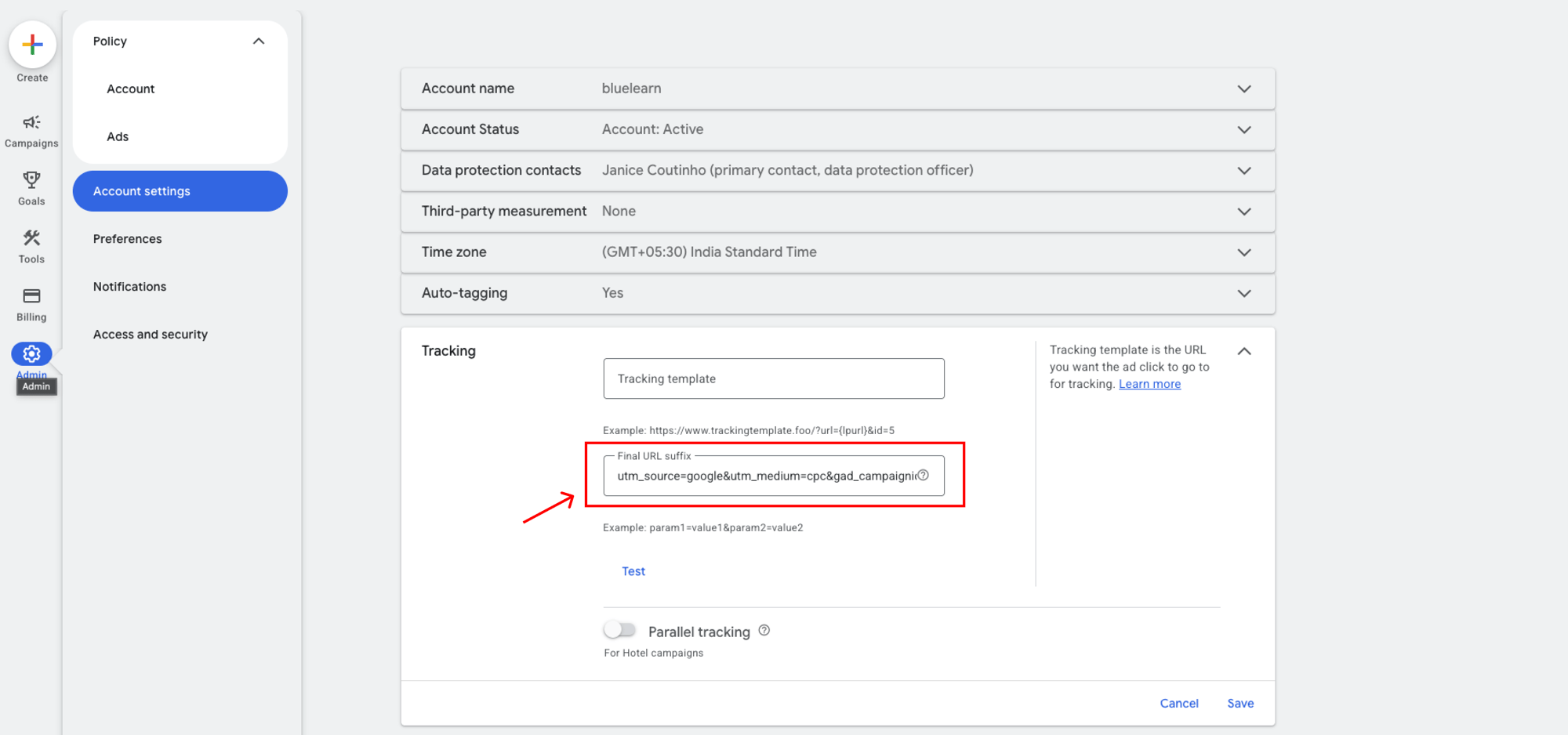
**To set the suffix at the account level:**
1. Go to [Google Ads](https://ads.google.com) → **Admin → Account settings**
2. Open **Tracking**
3. Paste the template above into **Final URL suffix**
4. Click **Save**
Auto-tagging must be on before you run any web-to-app traffic. ValueTrack
macros (such as `{campaignid}`) do not include click IDs. Click IDs come
exclusively from auto-tagging.
Linkrunner uses your custom subdomain as the final destination URL. If you have not set one up yet, go to [Settings → Domains](https://dashboard.linkrunner.io/settings?s=domains) and add a subdomain.
For full instructions on configuring the CNAME record, see the [Subdomain Setup guide](/features/subdomain-setup).
Once your subdomain is active (CNAME verified and SSL active), you are ready for the next step. You can also find a ready-to-paste Final URL suffix template under [Integrations → Google Ads → Web to App](https://dashboard.linkrunner.io/dashboard/integrations/google-ads?tab=web_to_app). The domain picker there pre-fills your subdomain so you can copy the template directly.
The Final URL suffix is appended to every landing page URL in your campaign. Set it at the account or campaign level in Google Ads.
Use this template, keeping the ValueTrack macros exactly as shown:
```
utm_source=google&utm_medium=cpc&gad_campaignid={campaignid}&adset_id={adgroupid}&ad_id={creative}&utm_term={keyword}&network={network}&device={device}
```
Google substitutes the `{...}` macros with real values at delivery time. `gad_campaignid` is what Linkrunner uses to look up and auto-create the campaign. `adset_id` and `ad_id` are the same parameter names Linkrunner reads for Meta Web to App, and they feed the ad group and ad level breakdowns in your dashboard. `utm_term`, `network`, and `device` are standard reporting parameters carried along for future use.
**To set the suffix at the account level:**
1. Go to [Google Ads](https://ads.google.com) → **Admin → Account settings**
2. Open **Tracking**
3. Paste the template above into **Final URL suffix**
4. Click **Save**
 **To set it at the campaign level:**
1. Open the campaign → **Settings**
2. Expand **Additional settings**
3. Open **Campaign URL options**
4. Paste the template above into **Final URL suffix**
5. Click **Save**
A ready-to-paste version of this suffix (with your subdomain pre-filled) is
available under [Integrations → Google Ads → Web to
App](https://dashboard.linkrunner.io/dashboard/integrations/google-ads?tab=web_to_app).
Pick the destination domain there and copy the suffix directly.
Set the Final URL suffix at the **account** or **campaign** level. If you only
set it at the ad level you risk missing coverage when new ads are added to the
campaign.
Set the **Final URL** of your ads to your Linkrunner domain:
```
https:///
```
Grab your exact Final URL from [Integrations → Google Ads → Web to App](https://dashboard.linkrunner.io/dashboard/integrations/google-ads?tab=web_to_app) in the dashboard. Pick your destination domain there and use the **Copy** button to copy the ready-to-paste Final URL (the Final URL suffix from the previous step is on the same screen).
**To set it at the campaign level:**
1. Open the campaign → **Settings**
2. Expand **Additional settings**
3. Open **Campaign URL options**
4. Paste the template above into **Final URL suffix**
5. Click **Save**
A ready-to-paste version of this suffix (with your subdomain pre-filled) is
available under [Integrations → Google Ads → Web to
App](https://dashboard.linkrunner.io/dashboard/integrations/google-ads?tab=web_to_app).
Pick the destination domain there and copy the suffix directly.
Set the Final URL suffix at the **account** or **campaign** level. If you only
set it at the ad level you risk missing coverage when new ads are added to the
campaign.
Set the **Final URL** of your ads to your Linkrunner domain:
```
https:///
```
Grab your exact Final URL from [Integrations → Google Ads → Web to App](https://dashboard.linkrunner.io/dashboard/integrations/google-ads?tab=web_to_app) in the dashboard. Pick your destination domain there and use the **Copy** button to copy the ready-to-paste Final URL (the Final URL suffix from the previous step is on the same screen).
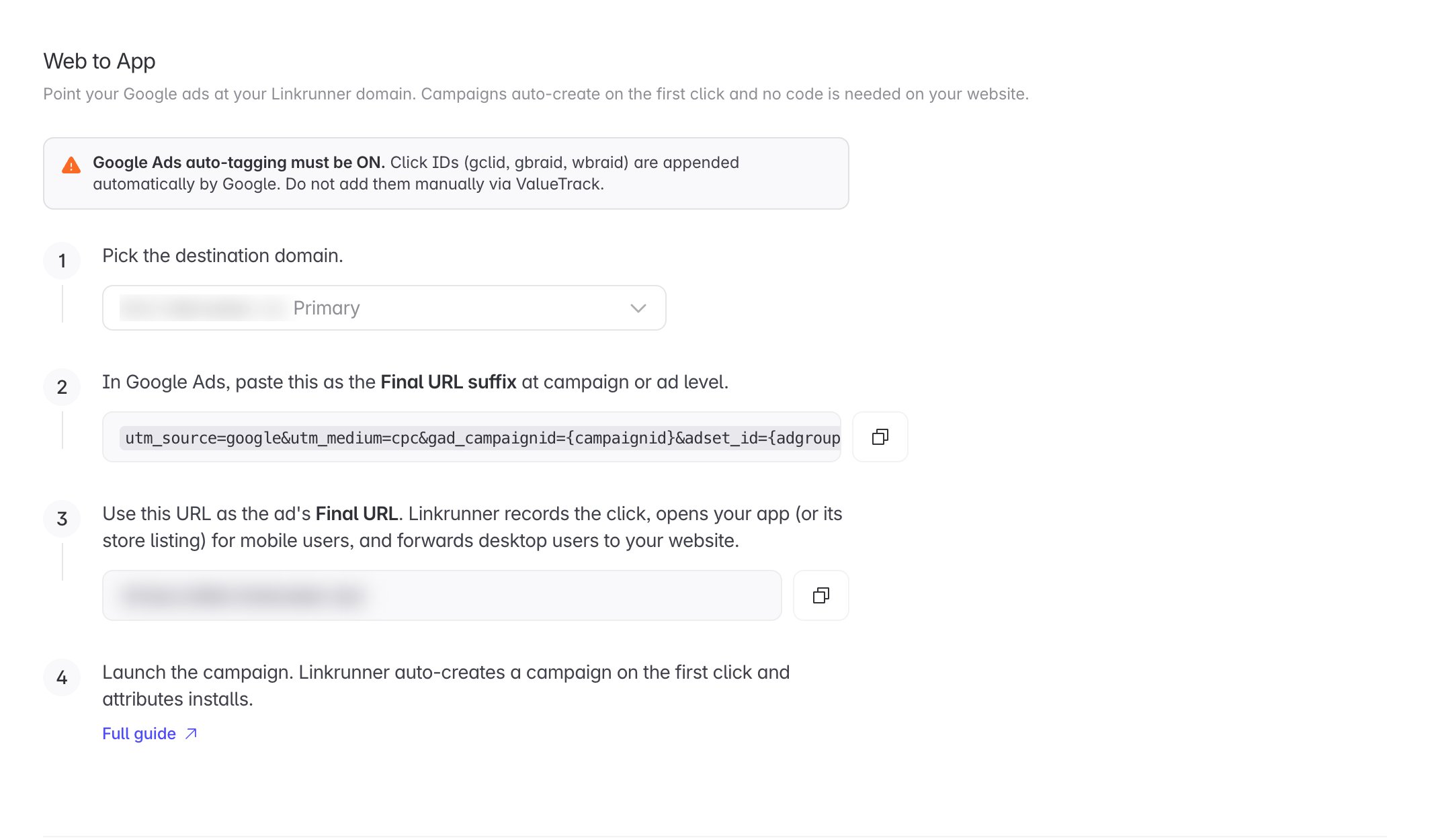 That is the entire website-side setup: there is none. Google appends the click IDs and your suffix parameters to this URL automatically, and Linkrunner handles the rest.
* **Mobile users** see a lightweight redirect page that opens your app if it is installed, or takes them to the App Store / Play Store.
* **Desktop users** are forwarded to your website with all parameters preserved.
Because your Linkrunner domain is a subdomain of your website's domain, it satisfies Google's display URL requirements.
Prefer to land users on your website first? Point the ad at your site as
usual, then make your Download button link to the same Linkrunner URL with
the full query string forwarded, for example
`"https:///" + window.location.search`. Without that
forwarding the click IDs never reach Linkrunner.
## Create Your First Campaign in Google Ads
Use this flow when you are creating a new Google Web to App campaign from scratch. Complete the account-level setup above first so auto-tagging, your Final URL suffix, and your Linkrunner domain are ready before traffic starts.
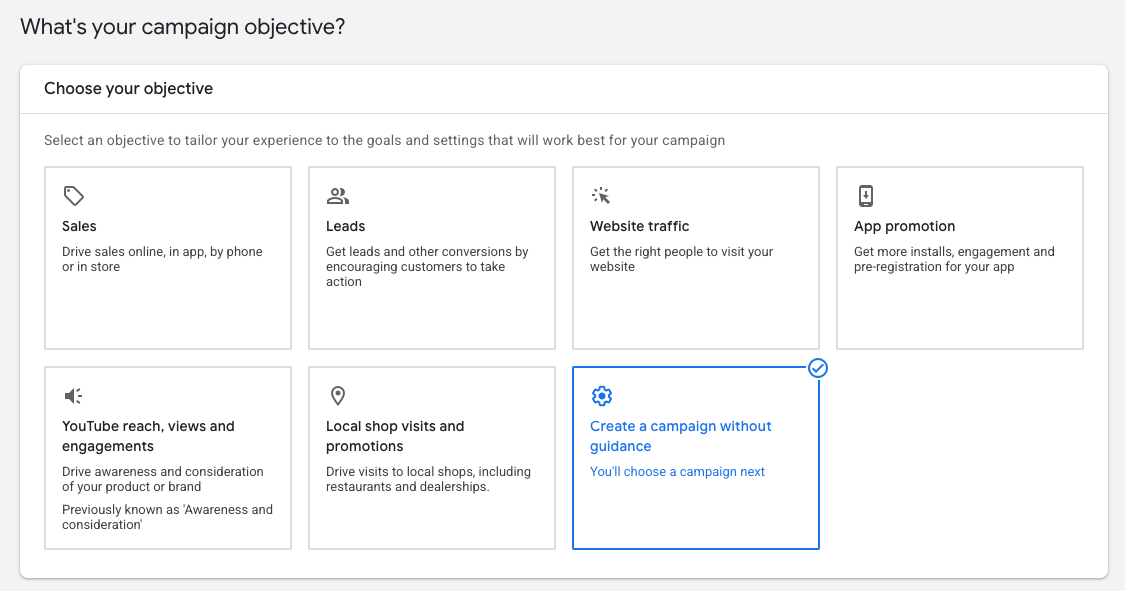
In Google Ads, click **New campaign**. On **What's your campaign objective?**, select **Create a campaign without guidance**.
That is the entire website-side setup: there is none. Google appends the click IDs and your suffix parameters to this URL automatically, and Linkrunner handles the rest.
* **Mobile users** see a lightweight redirect page that opens your app if it is installed, or takes them to the App Store / Play Store.
* **Desktop users** are forwarded to your website with all parameters preserved.
Because your Linkrunner domain is a subdomain of your website's domain, it satisfies Google's display URL requirements.
Prefer to land users on your website first? Point the ad at your site as
usual, then make your Download button link to the same Linkrunner URL with
the full query string forwarded, for example
`"https:///" + window.location.search`. Without that
forwarding the click IDs never reach Linkrunner.
## Create Your First Campaign in Google Ads
Use this flow when you are creating a new Google Web to App campaign from scratch. Complete the account-level setup above first so auto-tagging, your Final URL suffix, and your Linkrunner domain are ready before traffic starts.
In Google Ads, click **New campaign**. On **What's your campaign objective?**, select **Create a campaign without guidance**.
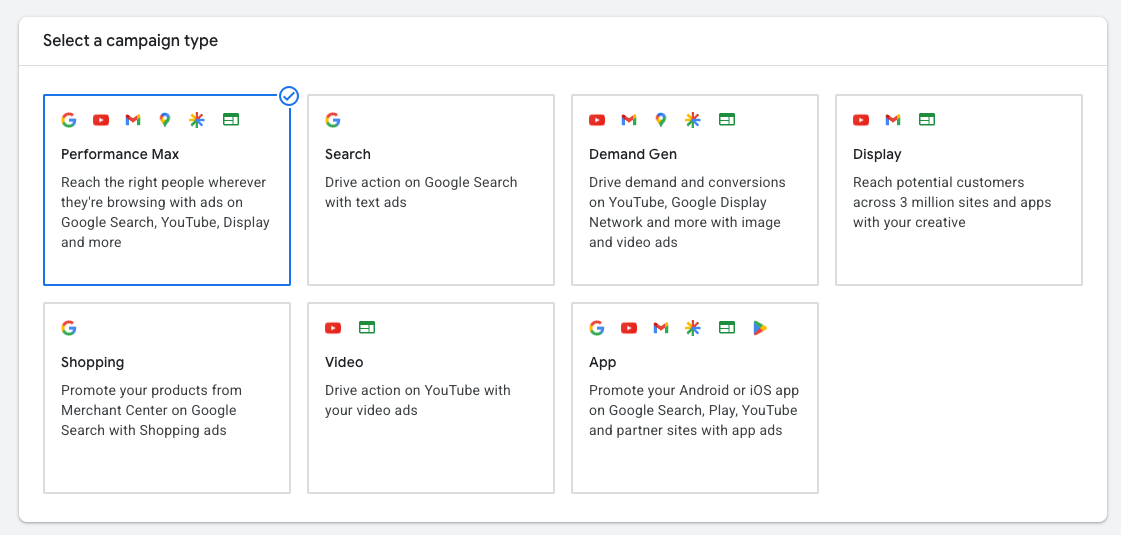
 On **Select a campaign type**, choose **Performance Max**.
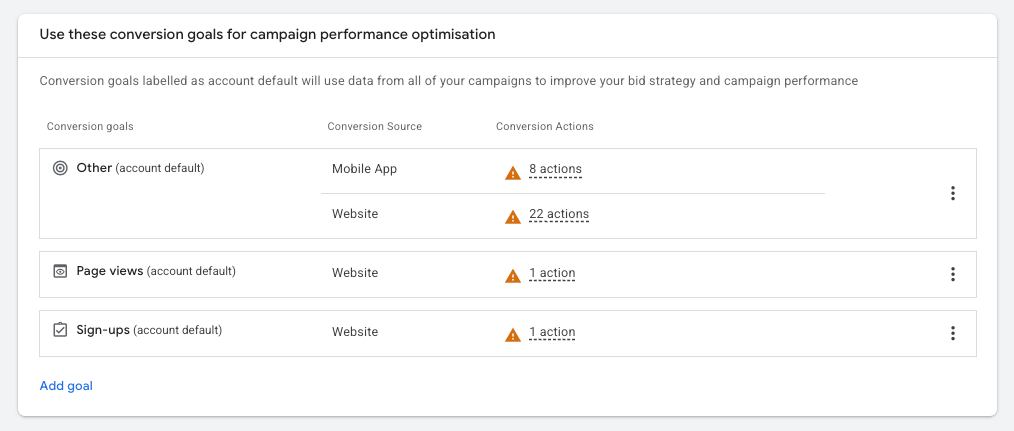
 Pick the conversion goals this campaign should optimize for (for example **Sign-ups** or **Purchases**). These are the Google goals your mapped conversion actions belong to, so the campaign bids toward real in-app outcomes, not just installs.
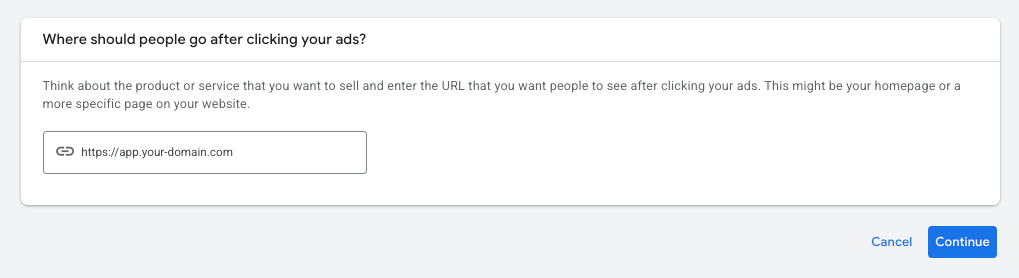
 When Google asks **Where should people go after clicking your ads?**, enter your Linkrunner domain as the destination URL:
```
https:///
```
Grab the exact URL from [Integrations → Google Ads → Web to App](https://dashboard.linkrunner.io/dashboard/integrations/google-ads?tab=web_to_app) using the **Copy** button. Do not paste the Final URL suffix in this field. Keep the suffix in **Tracking → Final URL suffix** at the account or campaign level.
When Google asks **Where should people go after clicking your ads?**, enter your Linkrunner domain as the destination URL:
```
https:///
```
Grab the exact URL from [Integrations → Google Ads → Web to App](https://dashboard.linkrunner.io/dashboard/integrations/google-ads?tab=web_to_app) using the **Copy** button. Do not paste the Final URL suffix in this field. Keep the suffix in **Tracking → Final URL suffix** at the account or campaign level.
 ## Send in-app conversions to Google
After installs are attributed, Linkrunner can upload in-app conversions (such as purchases or sign-ups) back to Google Ads. Google uses them to optimize your Search and Performance Max campaigns on real outcomes, not just installs.
This requires connecting with **Google Web to App Ads** so Linkrunner has permission to send conversions.
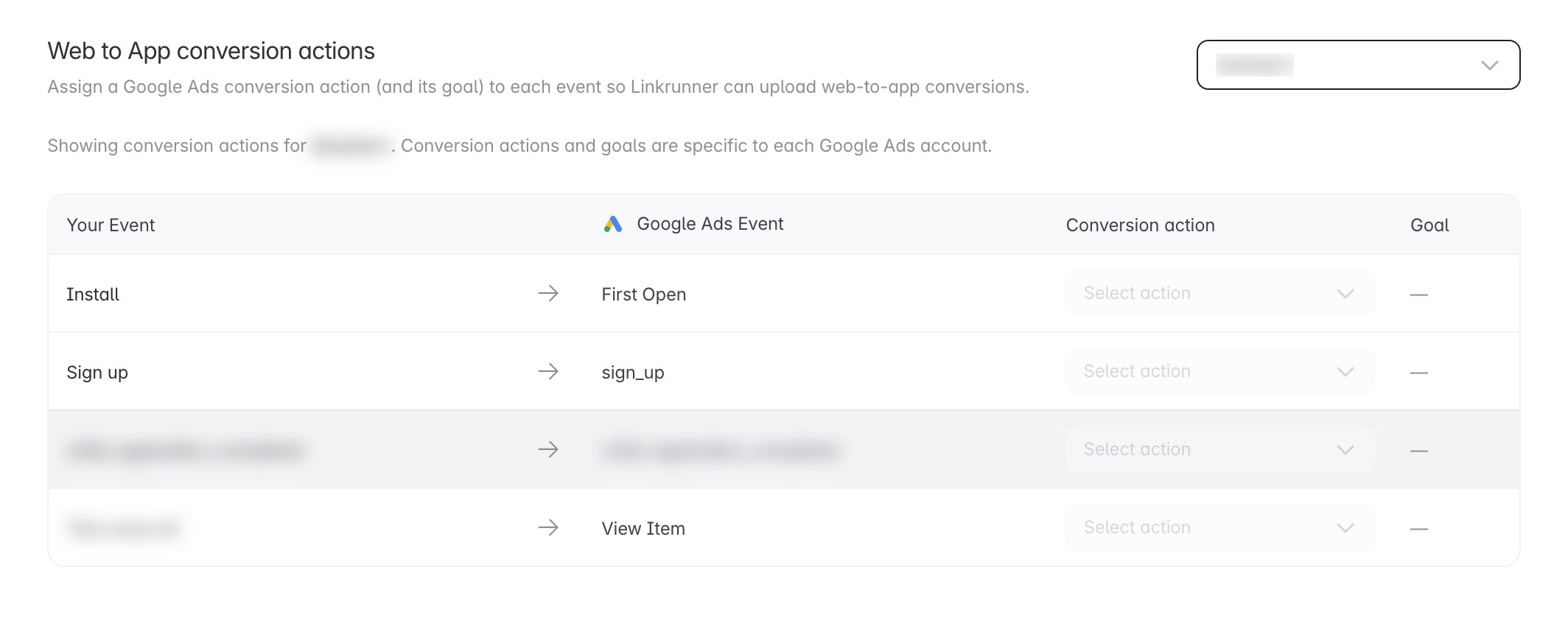
Go to [Integrations → Google Ads → Web to App](https://dashboard.linkrunner.io/dashboard/integrations/google-ads?tab=web_to_app) and scroll to the **conversion actions** section. It lists your Google event mappings; for each event you want to send (for example `purchase` or `sign_up`), pick a Google conversion action in the **Conversion action** column. If an event is not listed, add it under the **Event Mapping** tab first.
## Send in-app conversions to Google
After installs are attributed, Linkrunner can upload in-app conversions (such as purchases or sign-ups) back to Google Ads. Google uses them to optimize your Search and Performance Max campaigns on real outcomes, not just installs.
This requires connecting with **Google Web to App Ads** so Linkrunner has permission to send conversions.
Go to [Integrations → Google Ads → Web to App](https://dashboard.linkrunner.io/dashboard/integrations/google-ads?tab=web_to_app) and scroll to the **conversion actions** section. It lists your Google event mappings; for each event you want to send (for example `purchase` or `sign_up`), pick a Google conversion action in the **Conversion action** column. If an event is not listed, add it under the **Event Mapping** tab first.
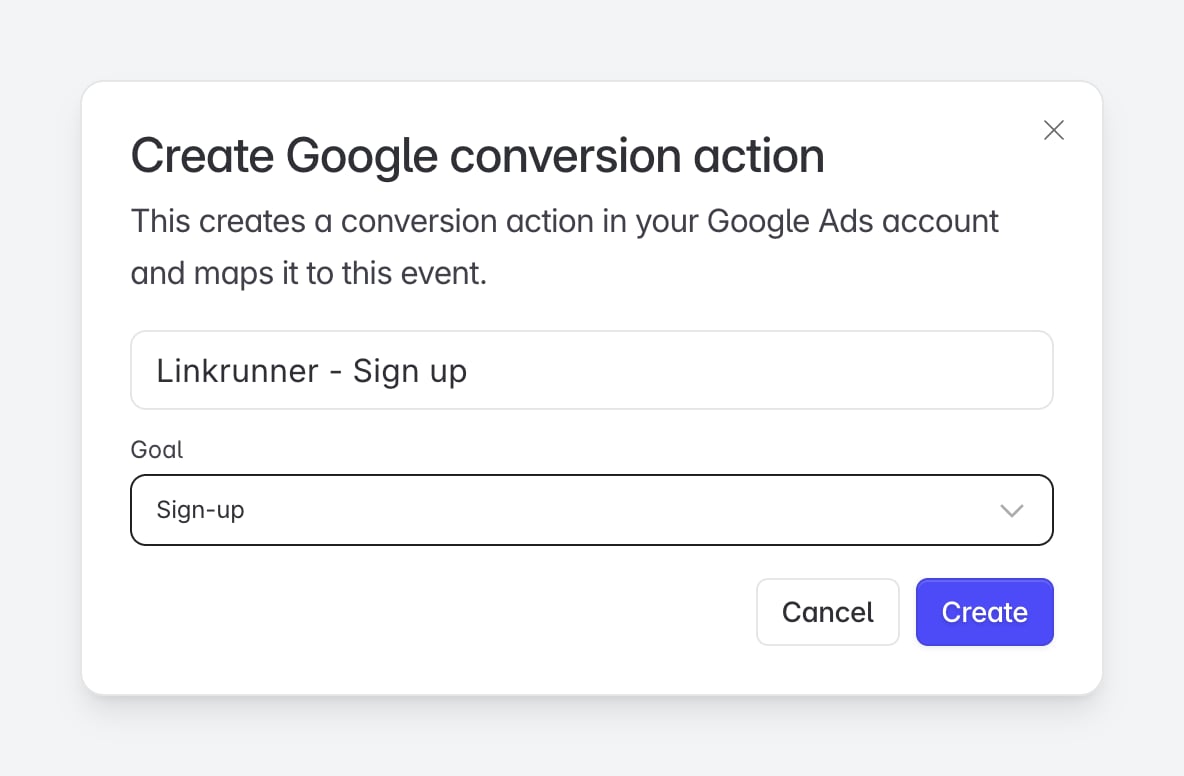
 If you do not have one yet, choose **Create new**, give it a name and a **Goal** (Sign-up, Purchase, and so on), and Linkrunner creates the conversion action in your Google Ads account under that goal and maps it in one step.
 Each conversion action belongs to a Google **goal** (Sign-up, Purchase, and so on), which decides how Google groups and optimizes it. Set or change it in the **Goal** column of the same table, and Linkrunner updates it in your Google Ads account, so you do not need to edit it there. A new action you create uses the goal you picked.
Setting the goal files the action under the right goal, but Google decides whether a goal drives bidding. In Google Ads, open **Goals → Conversions**, open the goal, and make sure the action is a **Primary** action (not Secondary) for the campaigns you want to optimize. Linkrunner sets the goal; you choose which goals your campaigns bid toward.
Run real traffic and confirm conversions appear against the conversion action in Google Ads. Uploads happen after attribution and can take a few hours to show.
If your project has more than one connected Google account, use the account
selector at the top of the conversion actions section to choose which
account's conversion actions you are mapping. Conversion actions are specific
to each Google Ads account.
## Click IDs: gclid, wbraid, and gbraid
Google appends different click IDs depending on the platform and tracking context. They land on your Linkrunner domain automatically; you never handle them yourself.
| Parameter | When it appears |
| --------- | -------------------------------------------------------------------------------------------------------------------------- |
| `gclid` | Most clicks. Present on Android and on iOS website-page clicks (often alongside `wbraid`). |
| `wbraid` | iOS clicks from a website landing page (Safari / browser-based flow). Arrives together with `gclid` when both are present. |
| `gbraid` | iOS clicks where Google routes directly into an app destination (app-destination ID). Less common in web-to-app flows. |
All three arrive automatically because the ad's Final URL is your Linkrunner domain. Linkrunner captures whichever IDs Google appends.
## Implementation Checklist
* [ ] Auto-tagging is enabled in Google Ads account settings
* [ ] Linkrunner subdomain is active (CNAME verified, SSL active)
* [ ] Final URL suffix is set at the account or campaign level
* [ ] Ad Final URL points at your Linkrunner domain (or your site's Download button forwards the full query string to it)
* [ ] End-to-end test: click a test ad, install the app, confirm attribution appears in the Linkrunner dashboard
* [ ] Google Ads account connected under Integrations → Google Ads using **Google Web to App Ads** to enable conversion uploads
* [ ] (Optional) Key events mapped to Google conversion actions under Web to App (with a goal set), and marked as Primary in Google Ads
## Troubleshooting
### Campaign not appearing in the Linkrunner dashboard
Linkrunner auto-creates a campaign on the first click that carries a valid `gad_campaignid` in the URL. If no campaign appears:
* Confirm the Final URL suffix includes `gad_campaignid={campaignid}` with the exact macro syntax.
* Verify the suffix is saved at the account or campaign level (not just at the ad level).
* Check that your Linkrunner subdomain is active (CNAME verified and SSL active).
* Click a test ad and inspect the URL you land on: `gad_campaignid` should be present on the Linkrunner domain URL.
### No installs attributed
* Confirm the ad's Final URL is your Linkrunner domain. If you link from your own website instead, confirm the Download button forwards the full query string to it.
* Check that the Linkrunner SDK is initialised in your app and calling the attribution endpoint on first open.
### Click IDs missing (gclid / wbraid / gbraid not on the click URL)
* This almost always means auto-tagging is off. Go to **Google Ads → Admin → Account settings → Auto-tagging** and confirm it is enabled.
* ValueTrack macros cannot substitute click IDs. Auto-tagging is the only source of `gclid`, `wbraid`, and `gbraid`.
### Spend not visible in reports
* Confirm your Google Ads account is connected under [Integrations → Google Ads](https://dashboard.linkrunner.io/dashboard/integrations/google-ads).
* Allow up to a few hours for the first spend data to appear after campaign launch.
* Make sure the campaign running in Google Ads matches the connected account.
### In-app conversions not reaching Google Ads
* Confirm the **Web to App** column under [Integrations → Google Ads](https://dashboard.linkrunner.io/dashboard/integrations/google-ads) shows enabled. If it shows reconnect, click it and sign in with **Google Web to App Ads**. The regular App Ads connection cannot upload conversions.
* Confirm the event is mapped to a conversion action under [Web to App](https://dashboard.linkrunner.io/dashboard/integrations/google-ads?tab=web_to_app).
* Make sure the conversion action is enabled in Google Ads and set as a goal for the campaign.
* Uploads happen after attribution and can take a few hours to appear in Google Ads.
***
**Need help?** Contact [support@linkrunner.io](mailto:support@linkrunner.io)
Each conversion action belongs to a Google **goal** (Sign-up, Purchase, and so on), which decides how Google groups and optimizes it. Set or change it in the **Goal** column of the same table, and Linkrunner updates it in your Google Ads account, so you do not need to edit it there. A new action you create uses the goal you picked.
Setting the goal files the action under the right goal, but Google decides whether a goal drives bidding. In Google Ads, open **Goals → Conversions**, open the goal, and make sure the action is a **Primary** action (not Secondary) for the campaigns you want to optimize. Linkrunner sets the goal; you choose which goals your campaigns bid toward.
Run real traffic and confirm conversions appear against the conversion action in Google Ads. Uploads happen after attribution and can take a few hours to show.
If your project has more than one connected Google account, use the account
selector at the top of the conversion actions section to choose which
account's conversion actions you are mapping. Conversion actions are specific
to each Google Ads account.
## Click IDs: gclid, wbraid, and gbraid
Google appends different click IDs depending on the platform and tracking context. They land on your Linkrunner domain automatically; you never handle them yourself.
| Parameter | When it appears |
| --------- | -------------------------------------------------------------------------------------------------------------------------- |
| `gclid` | Most clicks. Present on Android and on iOS website-page clicks (often alongside `wbraid`). |
| `wbraid` | iOS clicks from a website landing page (Safari / browser-based flow). Arrives together with `gclid` when both are present. |
| `gbraid` | iOS clicks where Google routes directly into an app destination (app-destination ID). Less common in web-to-app flows. |
All three arrive automatically because the ad's Final URL is your Linkrunner domain. Linkrunner captures whichever IDs Google appends.
## Implementation Checklist
* [ ] Auto-tagging is enabled in Google Ads account settings
* [ ] Linkrunner subdomain is active (CNAME verified, SSL active)
* [ ] Final URL suffix is set at the account or campaign level
* [ ] Ad Final URL points at your Linkrunner domain (or your site's Download button forwards the full query string to it)
* [ ] End-to-end test: click a test ad, install the app, confirm attribution appears in the Linkrunner dashboard
* [ ] Google Ads account connected under Integrations → Google Ads using **Google Web to App Ads** to enable conversion uploads
* [ ] (Optional) Key events mapped to Google conversion actions under Web to App (with a goal set), and marked as Primary in Google Ads
## Troubleshooting
### Campaign not appearing in the Linkrunner dashboard
Linkrunner auto-creates a campaign on the first click that carries a valid `gad_campaignid` in the URL. If no campaign appears:
* Confirm the Final URL suffix includes `gad_campaignid={campaignid}` with the exact macro syntax.
* Verify the suffix is saved at the account or campaign level (not just at the ad level).
* Check that your Linkrunner subdomain is active (CNAME verified and SSL active).
* Click a test ad and inspect the URL you land on: `gad_campaignid` should be present on the Linkrunner domain URL.
### No installs attributed
* Confirm the ad's Final URL is your Linkrunner domain. If you link from your own website instead, confirm the Download button forwards the full query string to it.
* Check that the Linkrunner SDK is initialised in your app and calling the attribution endpoint on first open.
### Click IDs missing (gclid / wbraid / gbraid not on the click URL)
* This almost always means auto-tagging is off. Go to **Google Ads → Admin → Account settings → Auto-tagging** and confirm it is enabled.
* ValueTrack macros cannot substitute click IDs. Auto-tagging is the only source of `gclid`, `wbraid`, and `gbraid`.
### Spend not visible in reports
* Confirm your Google Ads account is connected under [Integrations → Google Ads](https://dashboard.linkrunner.io/dashboard/integrations/google-ads).
* Allow up to a few hours for the first spend data to appear after campaign launch.
* Make sure the campaign running in Google Ads matches the connected account.
### In-app conversions not reaching Google Ads
* Confirm the **Web to App** column under [Integrations → Google Ads](https://dashboard.linkrunner.io/dashboard/integrations/google-ads) shows enabled. If it shows reconnect, click it and sign in with **Google Web to App Ads**. The regular App Ads connection cannot upload conversions.
* Confirm the event is mapped to a conversion action under [Web to App](https://dashboard.linkrunner.io/dashboard/integrations/google-ads?tab=web_to_app).
* Make sure the conversion action is enabled in Google Ads and set as a goal for the campaign.
* Uploads happen after attribution and can take a few hours to appear in Google Ads.
***
**Need help?** Contact [support@linkrunner.io](mailto:support@linkrunner.io)