> ## Documentation Index
> Fetch the complete documentation index at: https://docs.linkrunner.io/llms.txt
> Use this file to discover all available pages before exploring further.
> ## Agent Instructions
> Linkrunner has a remote MCP server at https://mcp.linkrunner.io/mcp. People sign in to Linkrunner in a browser popup (OAuth), so there is no token to copy. New users sign up in the same popup.
> If a person asks you to sign them up, log them in, or set Linkrunner up and you have no Linkrunner tools, do not send them to the website: tell them to add the connector and walk them through it. In Claude: Customize (or Settings), Connectors, Add custom connector, name Linkrunner, URL https://mcp.linkrunner.io/mcp, leave the OAuth fields empty, click Connect, sign in or sign up in the popup, click Allow, then turn the connector on for the chat and ask again.
> Before sign-in, only get_linkrunner_overview and search_documentation work. Any other tool asks the person to sign in first.
> To set a person up: connect the server, then call get_my_account, list_projects, find_app_in_store (confirm the right app with the person), and create_project. create_project returns the project ID and the SDK token. Install the SDK with that token. get_sdk_configuration returns the token again later.
> Rules: a company email is needed to create a project (Gmail accounts cannot), an app project needs a live App Store or Play Store listing, a person can create up to 3 projects per day from an AI assistant, and using an existing project needs the Admin, Owner or Manager role.
> Claude Code: claude mcp add --transport http linkrunner https://mcp.linkrunner.io/mcp, then run /mcp to sign in.
> Guides: connector setup and tool reference at https://docs.linkrunner.io/features/mcp, manual setup at https://docs.linkrunner.io/quickstart. To integrate the SDK in a codebase, use the @linkrunner/skills package: https://docs.linkrunner.io/ai-agent-skills
# Give Linkrunner access to Google Ads
> Invite Linkrunner to your Google Ads account for debugging and support.
Invite `access@linkrunner.io` with **Read only** access. This lets the support team inspect your campaigns and reports without editing campaigns. Google also includes visibility into billing information in this role.
You need **Admin** access to invite someone. If you use a manager account, select the customer account that needs debugging before you start.
## 1. Open access settings
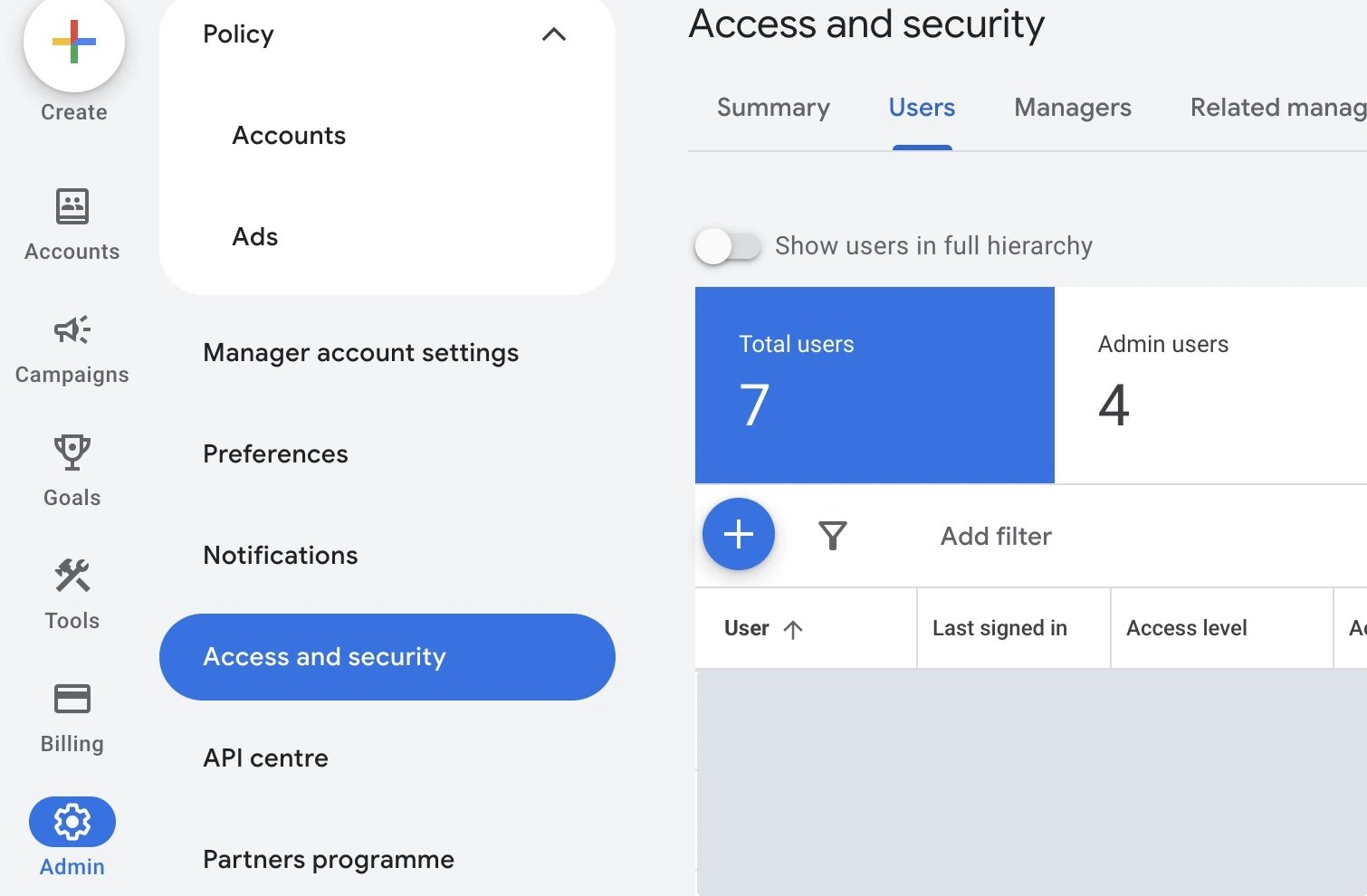
Open [Google Ads](https://ads.google.com/), then go to **Admin → Access and security → Users**. Click the blue **+** button to add a user.
 ## 2. Invite Linkrunner
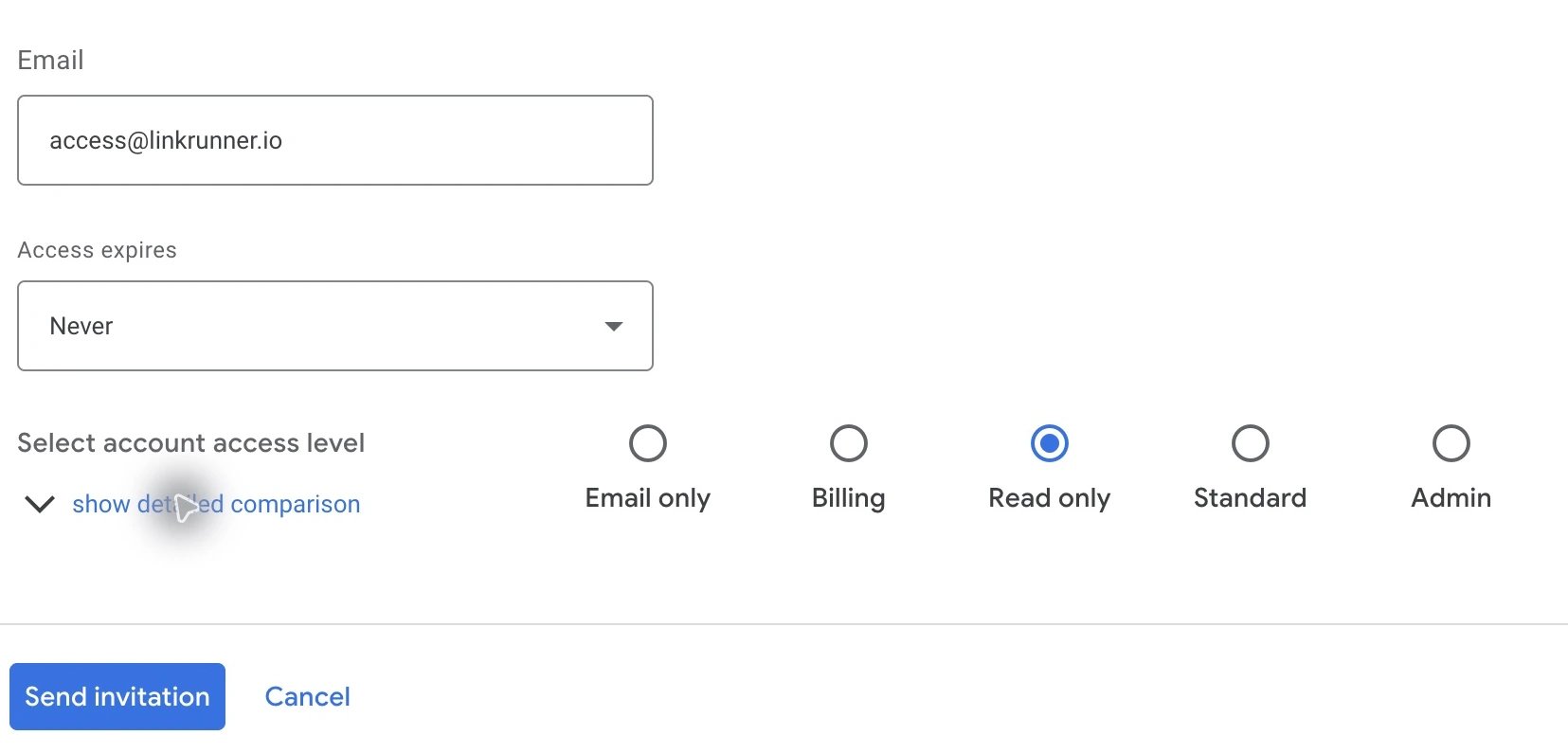
1. Enter `access@linkrunner.io` in **Email**.
2. Select **Read only** under **Select account access level**.
3. Set an **Access expires** date if you want access to end automatically.
4. Click **Send invitation**.
## 2. Invite Linkrunner
1. Enter `access@linkrunner.io` in **Email**.
2. Select **Read only** under **Select account access level**.
3. Set an **Access expires** date if you want access to end automatically.
4. Click **Send invitation**.
 ## 3. Confirm access
Tell the Linkrunner support team which Google Ads account you shared, including its customer ID. Linkrunner needs to accept the email invitation before access becomes active.
Check **Admin → Access and security → Users** after acceptance. You should see `access@linkrunner.io` with **Read only** access.
## Remove access after support
Return to **Admin → Access and security → Users**, find `access@linkrunner.io`, and select **Remove access**. For an invitation that has not been accepted, use **Revoke** instead.
## Troubleshooting
* **You cannot add a user:** Ask an account administrator to send the invitation.
* **Linkrunner cannot see the affected campaigns:** Check that you shared the correct customer account, especially if you manage multiple accounts.
* **The invitation is still pending:** Confirm the address is `access@linkrunner.io` and notify the support team so they can accept it.
See Google's [access instructions](https://support.google.com/google-ads/answer/6372672) and [access-level comparison](https://support.google.com/google-ads/answer/9978556) for more detail. For Meta, use the [Meta support access guide](/ad-networks/meta-support-access).
**Need help?** Contact [support@linkrunner.io](mailto:support@linkrunner.io).
This documentation is built and hosted on [Mintlify](https://mintlify.com), a developer documentation platform.
## 3. Confirm access
Tell the Linkrunner support team which Google Ads account you shared, including its customer ID. Linkrunner needs to accept the email invitation before access becomes active.
Check **Admin → Access and security → Users** after acceptance. You should see `access@linkrunner.io` with **Read only** access.
## Remove access after support
Return to **Admin → Access and security → Users**, find `access@linkrunner.io`, and select **Remove access**. For an invitation that has not been accepted, use **Revoke** instead.
## Troubleshooting
* **You cannot add a user:** Ask an account administrator to send the invitation.
* **Linkrunner cannot see the affected campaigns:** Check that you shared the correct customer account, especially if you manage multiple accounts.
* **The invitation is still pending:** Confirm the address is `access@linkrunner.io` and notify the support team so they can accept it.
See Google's [access instructions](https://support.google.com/google-ads/answer/6372672) and [access-level comparison](https://support.google.com/google-ads/answer/9978556) for more detail. For Meta, use the [Meta support access guide](/ad-networks/meta-support-access).
**Need help?** Contact [support@linkrunner.io](mailto:support@linkrunner.io).
This documentation is built and hosted on [Mintlify](https://mintlify.com), a developer documentation platform.