> ## Documentation Index
> Fetch the complete documentation index at: https://docs.linkrunner.io/llms.txt
> Use this file to discover all available pages before exploring further.
# Google Ads
> Connect your app with Google Ads for enhanced campaign tracking and optimization
## Overview
Google Ads integration with Linkrunner enables you to track conversions and optimize your app campaigns directly within the Google Ads platform. This integration allows you to import events from your app into Google Ads as conversion actions, providing better insights into your campaign performance and user behavior.
## Setup Process
Setting up Google Ads integration involves three main steps: creating a link ID for your mobile app, mapping events in Linkrunner, and importing events for conversion tracking.
## 1. Create Link ID for Android/iOS App
To connect your mobile app with Google Ads, you'll need to create a link ID that enables data sharing between Linkrunner and Google Ads.
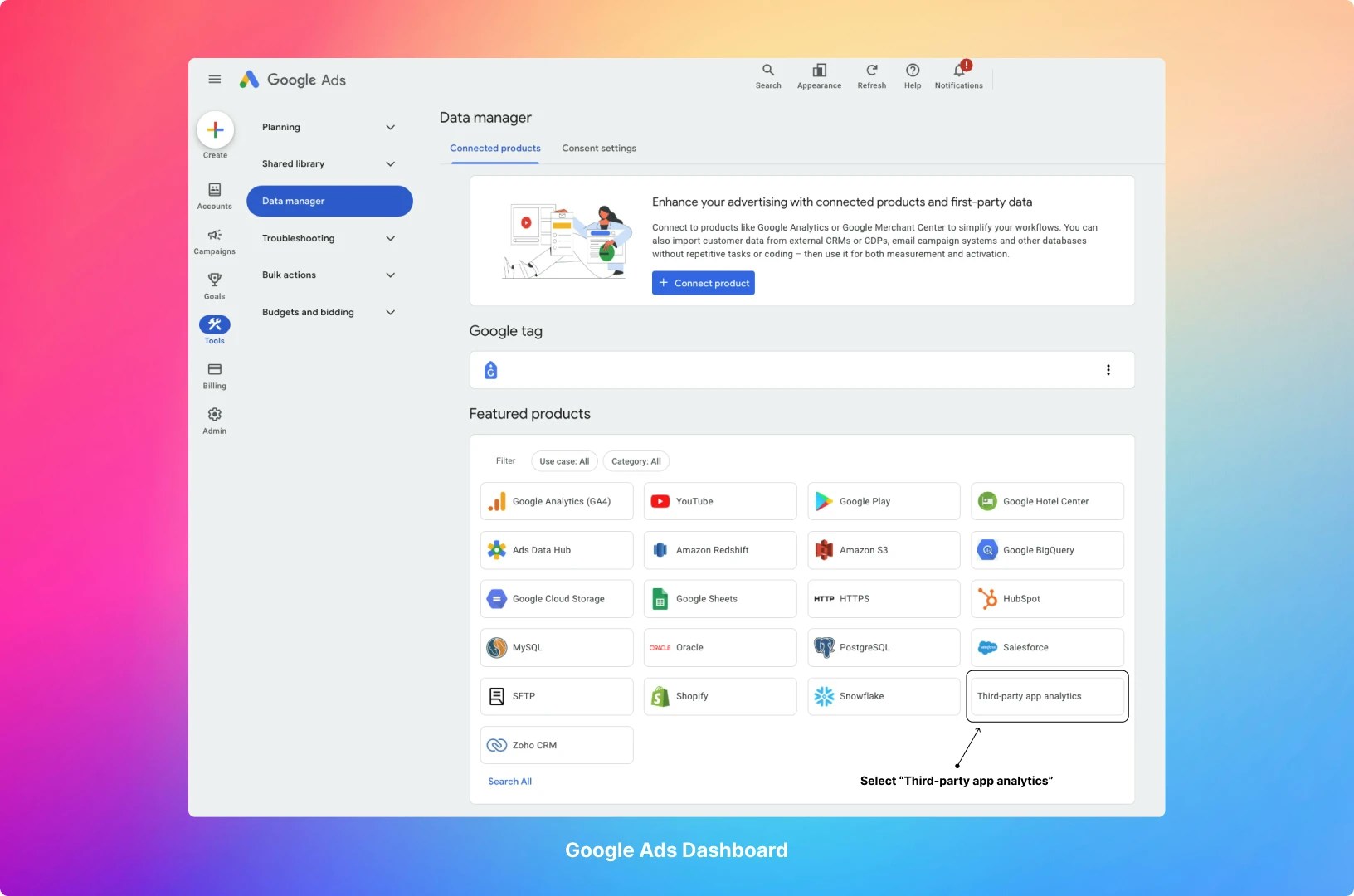
### Step 1: Access Third-party App Analytics
1. Go to your Google Ads dashboard
2. Navigate to **Tools** (side panel) → **Data Manager** → **Third-party app Analytics**
3. Or visit directly: [https://ads.google.com/aw/productlinks/thirdpartyappanalytics](https://ads.google.com/aw/productlinks/thirdpartyappanalytics) and click on **Create Link ID**
 ### Step 2: Add App Analytics Provider
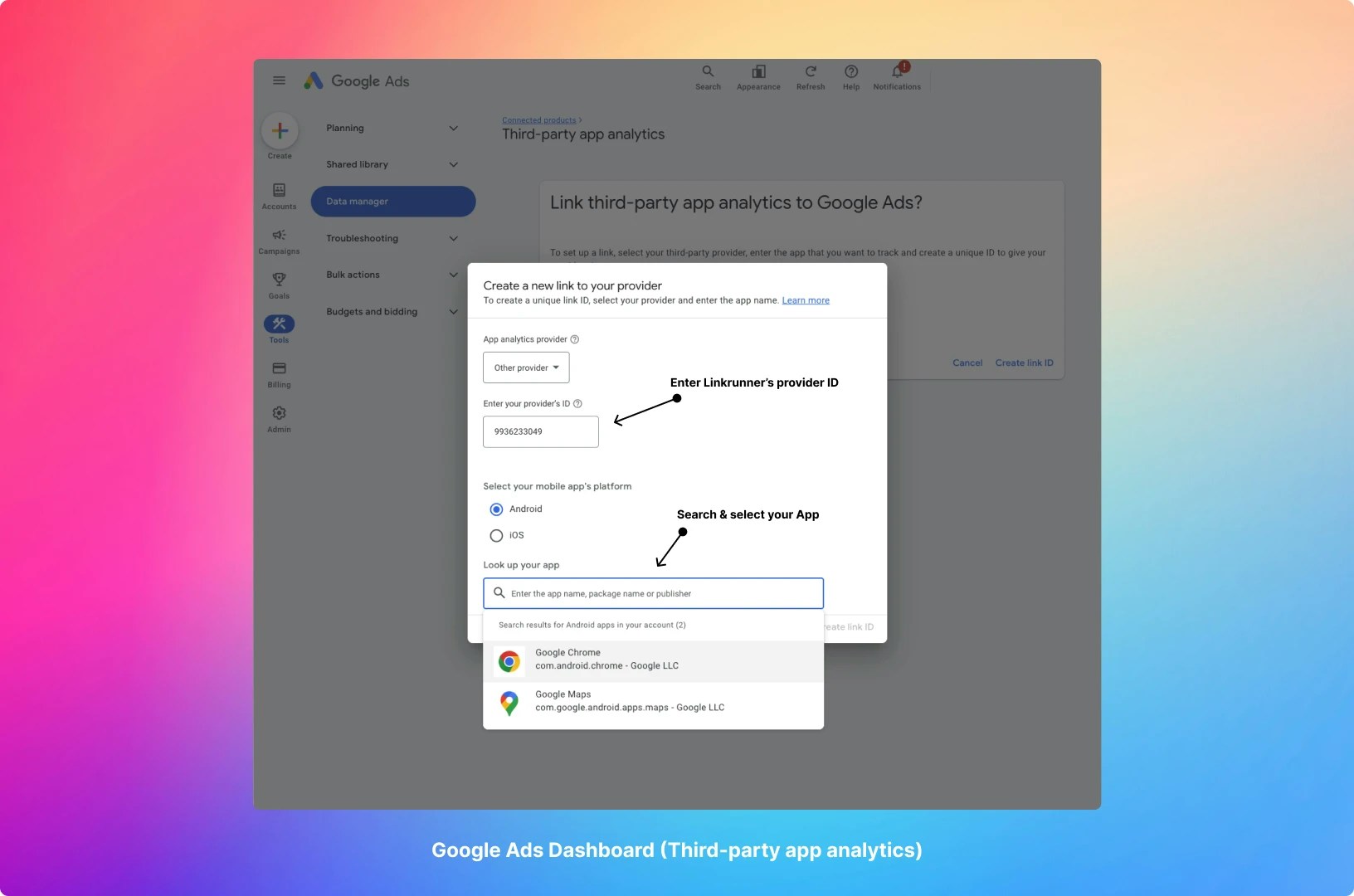
1. In the Third-party app analytics section, click on the **"+ Create link ID"**
2. Select **"Other provider"** from the App analytics provider dropdown menu
3. Enter the following provider ID: `9936233049`
4. Select the platform (iOS or Android) and search for your app
5. Click on **"Create link ID"**
### Step 2: Add App Analytics Provider
1. In the Third-party app analytics section, click on the **"+ Create link ID"**
2. Select **"Other provider"** from the App analytics provider dropdown menu
3. Enter the following provider ID: `9936233049`
4. Select the platform (iOS or Android) and search for your app
5. Click on **"Create link ID"**
 ### Step 3: Configure in Linkrunner Dashboard
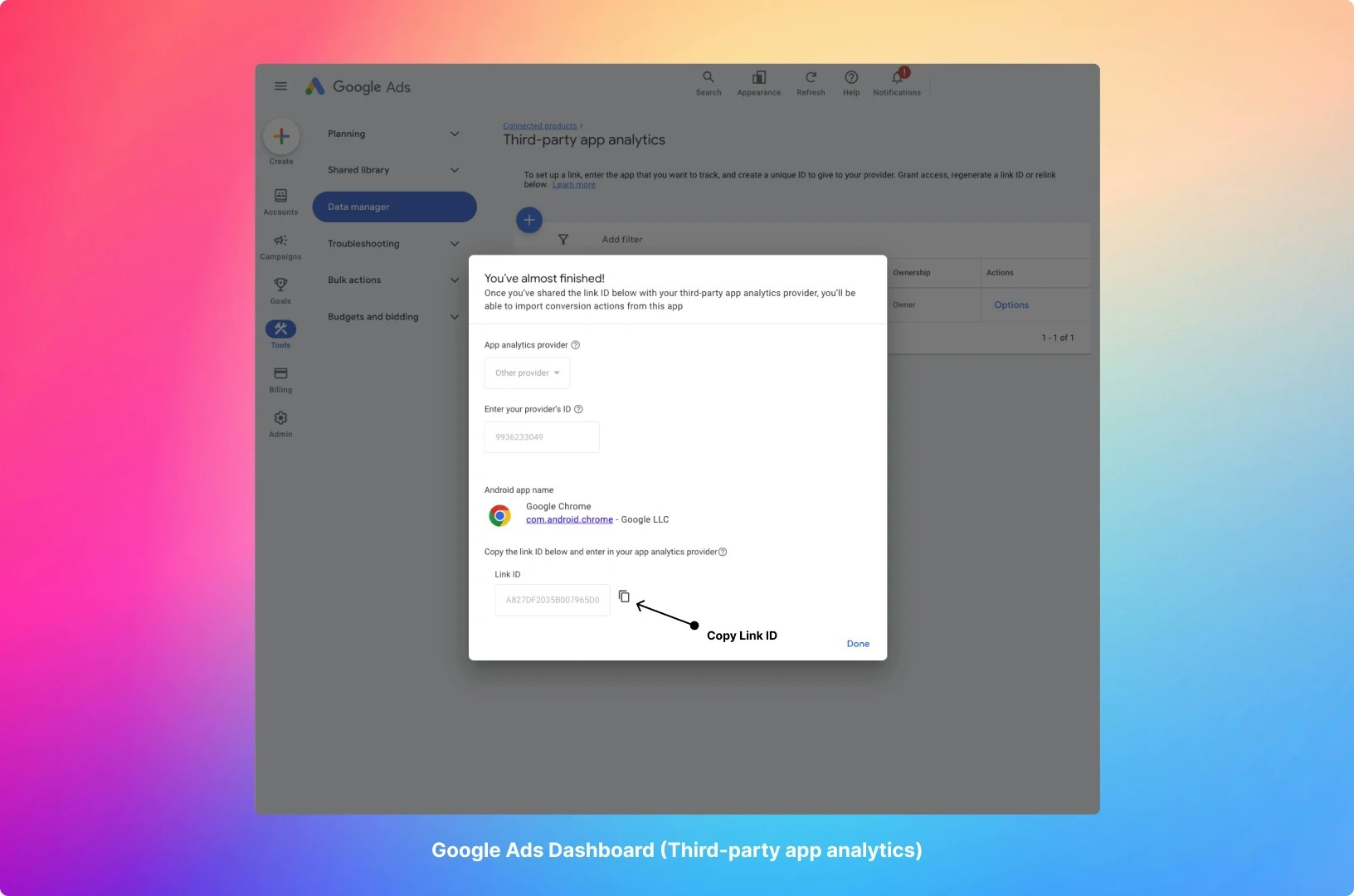
1. Copy the received link ID from Google Ads
2. Navigate to your Linkrunner Dashboard
3. Go to [Settings → Google Ads integration](https://linkrunner.io/settings?s=google-ads-integration)
4. Paste the link ID in the designated field
5. Save your configuration
### Step 3: Configure in Linkrunner Dashboard
1. Copy the received link ID from Google Ads
2. Navigate to your Linkrunner Dashboard
3. Go to [Settings → Google Ads integration](https://linkrunner.io/settings?s=google-ads-integration)
4. Paste the link ID in the designated field
5. Save your configuration
 ## 2. Set Up Event Mapping
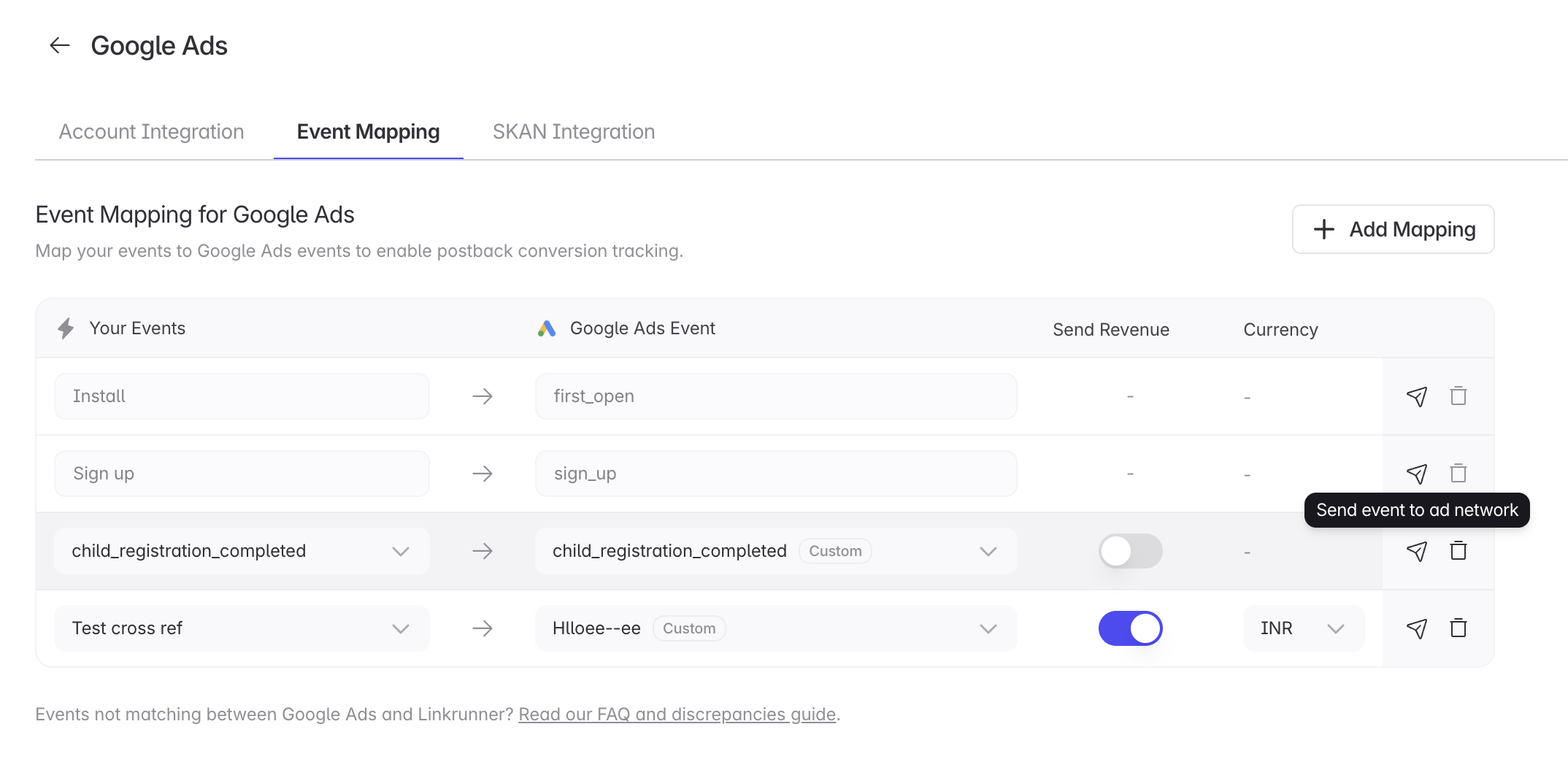
Map your app events to Google Ads events so Linkrunner can send postback conversions.
**Install** and **Sign up** are included by default as `first_open` and `sign_up`. You do not need to add mappings
for these events.
1. Go to [Google Ads Event Mapping](https://dashboard.linkrunner.io/dashboard/integrations/google-ads?tab=event_mapping)
2. Click **Add Mapping**
3. Select your event under **Your Events**
4. Select the matching **Google Ads Event**
5. Turn on **Send Revenue** only for revenue events, then choose the **Currency**
6. Click **Save**
7. Click the paper plane **Send event to ad network** icon to fire a test event
## 2. Set Up Event Mapping
Map your app events to Google Ads events so Linkrunner can send postback conversions.
**Install** and **Sign up** are included by default as `first_open` and `sign_up`. You do not need to add mappings
for these events.
1. Go to [Google Ads Event Mapping](https://dashboard.linkrunner.io/dashboard/integrations/google-ads?tab=event_mapping)
2. Click **Add Mapping**
3. Select your event under **Your Events**
4. Select the matching **Google Ads Event**
5. Turn on **Send Revenue** only for revenue events, then choose the **Currency**
6. Click **Save**
7. Click the paper plane **Send event to ad network** icon to fire a test event
 After Linkrunner sends an event, it can take up to **6 hours** to appear in Google Ads.
If an event is not available as a conversion action in Google Ads, fire a test event from Linkrunner, then import it
from **Goals** → **Conversions** → **Summary** after Google finishes processing it.
## 3. Importing Events for Conversion Actions Setup
After creating the link ID and mapping events in Linkrunner, you can import app events into Google Ads to set up conversion tracking.
### Step 1: Access Conversions Dashboard
1. On Google Ads Dashboard, navigate to **Goals** \[sidebar] → **Conversions** → **Summary**
2. Or visit directly: [https://ads.google.com/aw/conversions](https://ads.google.com/aw/conversions)
### Step 2: Create Conversion Action
1. Click on **"+ Create conversion action"**
2. On the "Start tracking conversions" popup:
* Select **"App"**
* Then select **"Third-party app analytics"**
* Press **Continue**
### Step 3: Import Events
1. Select all the events you want to import from the available list
2. To get started, we recommend selecting the `first_open` event
3. Configure additional settings as needed for each conversion action
4. Save your conversion actions
## Important Notes
After generating the link ID, it might take up to **12 hours** for the events to show up in Google Ads. This is a
normal processing delay from Google's side.
Start with basic events like `first_open` to verify the integration is working before adding more complex conversion
events.
## FAQ and Discrepancies
For answers to common questions and an explanation of why numbers in Google Ads may not exactly match Linkrunner, see [Google Ads FAQ and Discrepancies](/ad-networks/google-ads-discrepancies).
## Troubleshooting
### Events Not Showing Up
* Ensure the link ID was copied correctly
* Verify the event is mapped in [Google Ads Event Mapping](https://dashboard.linkrunner.io/dashboard/integrations/google-ads?tab=event_mapping)
* Wait the full 12 hours for Google's processing
* Verify that your app is sending events to Linkrunner
### Re-enabling Previously Deleted Events
If you previously added an event as a conversion action and then deleted it, the event won't appear in the "Create conversion action" flow when you try to add it again. Instead of creating a new conversion action, you need to re-enable the existing (deleted) one.
#### Step 1: Navigate to All Conversion Actions
1. Go to **Goals** → **Conversions** → **Summary** in the sidebar
2. Click on **"View all conversion actions"** link
After Linkrunner sends an event, it can take up to **6 hours** to appear in Google Ads.
If an event is not available as a conversion action in Google Ads, fire a test event from Linkrunner, then import it
from **Goals** → **Conversions** → **Summary** after Google finishes processing it.
## 3. Importing Events for Conversion Actions Setup
After creating the link ID and mapping events in Linkrunner, you can import app events into Google Ads to set up conversion tracking.
### Step 1: Access Conversions Dashboard
1. On Google Ads Dashboard, navigate to **Goals** \[sidebar] → **Conversions** → **Summary**
2. Or visit directly: [https://ads.google.com/aw/conversions](https://ads.google.com/aw/conversions)
### Step 2: Create Conversion Action
1. Click on **"+ Create conversion action"**
2. On the "Start tracking conversions" popup:
* Select **"App"**
* Then select **"Third-party app analytics"**
* Press **Continue**
### Step 3: Import Events
1. Select all the events you want to import from the available list
2. To get started, we recommend selecting the `first_open` event
3. Configure additional settings as needed for each conversion action
4. Save your conversion actions
## Important Notes
After generating the link ID, it might take up to **12 hours** for the events to show up in Google Ads. This is a
normal processing delay from Google's side.
Start with basic events like `first_open` to verify the integration is working before adding more complex conversion
events.
## FAQ and Discrepancies
For answers to common questions and an explanation of why numbers in Google Ads may not exactly match Linkrunner, see [Google Ads FAQ and Discrepancies](/ad-networks/google-ads-discrepancies).
## Troubleshooting
### Events Not Showing Up
* Ensure the link ID was copied correctly
* Verify the event is mapped in [Google Ads Event Mapping](https://dashboard.linkrunner.io/dashboard/integrations/google-ads?tab=event_mapping)
* Wait the full 12 hours for Google's processing
* Verify that your app is sending events to Linkrunner
### Re-enabling Previously Deleted Events
If you previously added an event as a conversion action and then deleted it, the event won't appear in the "Create conversion action" flow when you try to add it again. Instead of creating a new conversion action, you need to re-enable the existing (deleted) one.
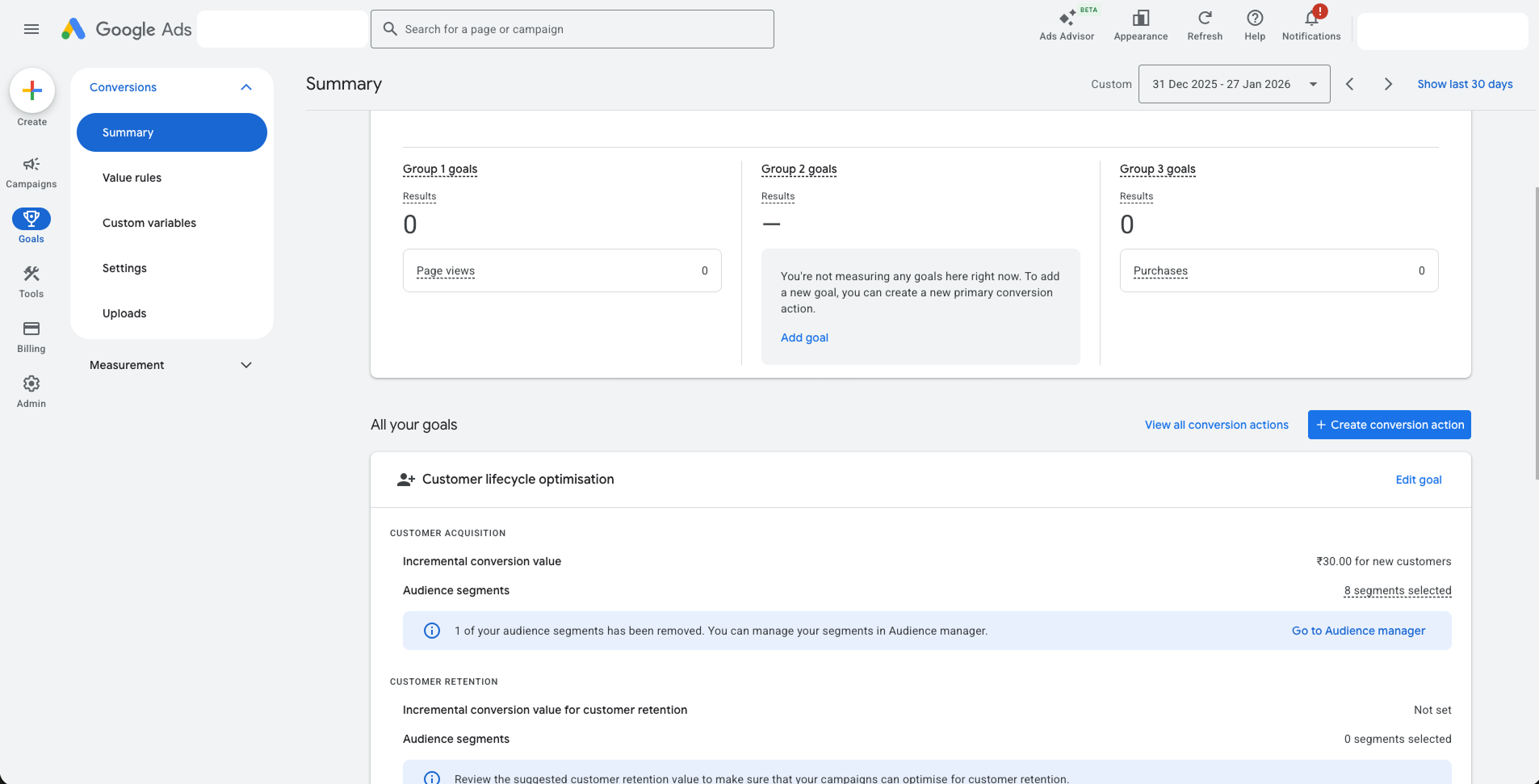
#### Step 1: Navigate to All Conversion Actions
1. Go to **Goals** → **Conversions** → **Summary** in the sidebar
2. Click on **"View all conversion actions"** link
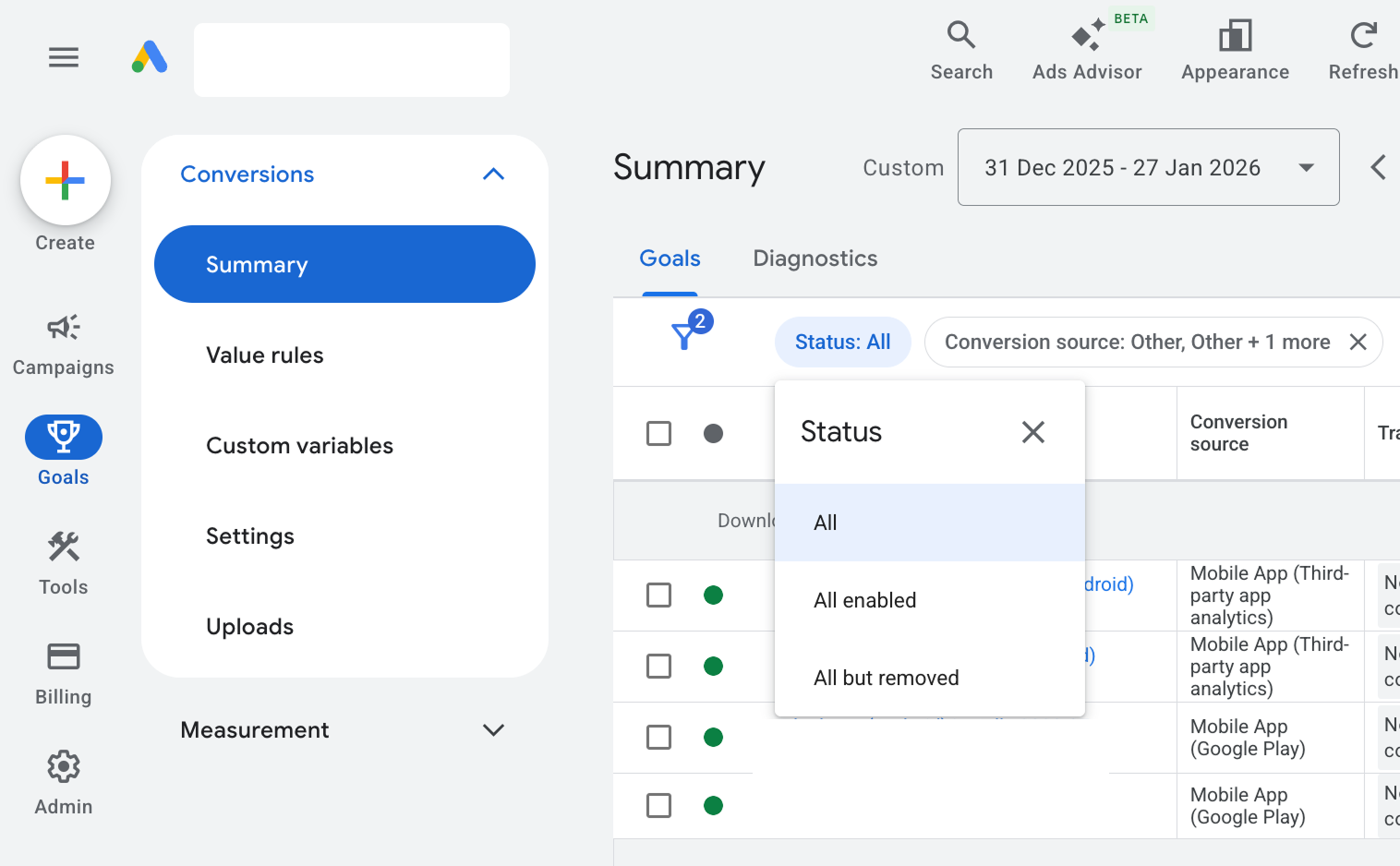
 #### Step 2: Set Filter to Show All Conversions
1. Click on the **Status** filter
2. Select **"All"** from the dropdown to show both enabled and removed conversion actions
#### Step 2: Set Filter to Show All Conversions
1. Click on the **Status** filter
2. Select **"All"** from the dropdown to show both enabled and removed conversion actions
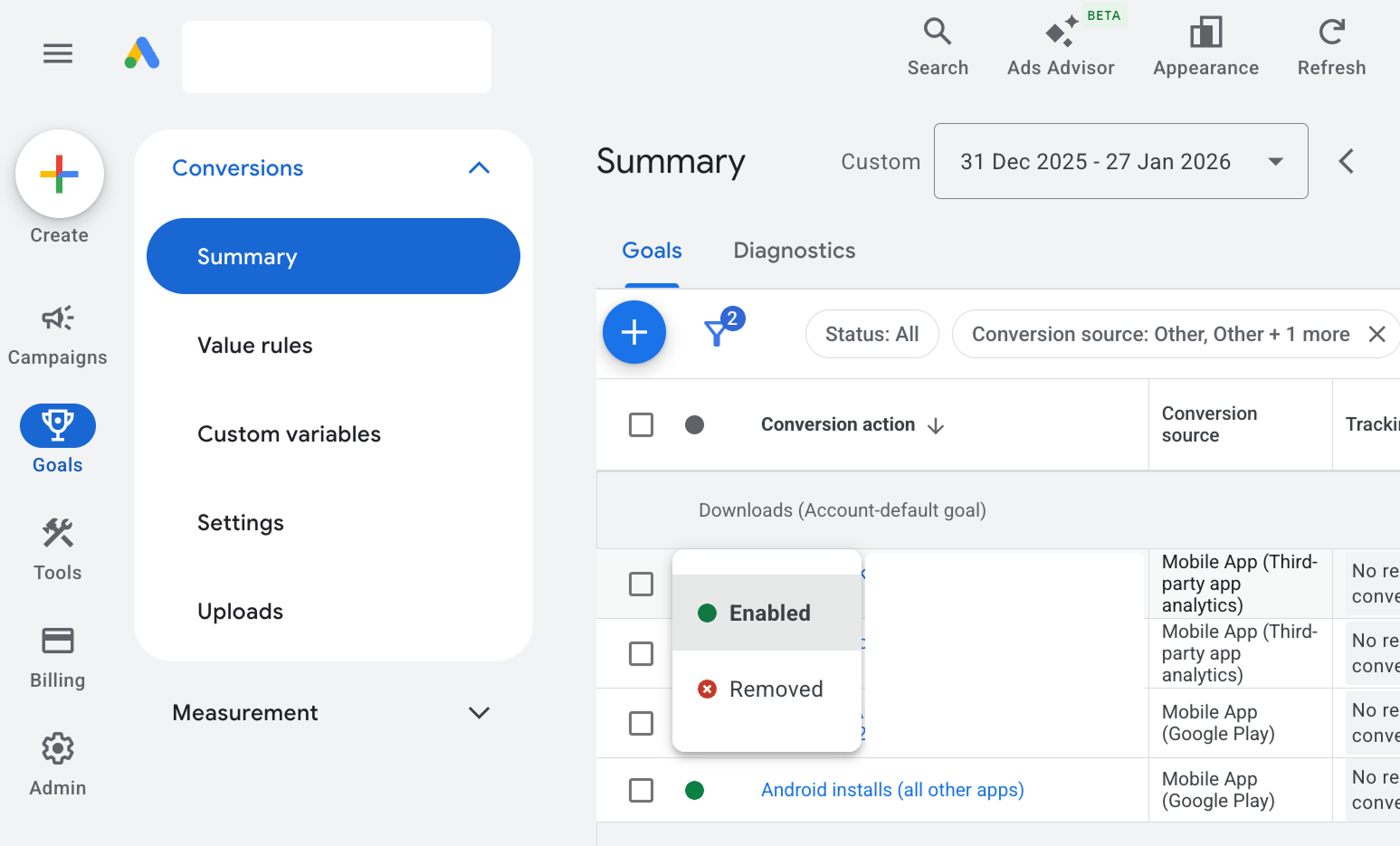
 #### Step 3: Re-enable the Deleted Event
1. Find your previously deleted event in the list
2. Click on the status indicator (red "Removed" icon) next to the event
3. Select **"Enabled"** from the dropdown menu
#### Step 3: Re-enable the Deleted Event
1. Find your previously deleted event in the list
2. Click on the status indicator (red "Removed" icon) next to the event
3. Select **"Enabled"** from the dropdown menu
 Your event will now be active again and will start tracking conversions.
### Link ID Creation Issues
* Make sure you've selected the correct platform (iOS/Android)
* Verify your app is published and searchable in the respective app store
* Double-check the provider ID: `9936233049`
***
For any questions or assistance with Google Ads integration, please contact us at [support@linkrunner.io](mailto:support@linkrunner.io).
Your event will now be active again and will start tracking conversions.
### Link ID Creation Issues
* Make sure you've selected the correct platform (iOS/Android)
* Verify your app is published and searchable in the respective app store
* Double-check the provider ID: `9936233049`
***
For any questions or assistance with Google Ads integration, please contact us at [support@linkrunner.io](mailto:support@linkrunner.io).